There isn’t one universal “convert anything to anything” button — ToolFlexy’s free image format converter is actually 8 separate, purpose-built tools, each handling one specific format pair (PNG to JPG, WEBP to PNG, HEIC to JPG, and five more), all running entirely in your browser so the file never leaves your device.
Why a Free Image Format Converter Needs to Be Format-Specific
A single generic “convert any image” tool would need to guess at defaults that make sense for every possible format pair — a quality setting appropriate for JPG compression doesn’t mean anything for a lossless PNG, and a transparency-handling decision that matters for WEBP doesn’t apply to a format that never had transparency in the first place. Building 8 separate tools instead of one generic converter means each page’s options (quality slider, max-width, batch handling) are actually relevant to the specific conversion happening on it, rather than a one-size-fits-all settings panel with options that only apply half the time.
The 8 Converters, and What Each One Is Actually For
| Converter | When you’d need it |
|---|---|
| PNG to JPG | Shrinking a large PNG screenshot or graphic for email or web use |
| JPG to PNG | Adding a transparent background to a photo, or prepping it for further editing |
| WEBP to PNG | Opening a WebP image in software that doesn’t support the format |
| PNG to WEBP | Shrinking file size for a website without losing transparency |
| JPG to WEBP | Modernizing older JPG assets for faster page loads |
| HEIC to JPG | Opening an iPhone photo on a device or app that can’t read HEIC |
| SVG to PNG | Turning a scalable vector graphic into a fixed-size raster image |
| GIF to PNG | Pulling a single static frame out of an animated GIF |
Each tool accepts up to 20MB per file, or a whole folder up to 100MB in one batch, and decodes and re-encodes the image directly inside your browser — nothing is uploaded to a server in the process.
Two Conversion Gotchas Worth Knowing Before You Start
Converting a transparent PNG to JPG flattens the transparency. JPEG has no alpha channel at all, so any see-through area in the original PNG gets filled in with a solid background color (usually white) rather than staying transparent — a common surprise when converting a logo or graphic that was designed to sit on any background color.
Converting an animated GIF to PNG or JPG keeps only one frame. Since PNG and JPG are both single-image formats, running an animated GIF through a GIF-to-PNG converter captures just one frame — typically the first — and silently discards the rest of the animation. If you need the whole animation preserved in a different format, PNG and JPG aren’t the right target regardless of which converter you use.
JPG vs. PNG vs. WEBP vs. GIF: The Real Differences
According to MDN’s image format reference, each format makes a genuinely different tradeoff rather than just looking different:
- JPG is lossy with no transparency support — the right choice for photos where small file size matters more than pixel-perfect accuracy.
- PNG is lossless with full transparency support — the right choice for logos, screenshots, and anything with sharp edges or text that shouldn’t blur or band.
- WEBP supports both lossy and lossless modes plus transparency and animation, and typically runs 25-35% smaller than an equivalent-quality JPG — modern browsers all support it, making it a solid default for web use where file size matters.
- GIF is limited to 256 colors and indexed (all-or-nothing) transparency rather than PNG’s smooth alpha blending, but it’s still the only one of these four with native animation support.
Why HEIC to JPG Is the Most-Needed Conversion Here
HEIC is Apple’s default photo format on iPhone and Mac, and it has historically had inconsistent support outside Apple’s own ecosystem — a photo that opens instantly on an iPhone can show up as an unreadable file on a Windows PC, an older Android device, or plenty of websites and apps that expect JPG. Converting to JPG trades HEIC’s more efficient compression for near-universal compatibility, which is exactly why this is typically the single most-used conversion of the eight.
AVIF: The Newer Format These 8 Converters Don’t Cover Yet
AVIF is a newer image format that typically produces files roughly 50% smaller than an equivalent-quality JPG — a bigger reduction than WEBP’s 25-35% — while still supporting transparency, animation, and HDR color. Browser support has broadened significantly: Chrome, Edge, and Firefox have all supported it since 2021-2023, and Safari added support in version 16.1. None of ToolFlexy’s current 8 image-format converters include AVIF as an input or output option yet, so anyone specifically needing AVIF today should use ToolFlexy’s dedicated AVIF converters instead, which are separate tools built for that format specifically.
BMP is another older format outside these 8 converters — a legacy, largely uncompressed Windows bitmap format still produced by some older software and hardware exports. ToolFlexy’s dedicated BMP to WEBP Converter handles that conversion specifically, shrinking BMP’s typically large file size down with the same free, in-browser process as the tools above.
Getting a Clean Result From Any of the 8 Converters
The 85% default quality setting on tools converting to JPG or WEBP is a reasonable middle ground for most photos, but if the source image already has visible compression artifacts, converting again at a similar quality level can compound them rather than fix them — starting from the highest-quality source file you have produces a better result than trying to “clean up” a heavily compressed one during conversion. When converting to a format with a max-width setting, downsizing an already-small image won’t add detail back — the setting only ever removes pixels, never invents new ones.
What Actually Happens When You “Convert” an Image Format
Converting an image isn’t a simple file-renaming operation — the tool decodes the original file’s pixel data using that format’s rules, then re-encodes the exact same pixel grid using the target format’s rules, which is why the visual result can genuinely change even though the underlying image content hasn’t. Converting a lossless PNG to a lossy JPG means real pixel data gets discarded during that re-encoding step, and that loss is permanent — converting the resulting JPG back to PNG afterward doesn’t recover the detail that was thrown away going the other direction.
This is also why format conversion and image compression are related but different operations. Converting PNG to WEBP, for instance, can shrink the file significantly even at a similar visual quality, simply because WEBP’s compression algorithm is more efficient than PNG’s — the format itself is doing work that a generic “compress this file” tool would otherwise have to do separately.
Batch Converting an Entire Folder
Dropping a whole folder into one of these converters processes every file in it using the same settings — the same quality level, the same max-width limit if one’s set — which is efficient for a folder of similar images but worth knowing if the folder contains a mix of photos and graphics that would ideally use different settings. For a batch with genuinely different needs (some images need aggressive compression, others need to stay near-lossless), running two smaller batches with different settings usually beats one large batch with a single compromise setting applied to everything.
Explore More Free Image Tools on ToolFlexy
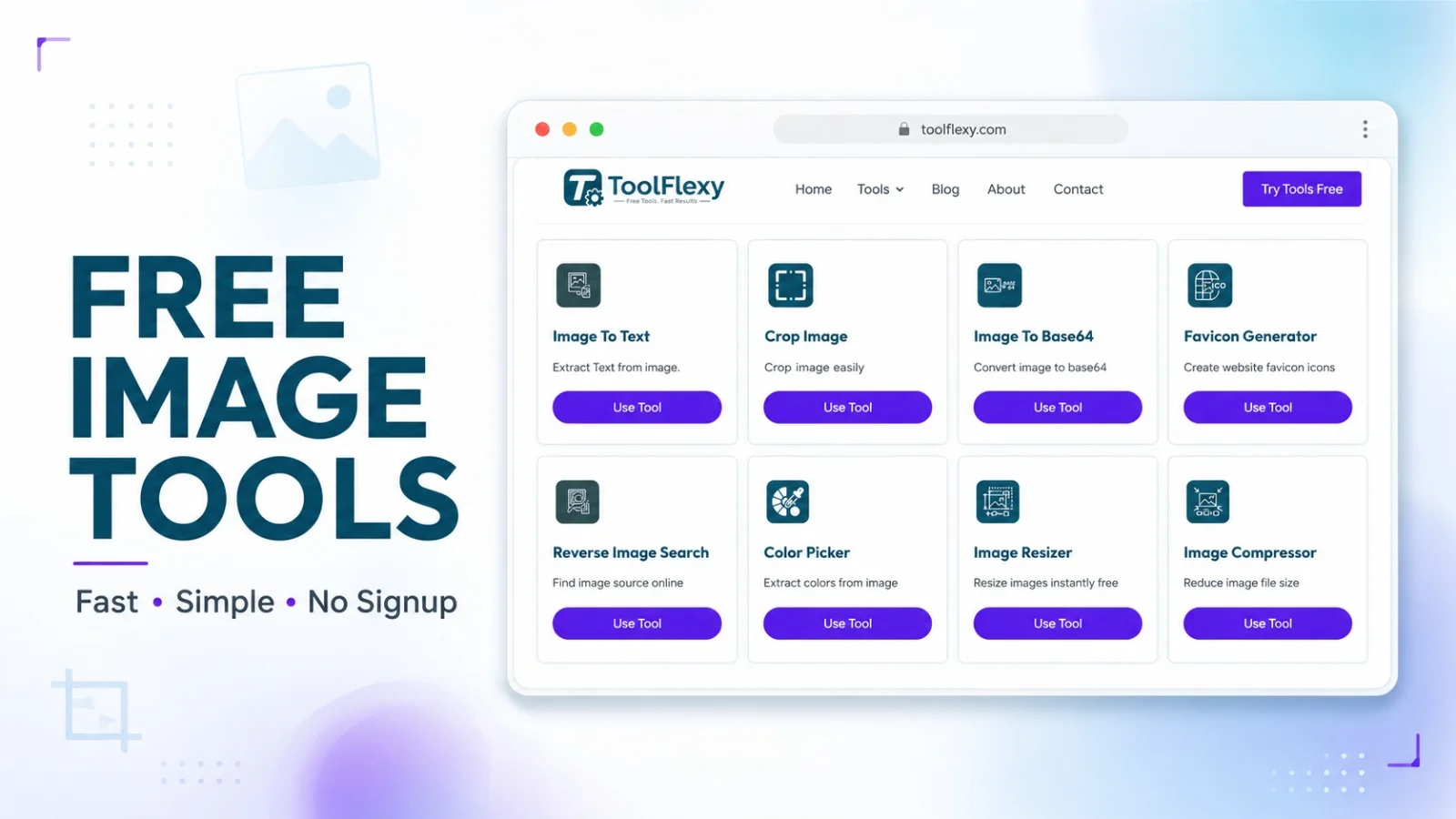
- Image Resizer — resize a converted image to exact dimensions.
- Image Compressor — shrink file size further after converting to a smaller format.
Conclusion
There’s no single “convert any format” button because the real conversions people need are 8 specific format pairs, each with its own quirks — transparency that flattens, animation that gets discarded, compatibility gaps between HEIC and everything else. ToolFlexy’s free image format converter tools handle all 8, entirely in your browser, with no sign-up required.