Convert Video to GIF Without Losing Quality: Tired of Blurry, Pixelated GIFs?
A video to GIF converter turns short clips from MP4, WebM, MOV, or MKV files into animated GIF images you can share anywhere — and ToolFlexy’s free Video to GIF Converter does it entirely in your browser, with adjustable resolution up to 720px, frame rate control, and zero watermark, so your GIF actually looks like your video instead of a muddy, pixelated version of it.
If you’ve ever converted a video to GIF only to end up with a blocky, laggy mess, you’re not alone — most free converters compress so hard that detail gets destroyed. This guide shows you exactly how to convert video to GIF without losing quality, what’s actually causing that blurriness, and answers the most common questions people search before they convert.
👉 Try the free Video to GIF Converter now — no sign-up, no watermark
What Is a Video to GIF Converter?
A video to GIF converter is a tool that extracts a sequence of frames from a video file and reassembles them into a single looping GIF image. Unlike a video file, a GIF plays automatically without a play button, has no sound, and can be dropped directly into chats, emails, forums, and social posts where video files often aren’t supported.
ToolFlexy’s converter accepts MP4, WebM, MOV, and MKV files up to 500MB and processes everything locally in your browser — nothing is uploaded to a server, which means your clips stay private and the conversion is fast even on a slow connection.
How to Convert a Video to GIF (Step by Step)
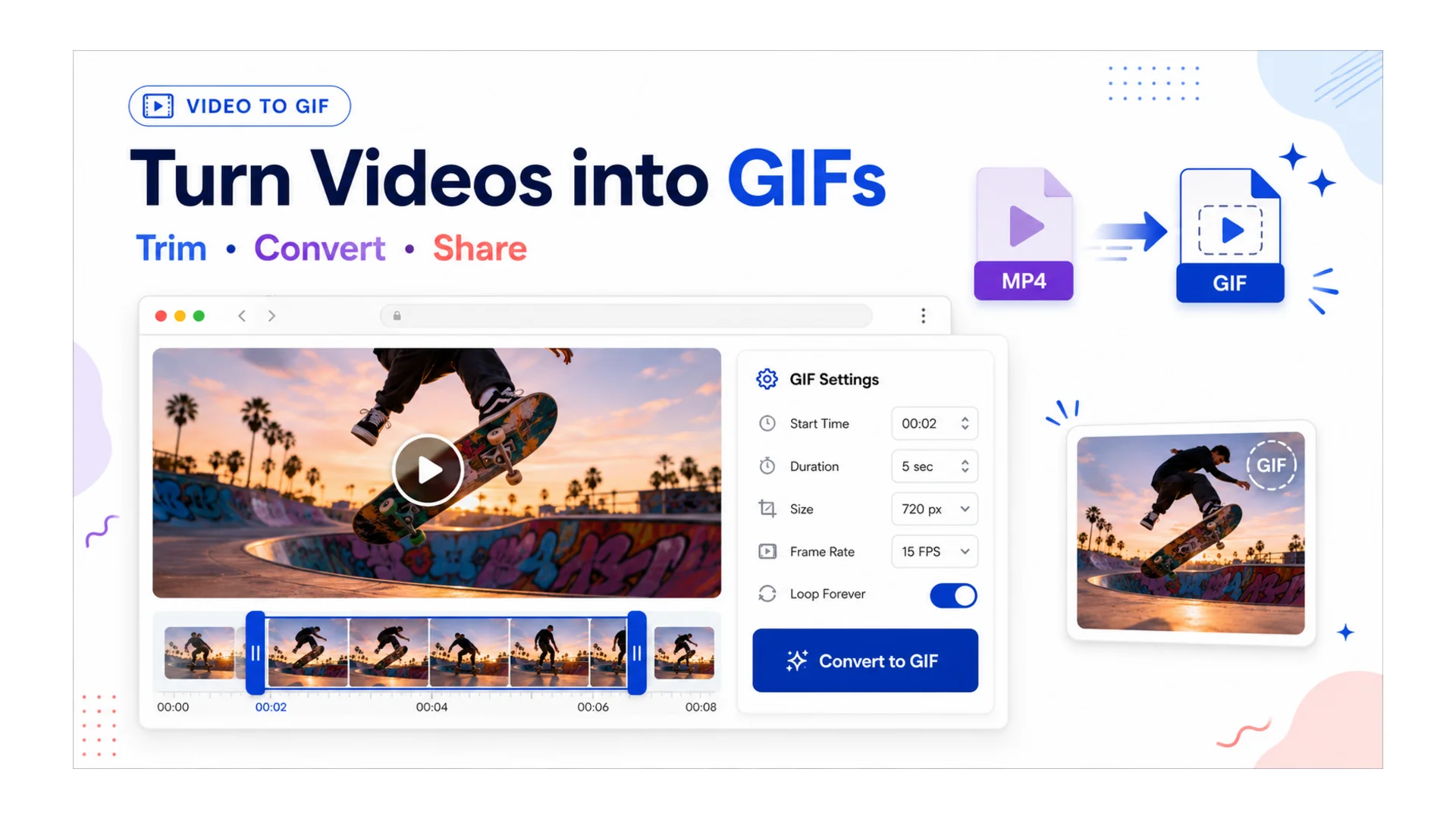
You can convert any short video clip into a GIF in under a minute using ToolFlexy’s Video to GIF Converter — here’s exactly how:
- Upload your video. Open the Video to GIF Converter and drag in your MP4, WebM, MOV, or MKV file (up to 500MB).
- Trim to the part you want. Use the drag handles or type exact start/end seconds — for the smallest, fastest-loading GIF, keep clips under 60 seconds.
- Choose your quality level. Pick from Small (240px) up to Full HD (720px) or Original size, depending on whether you need a tiny file or maximum sharpness.
- Set the frame rate. 10 fps is the recommended balance of smooth motion and small file size; go up to 24 fps only if the clip needs to look silky-smooth.
- Convert and download. Your GIF is generated instantly in your browser and ready to download — no watermark, no account required.
Why Do My GIFs Come Out Blurry or Pixelated?
GIFs come out blurry or pixelated when a converter uses a low, fixed color palette and a low frame rate to force the file size down, throwing away detail in the process. This is the single biggest complaint people have with free GIF converters, and it’s almost always a settings problem, not a limitation of the GIF format itself.
ToolFlexy fixes this with two-pass color palette encoding, which analyzes your video’s actual colors before building the GIF instead of using a generic palette, plus resolution options up to 720px so you’re not stuck with a tiny, soft-looking output. If your GIF still looks rough, try raising the quality level one step and keeping the frame rate at 10-15 fps rather than maxing it out — higher fps eats into the color budget per frame.
What Is the Difference Between MP4 and GIF?
An MP4 is a compressed video file that includes audio and can run for hours at full resolution, while a GIF is a short, silent, looping image sequence with a limited color palette (256 colors per frame) and typically no sound support at all. MP4s are far more efficient for anything longer than a few seconds; GIFs win when you need something that auto-plays instantly in a chat window, forum post, or email without the viewer clicking play.
That’s exactly why converting the specific highlight — a reaction, a demo, a funny moment — out of a longer MP4 and into a short GIF is so common: you keep the shareability of an image with the motion of a video.
Can I Convert an MP4 Video to a GIF for Free?
Yes — ToolFlexy’s Video to GIF Converter is completely free, with no sign-up, no watermark, and no hidden conversion limits beyond the 500MB upload cap. Because the conversion runs locally in your browser rather than on a server, there’s also no daily quota or “pro version” upsell blocking your download, which is a common catch with many free converters that cap you at a few conversions per day.
Can I Make a Video Into a GIF on iPhone?
Yes — since ToolFlexy’s Video to GIF Converter is fully browser-based and mobile-responsive, you can open it in Safari or Chrome on your iPhone, upload a video from your camera roll, trim it, and download the finished GIF straight to your phone with no app install required. This works the same way on Android; you don’t need a dedicated GIF-maker app for either platform.
What Does GIF Stand For?
GIF stands for Graphics Interchange Format, a bitmap image format created by CompuServe in 1987 that supports both static images and short looping animations. Despite the ongoing “jif vs. gif” pronunciation debate, the format itself has remained essentially unchanged for decades, which is exactly why it’s still supported everywhere from Slack to X to iMessage. You can read more about its technical history on Wikipedia’s GIF format page.
What Are the Disadvantages of a GIF File?
The main disadvantages of a GIF file are its 256-color limit, which can make gradients and detailed footage look banded or grainy, and its typically larger file size compared to modern video formats covering the same clip length. GIFs also can’t carry audio, so any sound in your original video is lost entirely.
You can minimize the color-banding issue by keeping your source clip well-lit and high-contrast, and you can control file size directly with ToolFlexy’s quality and frame-rate sliders — dropping from Full HD to Medium quality, or from 24 fps to 10 fps, typically cuts file size dramatically with little visible difference for short clips.
Explore More Free Tools
If you’re working with video and images for social content, these ToolFlexy tools pair well with your GIF workflow:
- Extract Audio From Video — pull the soundtrack out before you trim your GIF clip
- Video Compressor — shrink large source videos before uploading them for conversion
- Resize Image for Social Media — get your GIF’s cover thumbnail or a still frame sized correctly for every platform