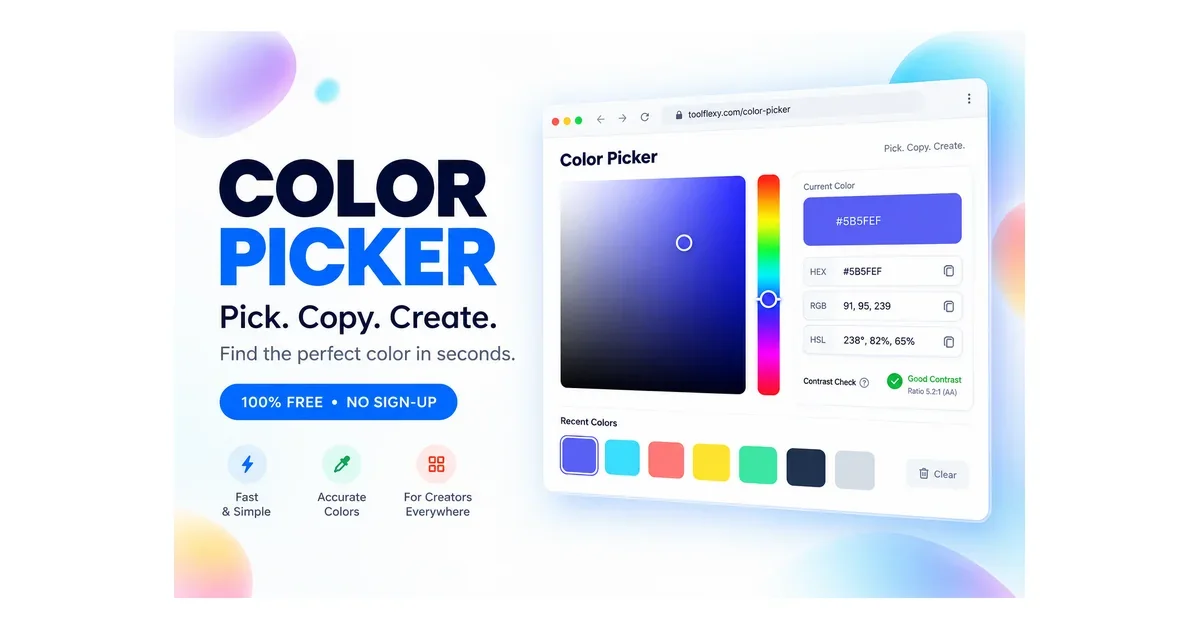
A color picker from image is a tool that lets you upload or paste a picture and click anywhere on it to instantly get that exact pixel’s color code — and ToolFlexy’s free Color Picker gives you that color as HEX, RGB, HSL, and HTML all at once, with everything processed locally in your browser so your image never touches a server.
Whether you’re matching a brand color from a logo, pulling a shade out of a photo for a design, or just need to know what a specific pixel’s hex code actually is, guessing by eye almost never gets it exactly right — a color picker reads the real pixel value instead. This guide covers exactly how to do it, how the different color formats compare, when you actually need a full design app versus a quick tool like this one, and the most common questions people run into.
Try the free Color Picker now — no sign-up, no upload to any server
What Is a Color Picker From Image?
A color picker from image is a tool that reads the exact color value of any pixel you click on within a photo or graphic, then converts it into standard color codes you can use in design software, CSS, or anywhere else. ToolFlexy’s Color Picker gives you three ways to grab a color: upload an image file, paste an image directly from your clipboard, or use an eyedropper to sample any color visible on your screen — not just inside the uploaded image.
How to Pick a Color From an Image (Step by Step)
Here’s exactly how to get a hex code from an image using ToolFlexy’s free Color Picker:
- Add your image. Upload a file from your device, or paste an image straight from your clipboard.
- Click the pixel you want. Click anywhere on the image preview to sample that exact color.
- Or use the eyedropper. Sample a color from anywhere on your screen — even outside the uploaded image, like another open window.
- Read the code. The live preview box updates instantly, showing the color as HEX, RGB, HSL, and HTML.
- Copy it. Click to copy any format straight to your clipboard, ready to paste into your design tool or code.
HEX vs. RGB vs. HSL vs. CMYK — What’s the Difference?
HEX, RGB, HSL, and CMYK are four different ways of writing a color, and the right one depends on where you’re using it. HEX and RGB are the two most common formats for web and screen design, HSL is often more intuitive for adjusting how light or vivid a color looks, and CMYK is reserved for print design rather than screens.
| Format | How It Works | Best For |
|---|---|---|
| HEX | A 6-character code (e.g., #4F46E5) | CSS, web design, quick copy-paste |
| RGB | Red, green, blue light values from 0-255 | Screen design, digital graphics |
| HSL | Hue, saturation, and lightness values | Adjusting how light/vivid a color looks |
| CMYK | Cyan, magenta, yellow, and black ink percentages | Print design only — not used on screens |
ToolFlexy shows HEX, RGB, HSL, and HTML for the same picked color at once, so you don’t need a separate converter for the three formats screens actually use — you can read more about how these color models work on MDN’s CSS color value documentation.
Why ToolFlexy Doesn’t Show CMYK (and What to Do Instead)
ToolFlexy’s Color Picker doesn’t output CMYK because CMYK is a print-specific format that doesn’t apply to on-screen work like web design, app design, or digital graphics, which is what this tool is built for. If you do need a picked color converted to CMYK for a print job, take the RGB value ToolFlexy gives you and run it through a dedicated RGB-to-CMYK converter — the conversion is a standard, well-documented formula that any print-focused tool can apply.
Color Picker vs. Photoshop’s Eyedropper — Do You Need the Full App?
You don’t need Photoshop or any other full design application just to pull a color code from an image — a dedicated color picker tool does the same core job (sample a pixel, read its code) without the cost, install size, or learning curve of a full design suite. Photoshop’s eyedropper is genuinely more powerful if you’re already deep in a design file and need to sample a color as part of ongoing editing work, but for a one-off task — matching a single brand color, checking a hex code someone sent you, grabbing a color from a screenshot — opening a full application is overkill.
ToolFlexy’s Color Picker covers the common one-off case: upload or paste an image, or use the eyedropper directly on your screen, and get HEX, RGB, HSL, and HTML in seconds, entirely free and with nothing installed.
Common Reasons People Need a Color Picker
A color picker gets used any time someone needs to match or identify a color exactly rather than guess at it. The most common cases:
- Brand color matching — pulling the exact hex code from a logo or brand asset so a new design matches perfectly.
- Web and app design — grabbing a color from a reference image or mockup to use directly in CSS.
- Print mockups — identifying a color from a photo before converting it to CMYK for a print-ready file.
- Accessibility contrast checks — getting exact HEX/RGB values for two colors to run through a contrast checker and confirm text is readable.
- Social media and content creation — matching a color scheme across graphics, thumbnails, and templates.
Can I Pick a Color From Anywhere on My Screen, Not Just an Uploaded Image?
Yes — the eyedropper tool samples colors from anywhere visible on your screen, including other open windows, not just the image you’ve uploaded into ToolFlexy. This is useful when you want to match a color from a website, another app, or a document without first saving a screenshot and uploading it.
Is There a Color Picker That Doesn’t Require Photoshop or Design Software?
Yes — ToolFlexy’s Color Picker works entirely in your web browser, so you don’t need Photoshop, Figma, or any other installed design software to pull a color code from an image. This is especially useful for quick jobs like matching a single brand color or checking a hex code, where opening a full design application would be overkill.
Explore More Free Design Tools
If you’re working on colors and design, these ToolFlexy tools pair well with the Color Picker:
- CSS Gradient Generator — turn a color you just picked into a full gradient for your design
- Image Resizer — resize the image you picked colors from for any platform
- Image Compressor — shrink large images before uploading them for color picking
Conclusion
Getting a color exactly right — for a brand, a design, or a print file — comes down to reading the real pixel value instead of guessing, and a dedicated color picker does that in seconds without the overhead of a full design app. ToolFlexy’s free Color Picker covers the three formats screens actually use (HEX, RGB, HSL) plus HTML, works from an uploaded image, a pasted clipboard image, or anywhere on your screen, and never uploads your image to a server — all with no sign-up.