AVIF photos won’t open because your phone or camera saves images in this newer, smaller-file-size format by default, while a lot of everyday apps, older software, and even some operating systems still haven’t caught up with full support. The fastest fix is converting the file to JPG, PNG, or WebP — whichever one matches what you’re actually trying to do with it — and it takes seconds with a free tool.
This isn’t a broken file or a mistake on your end. AVIF is a genuinely newer format, and compatibility gaps like this are extremely common in 2026 as phone manufacturers adopt it faster than the rest of the software world can keep up.
The gap comes down to timing. Camera and phone makers switched to AVIF because it stores photos in noticeably less space without a visible quality trade-off, which matters a lot when storage and upload bandwidth are limited. Software makers, on the other hand, only add support for a new format once enough of their users are actually running into it — which is exactly the stage most of the software world is at right now.
None of this means you’re stuck. Converting the file yourself takes less time than waiting for an app update, and it works regardless of which device, operating system, or software version you’re currently on.
One more thing worth clearing up: this compatibility gap has nothing to do with the photo itself being damaged or corrupted. If a converter tool also fails to open the file, the actual file may be incomplete (a partial download, for example) — but a normal AVIF photo that simply won’t open in one app will generally open fine once converted.
Why Are You Suddenly Seeing AVIF Files?
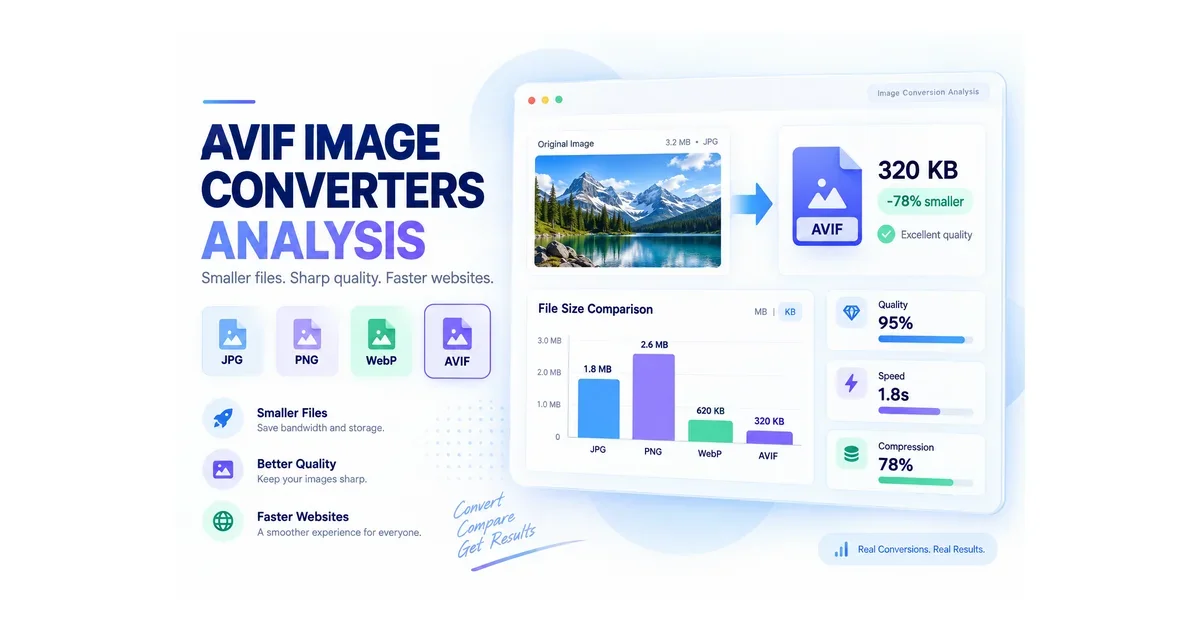
Modern iPhones and many Android phones now default to saving photos as AVIF (or its close relative HEIF) because it compresses images far more efficiently than JPG — meaning noticeably smaller files at similar or better visual quality. The trade-off is compatibility: AVIF support is still inconsistent across apps, websites, email clients, and even some operating systems, which is exactly why files that open fine on your phone suddenly refuse to open somewhere else.
What to Do When Your AVIF Photos Won’t Open
When your AVIF photos won’t open, the fastest and most reliable fix is converting them to a format the destination app or device already supports — no software installation required. ToolFlexy’s free converters handle all three of the most common targets: JPG, PNG, and WebP.
Convert AVIF to JPG
Convert to JPG when you need a format that opens absolutely everywhere — email, social media, older editing software, and virtually every device made in the last two decades. JPG is the safest universal fallback if you’re not sure exactly what you need.
ToolFlexy’s free AVIF to JPG converter runs entirely in your browser — your file is never sent to a server — with an adjustable quality slider (85% by default, and 90-100% recommended when you want to preserve maximum detail). It supports batch conversion of an entire folder at once, up to 100MB per folder and 20MB per file, with no sign-up and no watermark.
Convert AVIF to PNG
Convert to PNG when the image needs a transparent background or when you can’t afford any quality loss at all, since PNG is a fully lossless format. Logos, icons, and screenshots with text are the classic cases where PNG beats JPG.
ToolFlexy’s free AVIF to PNG converter preserves every detail the original AVIF captured, with no compression loss in the output. Like the JPG converter, it processes locally in your browser, supports batch folder uploads (100MB/folder, 20MB/file), and finishes in a second or two with no sign-up required.
Convert AVIF to WebP
Convert to WebP when the image is going straight onto a website, since WebP keeps AVIF’s small-file-size advantage while working correctly across virtually every modern browser. It’s the closest like-for-like swap if compatibility — not maximum compression — is your only concern.
ToolFlexy’s free AVIF to WebP converter uses the same familiar setup: an 85% quality slider you can adjust, drag-and-drop or whole-folder batch uploads, browser-only processing with nothing sent to a server, and no sign-up or watermark.
AVIF vs JPG vs PNG vs WebP — Quick Comparison
| Format | Compression | Transparency | Best For |
|---|---|---|---|
| AVIF | Excellent (smallest files) | Yes | Newest phones/cameras; not yet universally supported |
| JPG | Good (lossy) | No | Universal compatibility, everyday sharing |
| PNG | None (lossless) | Yes | Logos, screenshots, zero quality loss |
| WebP | Very good | Yes | Websites, modern browsers |
Fix AVIF Photos Won’t Open on Windows
On a clean Windows 10 or 11 install, File Explorer and the Photos app do not open AVIF files natively — you need to install the free AV1 Video Extension from the Microsoft Store first. Once installed, it registers AV1 decoding at the system level, so thumbnails appear in File Explorer, EXIF metadata reads correctly, and both the Photos app and Paint can open the file directly. If you don’t want to install anything, converting the file to JPG or PNG first with ToolFlexy’s free converter works immediately, with zero setup.
Fix AVIF Photos Won’t Open on Mac and iPhone
Apple added native AVIF support starting with Safari 16.1, iOS 16, and macOS Ventura (macOS 13) — so on any reasonably current Apple device, AVIF photos already open correctly in Photos and Safari. If your device is running an older OS version, or the file still won’t open in a specific app like an older version of Photoshop or a third-party editor, converting to JPG or PNG sidesteps the issue completely, regardless of your OS version.
Does Your Browser Support AVIF?
Most current browsers do support AVIF, but the gaps still matter if you’re publishing images online: Chrome supports it from version 85 onward, Firefox from version 93 (with animated AVIF support added in version 113), Edge from version 121, and Safari from version 16.1. Because support “is not yet comprehensive,” as Mozilla’s own developer documentation notes, providing a JPG, PNG, or WebP fallback is still standard practice for anyone publishing AVIF images on the web.
Common Mistakes When Converting AVIF Files
Most conversion problems come down to a handful of avoidable mistakes rather than the format itself.
Assuming every converter preserves transparency. Some cheaper or older tools flatten a transparent AVIF onto a white background by mistake — always confirm your converter preserves the alpha channel if the image needs it, which ToolFlexy’s PNG and WebP converters do automatically.
Converting at a very low quality setting to save space. Dropping the quality slider too far on the JPG or WebP converters can introduce visible artifacts, especially on images with fine text or sharp edges — 80% or higher keeps results visually clean for almost any photo.
Uploading files one at a time when you have dozens. All three ToolFlexy converters support whole-folder batch uploads (up to 100MB per folder), so there’s no need to convert a large photo library one image at a time.
Which Format Should You Convert To?
If you’re still not sure which of the three to pick, the deciding question is simple: where is this image going next?
- Sending it somewhere generic (email, messaging apps, an older program) → convert to JPG.
- It needs transparency, or it’s a logo/screenshot with text → convert to PNG.
- It’s going on a website or app where load speed matters → convert to WebP.
All three ToolFlexy converters share the same free, no-sign-up, browser-local setup, so switching between them costs nothing but a few seconds either way. If you regularly juggle other image formats beyond AVIF, ToolFlexy’s free image format converter guide covers the broader picture.
Conclusion
AVIF photos won’t open on every device or in every app yet, but the fix takes seconds once you know which format to convert to: JPG for universal compatibility, PNG for transparency and zero quality loss, or WebP for web use. Convert your AVIF photos free with ToolFlexy — no sign-up, no watermark, and nothing ever leaves your browser.