To remove line breaks from PDF text, join the broken mid-sentence lines back into flowing paragraphs while keeping the real paragraph breaks intact — you can do it in seconds with a free browser tool, no software or sign-up required. If you’ve ever copied text out of a PDF and pasted it somewhere else, you’ve probably seen the problem this fixes: sentences that break in the middle, random line breaks after every few words, and paragraphs that turn into a wall of disconnected lines. Here’s exactly why it happens and three ways to fix it.
Why Does PDF Text Break Into Random Lines When You Copy It?
A PDF doesn’t store a paragraph the way a Word document does. Internally, it stores text as a series of positioned lines on a page — each line is placed at a specific X/Y coordinate so the page looks right when printed or viewed. There’s no underlying concept of “this sentence continues on the next line”; as far as the PDF is concerned, every visual line is its own object.
When you select and copy text from a PDF, most viewers convert each of those visual lines into a line of text with a line break at the end — even if the sentence clearly continues onto the next line. The result is text that looks fine on the page but turns into a jumble of short, broken lines the moment you paste it into an email, a document, or a text box.
This is especially common with:
- PDFs exported from Word, Google Docs, or InDesign with justified or narrow-column text
- Academic papers and reports with two-column layouts
- Scanned or OCR’d PDFs, where the line structure can be even less predictable
Adobe’s own documentation on copying content from PDFs confirms the same thing: what you get when you copy is based on how the page is laid out, not how the sentence flows — which is exactly why you need a separate step to remove line breaks from PDF text after pasting it.
The good news: since the problem is mechanical (a line break was inserted where a space should be), it’s just as mechanical to fix — you just need something that can tell the difference between a line break that should become a space and one that marks a real paragraph.
Here’s what that looks like in practice. Text pasted straight from a PDF often comes out like this:
Text copied from a PDF
often breaks across lines.
This makes it hard to reuse.
After joining the broken lines back into a paragraph, the same text reads the way it was meant to:
Text copied from a PDF often breaks across lines. This makes it hard to reuse.
Nothing was added or removed — the words are identical. Only the line breaks that were splitting the sentence in the middle got turned back into spaces.
How to Remove Line Breaks From PDF Text (Step-by-Step)
Method 1 — Use a Free Online Tool (Fastest)
The fastest way to remove line breaks from PDF text is a tool built specifically to tell mid-paragraph line breaks apart from real paragraph breaks. ToolFlexy’s Text Cleaner has a dedicated PDF Cleanup preset for exactly this:
- Copy the text from your PDF and paste it into the “Original text” box on the Text Cleaner page.
- Click the PDF Cleanup preset at the top — this automatically turns on Join Broken Lines along with Keep Paragraph Breaks, so blank lines between paragraphs are treated as real breaks and everything else gets merged into flowing sentences.
- Click Clean Text. The cleaned version appears instantly in the right-hand panel, along with a live word and character count so you can confirm nothing important was lost.
- Click Copy to copy the result, or Download to save it as a text file.
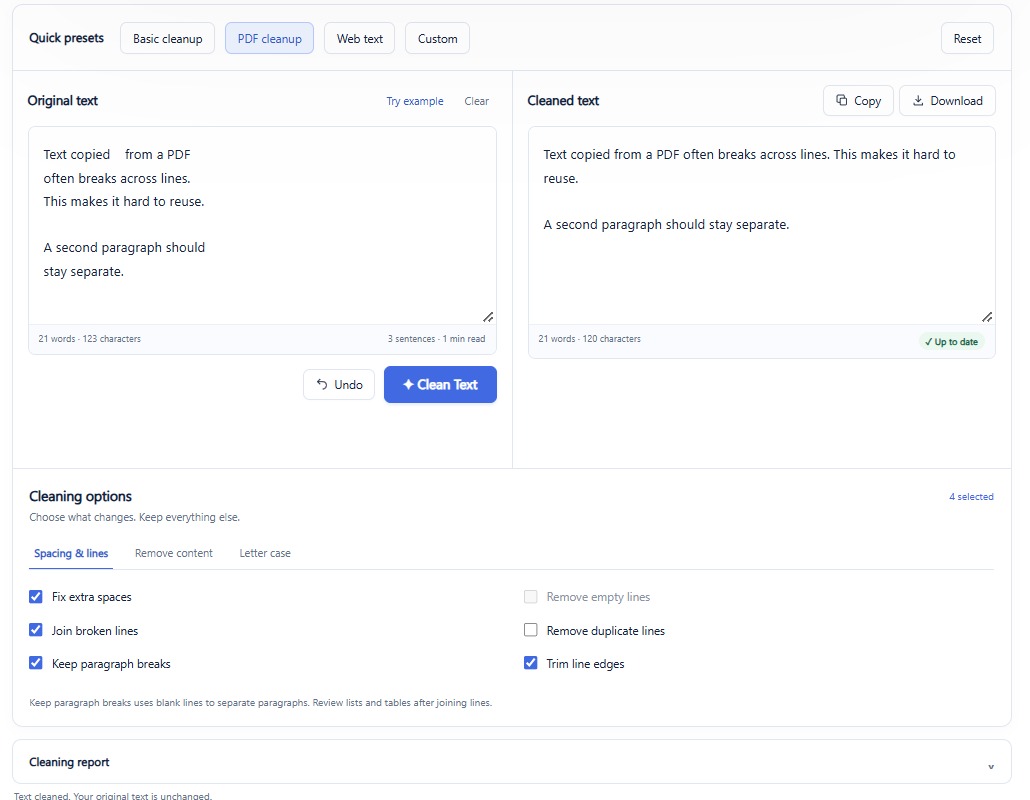
Because everything runs locally in your browser, your text is never uploaded anywhere — which matters if you’re cleaning up a contract, an unpublished manuscript, or anything else you’d rather not send to a server. If you paste in more text afterward, the tool flags that the result is out of date and gives you an “Update Result” button, so you’re never looking at a cleaned version of the wrong text by mistake. There’s also an “Undo” button if a pass removes something you didn’t mean to lose.
If your text also has extra issues beyond broken lines — leftover HTML from a webpage, duplicate lines from a messy export, or inconsistent capitalization — you don’t need a separate tool for each one. Switch to the Custom preset and combine Join Broken Lines with any of the options under the Remove Content or Letter Case tabs, and everything gets cleaned in a single pass.
Method 2 — Word or Google Docs Find & Replace (Manual)
If you’d rather not use a separate tool, you can do a rougher version of the same fix directly in Microsoft Word using wildcard Find & Replace:
- Paste your PDF text into Word.
- Open Find & Replace, click More, and enable Use wildcards.
- Search for a paragraph mark that is not followed by another paragraph mark, and replace it with a space — in Word’s wildcard syntax this usually looks like searching for
^13(a single line break) while leaving actual double line breaks alone. Microsoft’s own guide to using wildcard characters in searches covers the exact syntax if you need a different pattern.
This works, but it’s fiddly: Word’s wildcard engine doesn’t always distinguish a “soft” line break from a paragraph mark consistently, especially in text pasted from a PDF, so you’ll often need to review the result manually afterward. Google Docs doesn’t currently offer an equivalent wildcard option, so this method is really a Word-only workaround — a dedicated tool that’s built to keep the two apart is generally faster and more reliable when you need to remove line breaks from PDF text without reviewing every paragraph by hand.
Method 3 — Re-export or OCR the PDF (When Text Is Garbled)
Sometimes the problem isn’t just broken lines — the text comes out in the wrong order entirely, with words scrambled or columns interleaved. That’s usually a sign the PDF was scanned (an image of text, not real text) or that its internal text layer is poorly structured. In that case:
- If you have access to the original file, re-export the PDF from Word, Google Docs, or wherever it was created, using a “PDF/A” or standard export rather than a print-to-PDF driver, which sometimes preserves the reading order better.
- If you only have the scanned PDF, run it through an OCR (Optical Character Recognition) tool first to generate a proper text layer, then clean up the resulting line breaks using Method 1.
Once the extracted text is in reasonably correct order, joining the broken lines back into paragraphs takes seconds.
What People Actually Struggle With Here
This isn’t a niche annoyance — it’s one of the most common complaints in writing, PDF, and developer communities. On forums like Reddit and Adobe’s own community boards, people regularly describe the same pattern: they copy a paragraph out of a PDF report or academic paper, paste it into an email or a document, and end up with a wall of short, disconnected lines that they then have to fix by hand, line by line.
Developers building tools that process PDF text run into the same issue from the other direction — needing a reliable way to tell “this line break is just word-wrap” apart from “this line break is a real paragraph,” so the reconstructed text reads naturally instead of looking like a ransom note.
The manual fix — clicking to the end of every line and pressing delete — is exactly the kind of repetitive, error-prone task that’s worth automating, which is the whole reason a dedicated “join broken lines” option exists in the first place.
Fix It Once, Not Line by Line
Broken lines from PDF text are a formatting artifact, not a content problem — the words are all there, they just need to be reassembled into paragraphs the way they were meant to be read. Once you know that a real paragraph break is a blank line and everything else is just word-wrap, you can remove line breaks from PDF text in a few seconds with the right tool instead of several minutes of manual line-by-line editing.
Try it yourself with the free Text Cleaner tool — paste your PDF text, pick the PDF Cleanup preset, and get a clean, ready-to-use paragraph back instantly. If you also need to check word count or reading time on the cleaned result, the Word Counter tool can do that in the same pass.