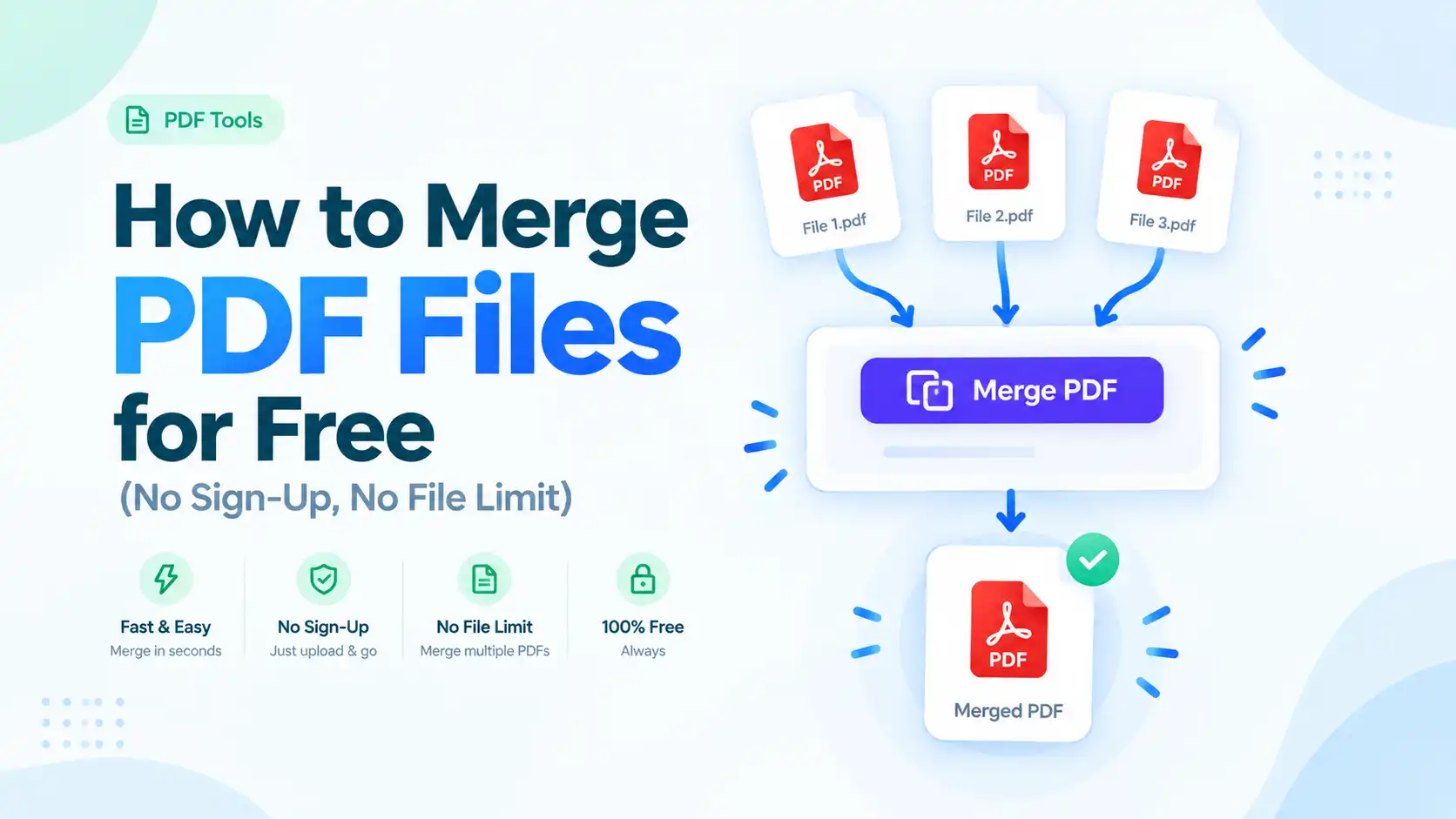
Need to merge PDF files free? ToolFlexy’s free Merge PDF tool combines any number of PDFs into one properly ordered document in seconds — no sign-up, no file limit, and no software to install. Got a contract, a scanned ID, and a cover letter sitting as three separate files that need to go to one recipient as a single document? This is exactly the tool for that.
Most “free” PDF mergers cap you at 2-3 files per batch, or quietly add a watermark unless you upgrade to a paid plan. This guide walks through exactly how to merge PDFs for free, plus the handful of things that actually go wrong when people do this (wrong page order, password-protected files, oversized results) and how to fix each one.
Try the free Merge PDF tool now — no sign-up, no file limit
What Does “Merging PDFs” Actually Do?
Merging PDFs takes two or more separate PDF files and combines them into a single document, with the pages from each file appearing in the order you choose — so instead of sending someone five attachments, they get one file with everything in it, already in the right sequence. This is different from just zipping files together: when you merge PDF files free with a tool like this, the result is one continuously paginated document you can open, scroll, and print like any normal PDF.
How to Merge PDF Files Free, Step by Step
Here’s exactly how to combine PDFs with ToolFlexy’s free Merge PDF tool, start to finish:
Upload Your Files in the Right Order
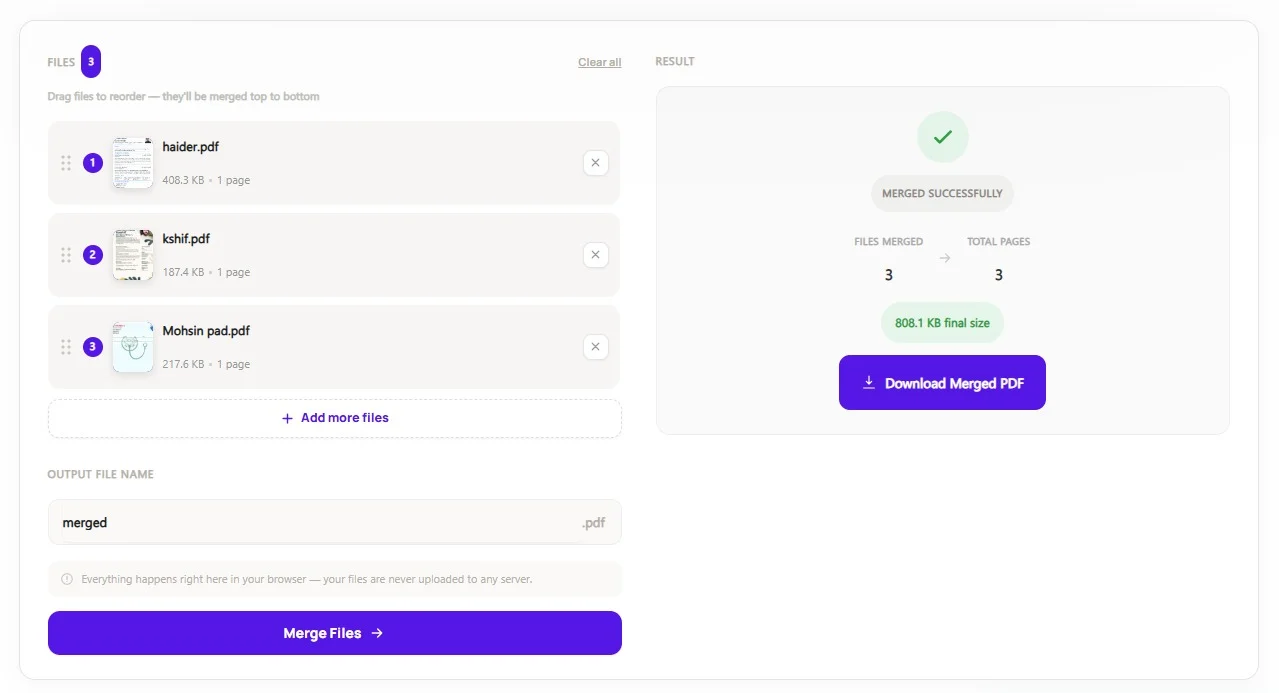
Drag and drop the PDFs you want to combine into the tool, or click to browse and add them one at a time — there’s no limit on how many files you add, whether that’s two documents or two dozen.
Double-Check the Page Sequence
The combined file follows the order your files appear in, so the first PDF you added becomes the first pages of the merged document. Use the visual grid to drag any file into a different position before you merge, since this is the easiest moment to fix a mistake.
Merge and Download
Click merge, and every uploaded PDF combines into a single, properly ordered document in seconds. Download it as one file, ready to email, print, or archive instead of several loose attachments.
Merge PDF Files Free on Any Device
Since ToolFlexy’s Merge PDF tool runs in your browser instead of a desktop app, it works the same way on a laptop, a Chromebook, or a phone — there’s no separate “mobile version” to download, and no desktop-only software to find a workaround for. On a phone, the same drag-and-drop grid becomes a simple tap-and-reorder list, so you can merge PDFs you just scanned with your phone’s camera without ever opening a laptop.
Merge PDF vs. Other Ways to Combine Documents
Merging isn’t the only way to get several documents to a recipient as one package, but it’s usually the cleanest. A few of the common alternatives, and why merging tends to win:
Emailing Files Separately
This works, but it puts the burden on the recipient to open every attachment, keep them in the right order mentally, and not lose track of one in a long email thread. A single merged PDF removes all three problems at once.
Printing and Re-Scanning as One Stack
Printing several PDFs and feeding them through a scanner to create one file technically works, but it re-compresses everything through a scanner’s image quality, often leaving text blurrier and file sizes larger than the originals. Merging keeps every page at its original digital quality since nothing is ever printed or re-scanned.
Desktop Software Like Adobe Acrobat
Full desktop PDF editors can merge files too, but most require a paid subscription for anything beyond viewing, plus an install and a learning curve for a task you might only need once. A free browser-based merger skips the install and the monthly cost entirely for this one job.
Who Actually Needs to Merge PDFs?
Merging shows up in a lot of everyday situations that have nothing to do with each other. A few of the most common:
Job Seekers
Combining a resume, cover letter, and portfolio samples into one file instead of three separate attachments, so a hiring manager opens one document instead of hunting through an inbox. If you’re putting a job application together, ToolFlexy’s Resume Builder and ATS Score Checker pair well with this.
Students and Researchers
Combining chapters, scanned handouts, or multiple research papers into a single file before submitting an assignment or building a reference packet.
Freelancers and Small Businesses
Bundling an invoice, a signed contract, and a receipt into one PDF to send a client, instead of making them open and match up three different files.
Anyone Scanning Paper Documents
Phone scanning apps often save each page as its own file — merging turns a stack of 12 individually scanned pages back into one properly ordered document.
Real Estate and Property Managers
Combining a lease agreement, a move-in inspection checklist, and ID documents into a single tenant file, or merging multiple property disclosures into one packet before a closing, so nothing gets lost between separate email threads.
HR Teams and Recruiters
Merging an offer letter, an employee handbook, and a benefits summary into one onboarding packet, or combining a candidate’s resume with reference letters and certifications into a single file for a hiring manager to review.
Tips for a Cleaner Merged PDF
A few small habits make the final merged file noticeably easier to work with, especially if it’s going to a client or employer:
Rename Files Before You Upload
Rename each PDF to something descriptive (“01-cover-letter.pdf,” “02-resume.pdf”) before merging, since the upload order is easiest to manage when the filenames already hint at the sequence you want.
Check for Blank Pages First
Scanned documents sometimes include a blank page at the end — merging five scanned files can mean five stray blank pages scattered through the final document. Open each source file once before merging to strip out anything you don’t actually need in the combined version.
Keep a Copy of the Originals
Hold on to the individual source files after merging, even though the combined PDF is now your “final” version — if you ever need to re-order, swap one document for an updated version, or split the file back apart later, starting from the originals is far easier than extracting pages back out of a merged file.
Common Problems When Merging PDFs (and How to Avoid Them)
My Merged PDF Is in the Wrong Order
This almost always comes down to upload order rather than a tool error — the files combine in exactly the sequence you added them, so if page 1 of the combined document should be your cover letter, upload the cover letter first. Most mergers (ToolFlexy included) let you reorder files visually before clicking merge, so check that grid before downloading rather than after.
One of My Files Is Password-Protected
A password-protected PDF generally can’t be merged until the lock is removed, since the merger can’t read pages it can’t open. Run the file through a tool like Unlock PDF first (you’ll still need to know the password), then merge the unlocked version.
The Combined File Is Too Large
Merging ten scanned PDFs can easily produce a file too large to email, since most inboxes cap attachments around 20-25MB. Run the finished file through a PDF Compressor afterward — merge first, then compress, since compressing each file individually first rarely saves as much space as compressing the single combined result.
Some Pages Are Missing or Duplicated After Merging
This usually means one of the source files itself had a problem before it was ever uploaded — a scan that skipped a page, or a PDF that was accidentally exported twice. Open each source file individually and check its page count against what you expect before merging, since it’s much faster to catch a bad source file than to track down which page went missing in a 40-page combined document afterward.
My Browser Freezes or Slows Down with Large Files
Combining a large number of high-resolution scanned pages can briefly use a noticeable amount of memory, since the browser is processing everything on your own device rather than a server. If a batch feels slow, try merging in two smaller groups and then merging those two results together — it produces the same final file with less strain on any one browser tab.
Is It Safe to Merge Confidential Documents Online?
Yes — when you merge PDF files free with ToolFlexy, the tool runs entirely in your browser, so a contract, scanned ID, or financial record is never uploaded to a server in the first place. Everything from reading the files to combining and assembling the final PDF happens on your own device, which means there’s nothing sitting on a remote server to worry about, even for confidential documents.
Explore More Free Tools
If you’re working with PDFs, these ToolFlexy tools pair well with merging:
- Split PDF — break one PDF back into separate files or individual pages
- PDF Compressor — shrink a merged file that’s grown too large to email
- Protect PDF — add a password to your combined document before sharing it
- Unlock PDF — remove a password from a file so it can be merged
- PDF to Word — convert your merged PDF into an editable Word document