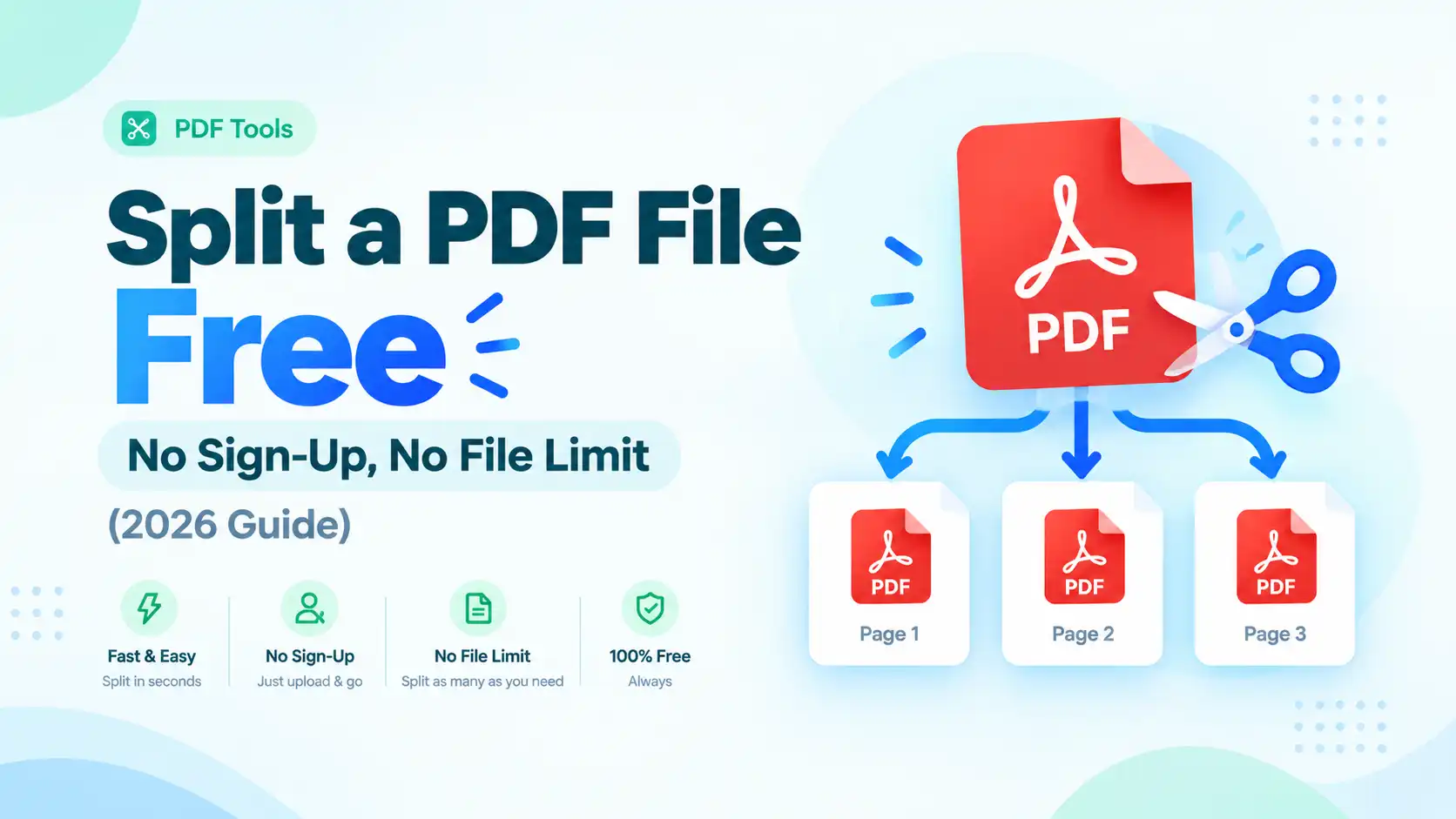
Want to split PDF no sign up required? ToolFlexy’s free Split PDF tool separates any PDF into individual pages, custom page ranges, or equal parts in seconds — no account, no file limit, and nothing to install. Got a 40-page scanned contract and only need pages 3 to 7 for one recipient? This is exactly the tool for that.
Most “free” PDF splitters cap you at a handful of pages per file, or lock the page-range option behind a paid plan. This guide walks through exactly how to split a PDF online for free, plus the handful of things that actually go wrong when people do this (wrong page range, oversized files, password-protected PDFs) and how to fix each one.
Try the free Split PDF tool now — no sign-up, no file limit
What Does “Splitting a PDF” Actually Do?
Splitting a PDF takes one document and breaks it apart into two or more separate files, based on the page ranges, single pages, or equal parts you choose — so instead of sending someone a 40-page file when they only need 5 pages, you hand them exactly what they need. This is the mirror image of merging: where combining multiple PDFs into one file is about convenience, splitting a PDF online is usually about control — pulling out exactly the pages that matter and leaving the rest behind.
How to Split PDF No Sign Up, Step by Step
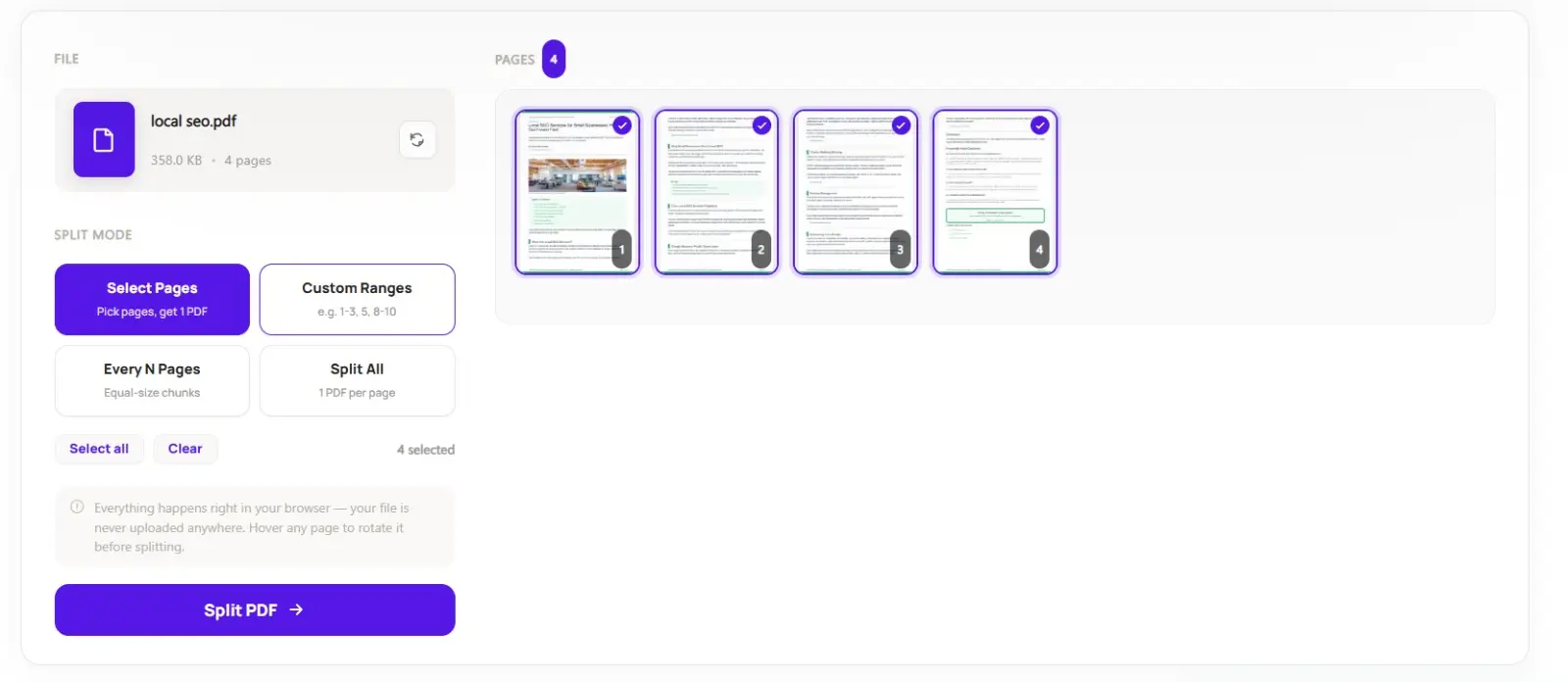
Here’s exactly how to split a PDF with ToolFlexy’s free Split PDF tool, start to finish — no account or sign-up at any step:
Upload Your PDF
Drag and drop the PDF you want to split into the tool, or click to browse and select it — there’s no limit on file size or page count, whether it’s a 3-page form or a 300-page report.
Choose How to Split It
Pick the mode that fits what you actually need: Select Pages (pick specific pages and get them back as one combined PDF), Custom Ranges (type ranges like 1-3, 5, 8-10 for more control), Every N Pages (equal-size chunks), or Split All (one PDF per page). Each mode produces a different result, so match it to the job rather than defaulting to whichever is first on the list.
Split and Download
Click split, and the tool instantly breaks your PDF apart according to your chosen method. Download the result as individual files or as a single ZIP containing everything, ready to email, print, or archive.
Who Actually Needs to Split PDF No Sign Up Tools?
Splitting shows up in a lot of everyday situations that have nothing to do with each other. A few of the most common:
Students and Researchers
Pulling one chapter out of a 300-page textbook PDF, or separating a single article from a bundled academic journal issue, instead of sending a classmate the entire file for the five pages they actually need.
Office and Admin Staff
Breaking a scanned batch of employee files or signed forms back into individual documents, one per person, after they were scanned together as a single stack.
Freelancers and Small Businesses
Separating one invoice or one contract out of a combined billing PDF to send to a single client, without handing them paperwork that belongs to someone else.
Anyone Sharing Scanned Documents
Pulling just the signature page or ID page out of a longer scanned packet, so you can share only what’s actually needed instead of an entire document.
Common Problems When You Split PDF No Sign Up Tools (and How to Fix Them)
I Only Need One Page, Not the Whole Split
If you only need a single page out of a longer document, use the single-pages split mode and then download just that one file from the results — there’s no need to split the entire document into a page range first. Most splitters, ToolFlexy included, let you preview and pick individual pages before you download anything.
My PDF Is Too Large to Upload
A very large scanned PDF can be slow to process in any browser-based tool, since the file is being read entirely on your own device rather than a server. If a file feels sluggish to upload, try closing other heavy browser tabs first, or run it through a PDF Compressor before splitting — a smaller file splits faster and the resulting pieces are easier to email afterward too.
One of My Files Is Password-Protected
A password-protected PDF generally can’t be split until the lock is removed, since the splitter can’t read pages it can’t open. Run the file through a tool like Unlock PDF first (you’ll still need to know the password), then split the unlocked version.
Split PDF vs. Other Ways to Separate Pages
Splitting isn’t the only way to get specific pages out of a PDF to someone, but it’s usually the cleanest. A few common alternatives, and why splitting tends to win:
Taking a Screenshot of the Page
A screenshot captures the page as a flat image, so any text in it stops being selectable, searchable, or copyable — splitting keeps the page as a real PDF, with the text still live.
Printing and Re-Scanning Just the Pages You Need
Printing a document and re-scanning only certain pages technically works, but it re-compresses everything through a scanner’s image quality, often leaving text blurrier than the original. Splitting keeps every page at its original digital quality since nothing is ever printed or re-scanned.
Asking the Sender for a Smaller File
This works if you control the source, but most of the time you’re handed one large PDF and need to make it smaller yourself — a splitter lets you do that in seconds instead of going back and forth over email.
Tips for Cleaner Split Results
A few small habits make the split files noticeably easier to work with afterward:
Check Page Numbers Before You Split
Open the PDF once and note the exact page numbers you need before entering a range, since off-by-one mistakes (starting a range one page too early or late) are the most common splitting error.
Rename Files Right After Downloading
Split output is often named generically (“page_1.pdf,” “page_2.pdf”), so rename each file to something descriptive immediately after downloading rather than leaving a folder full of identical-looking names to sort out later.
Keep the Original File
Hold on to the full, unsplit PDF even after you’ve pulled out the pages you needed — if you ever need a different page range later, starting from the original is far easier than trying to reassemble it from pieces.
Is It Safe to Split Confidential Documents Online?
Yes — this is exactly why people search for a way to split PDF no sign up required in the first place: when you use ToolFlexy’s Split PDF tool, it runs entirely in your browser, so a contract, scanned ID, or financial record is never uploaded to a server in the first place. Everything from reading the file to separating and packaging the individual pieces happens on your own device, which means there’s nothing sitting on a remote server to worry about, even for confidential documents.
Explore More Free Tools
Now that you know how to split PDF no sign up required, these ToolFlexy tools pair well with it:
- Merge PDF — combine multiple PDFs back into one document
- PDF Compressor — shrink a large file before splitting it
- Unlock PDF — remove a password so a file can be split
- Organize PDF — reorder or delete pages before splitting
- PDF to Word — convert a split-out page into an editable Word document