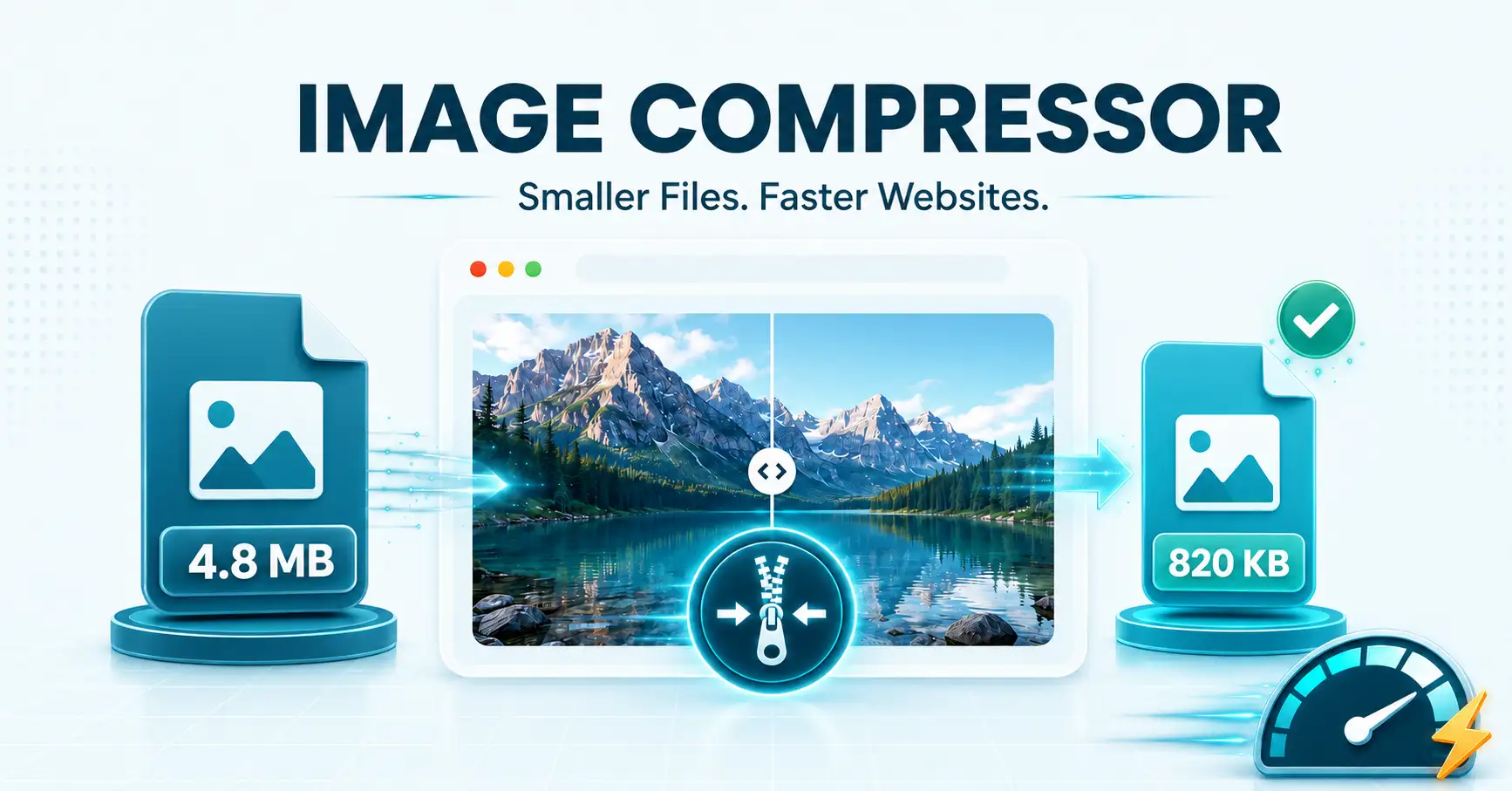
A single unoptimized photo can add a full second or more to your page load time, and Google has confirmed that page speed is a ranking factor. If your website, online store, or email attachments are weighed down by oversized photos, you can compress image online free in seconds with ToolFlexy’s Image Compressor — no software, no sign-up, and no limit on how many files you process.
This guide covers exactly how to compress an image online free, how the tool handles a single photo or an entire folder at once, and how to pick the right settings so your images stay sharp while shedding unnecessary file size.
Why You Need to Compress Images Online
Large image files slow down more than just your website. They fill up phone storage, make emails bounce, and can push you over upload limits on marketplaces and social platforms — which is exactly why so many people search for a way to compress image online free instead of installing dedicated software.
- Faster page load speed: Smaller images mean faster Largest Contentful Paint (LCP), a core part of Google’s page experience signals.
- Lower storage and bandwidth use: Compressed images take up less space on your device, server, or cloud storage plan.
- Easier sharing: Many email providers and messaging apps cap attachment sizes — a compressed image slides under those limits without a quality hit you’d actually notice.
- Better marketplace and CMS compatibility: Platforms like Shopify, WordPress, and Etsy often recommend or enforce image size limits for listings and uploads.
How to Compress an Image Online in 3 Steps
ToolFlexy’s Image Compressor handles a single photo or an entire folder the same way, in seconds.
Step 1: Upload Your Image, Multiple Files, or a Folder
Upload one image, select multiple files at once, or drop in an entire folder — the tool compresses every file in the batch together, so you don’t have to process images one at a time.
Step 2: Adjust the Quality Slider
A simple range slider, defaulting to 75%, lets you control exactly how much compression is applied. Lower settings shrink file size further; higher settings prioritize visual quality.
Step 3: Compare and Download
See the original and compressed file sizes side by side before downloading, so you know exactly how much space you saved — with no watermark added to the output.
Key Features That Make This Image Compressor Different
Most free image compressors handle one file at a time and cap you at a handful of uses. This one is built for real workloads.
- Batch and Folder Upload: Compress an entire folder of images in one go, instead of uploading files one by one.
- Adjustable Quality Slider: Fine-tune the compression level from a single slider rather than picking from fixed presets.
- Multi-Format Support: Works with JPG, JPEG, PNG, GIF, and WEBP, and always returns your file in its original format.
- No Sign-Up, No Watermark: Completely free to use, with no account, subscription, or hidden fee — you can compress image online free as many times as you need.
Lossy vs. Lossless Compression: What’s the Difference
Image compression works in one of two ways, and knowing the difference helps you set expectations for the result.
Lossy compression — the method ToolFlexy’s Image Compressor uses — reduces file size by selectively discarding image data that’s least noticeable to the human eye, similar to how the JPEG format itself works. This is what allows a quality slider to trade off file size against visual fidelity: a moderate setting like the tool’s 75% default keeps images visually near-identical to the original while cutting file size significantly.
Lossless compression reduces file size without discarding any image data at all, which means smaller savings but zero quality loss whatsoever. It’s typically used for graphics with sharp edges or few colors, like logos or icons, where lossy compression can introduce visible artifacts.
How Much Can You Reduce an Image’s File Size?
The exact reduction depends on the original image and the quality setting you choose, but a few patterns hold consistently.
- Photos with lots of detail or gradients (landscapes, portraits) typically compress well at moderate settings, often shrinking by 50-80% with no visible difference at normal viewing sizes.
- Simple graphics with flat colors (screenshots, logos, diagrams) sometimes compress less dramatically with lossy settings and may look better with a higher quality setting or a format built for flat colors, like PNG.
- Already-compressed images (a photo re-saved multiple times, or one exported from a phone at a lower quality) have less room left to shrink, since much of the “easy” data has already been removed.
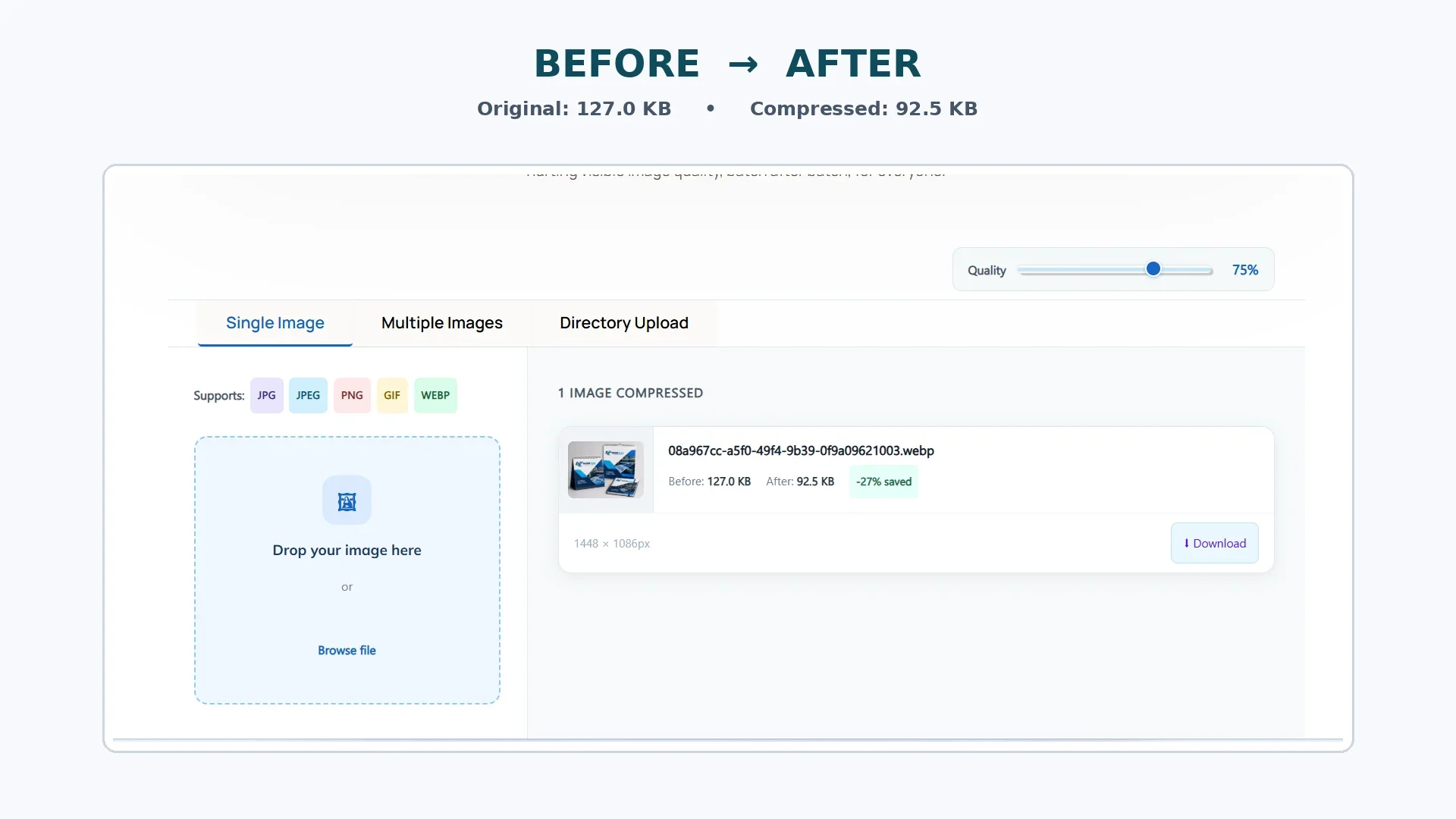
Real before/after file size reduction using ToolFlexy’s free Image Compressor
Tips to Compress Image Online Free Without Losing Quality
A few habits make a real difference in how much you can shrink an image while keeping it looking sharp.
- Start around the 75% default before going lower. This is usually the sweet spot when you compress image online free — file size drops significantly with no visible quality loss, and you only need to lower it further if you specifically need the smallest possible file.
- Match the format to the content. Photos generally compress better as JPG, while graphics with flat colors or transparency (logos, icons, screenshots) often look cleaner as PNG or WEBP.
- Compress after resizing, not before. If you also need to change an image’s dimensions, resize it first, then compress the smaller version — compressing a large image and then resizing it wastes the compression step.
- Batch similar images together. When you compress image online free in bulk, grouping photos with similar detail levels makes it easier to pick one quality setting that works well across the whole batch.
Image Compressor vs. TinyPNG: What’s the Difference
| Factor | ToolFlexy Image Compressor | TinyPNG (Free Plan) |
|---|---|---|
| Sign-up required | No | No |
| Batch/folder upload | Yes, unlimited | Limited to 20 images per batch |
| Adjustable quality slider | Yes, full control | No — fixed automatic compression |
| Supported formats | JPG, JPEG, PNG, GIF, WEBP | PNG, JPG, WEBP, AVIF, JPEG XL (JXL) |
| Per-file size limit | None | 5 MB max per file, per batch |
Both tools use lossy compression to shrink files effectively. The main difference is control and volume: if you want to fine-tune the quality-versus-size tradeoff yourself, or compress an entire folder without hitting a per-batch cap, a slider-based tool with no batch limit fits that workflow better.
Common Use Cases for Image Compression
- Website and blog images: Faster-loading pages improve both user experience and Core Web Vitals scores.
- Online store product photos: Smaller files mean faster-loading listings, which can reduce cart abandonment caused by slow pages.
- Email attachments: Stay under provider attachment limits without switching to a file-sharing link.
- Portfolio and social media uploads: Many platforms recompress large uploads automatically — pre-compressing gives you more control over the final result.
- Freeing up device storage: Compress a folder of camera photos before backing them up or archiving them.
Is It Safe to Compress Images Online?
Yes — more than that, your images never actually reach a server in the first place. ToolFlexy’s Image Compressor runs entirely in your browser using a Web Worker, so each photo is read, compressed, and turned into a downloadable file on your own device without ever being uploaded anywhere. That matters if you’re compressing personal photos, client work, or proprietary product images.
- 100% client-side processing: Compression happens locally in your browser — there’s no upload step, so there’s nothing in transit to intercept and nothing stored on a server to delete.
- No server storage, ever: Because your files never leave your device, there’s no server-side copy of your images at any point, encrypted or otherwise.
- No account required: There’s no login tied to your uploads, so there’s no persistent profile linked to your images.
Explore More Free Image Tools on ToolFlexy
Image compression often pairs well with other quick edits. A few tools worth combining with this one:
- Resize your image to exact dimensions before or after compressing.
- Remove the background from a product photo, then compress the result for faster page loads.
- Crop your image to frame the subject before compressing it for the web.
- Pick an exact color from an image for design or branding work.
- Convert HEIC to JPG first if your photos are coming straight from an iPhone.
Conclusion
Oversized images slow down your website, fill up storage, and complicate sharing — and none of that is necessary. Whenever you need to compress image online free, ToolFlexy’s Image Compressor handles it in batches or one at a time, with a simple quality slider and no sign-up standing in your way. For more free image editing tools, see our image format converter guide.