If you’ve ever tried to upload an iPhone photo to a website, attach it to an email on a Windows PC, or send it to someone with an Android phone, you may have run into a file that simply won’t open. That’s HEIC — the format iPhones save photos in by default — and it’s not universally supported the way JPG is. ToolFlexy’s free HEIC to JPG converter fixes that in seconds, right in your browser, with no sign-up and no software to install. Ready to convert now? Use our free HEIC to JPG converter tool directly — no downloads required.
This guide covers exactly what HEIC is, why it causes compatibility problems, and how to convert HEIC to JPG for a single photo or an entire folder at once.
What Is HEIC, and Why Do iPhones Use It?
HEIC (High Efficiency Image Container) is Apple’s default photo format since iOS 11, and it exists to solve a real problem: photo file sizes were getting out of hand as phone cameras improved. According to Apple’s own documentation, HEIC images can be roughly half the file size of an equivalent JPG at the same visual quality, which matters a lot when you’re storing thousands of photos on a phone with limited storage.
The tradeoff is compatibility. JPG has been the universal standard for photos since the 1990s, so it opens everywhere — every website, every operating system, every app. HEIC is newer and still isn’t fully supported outside Apple’s own ecosystem, which is exactly why so many people need to convert HEIC to JPG the moment a photo leaves their iPhone.
Common Situations Where You Need to Convert HEIC to JPG
- Uploading to a website: Many web forms, content management systems, and online stores don’t accept HEIC uploads at all.
- Sending to a Windows PC or Android device: Older versions of Windows and most Android phones can’t open HEIC files without extra software.
- Email attachments: Some email clients display HEIC attachments as broken files or fail to preview them.
- Printing services: Many photo printing labs and kiosks only accept JPG or PNG files.
- Social media and messaging apps: Some platforms handle HEIC inconsistently, especially outside iMessage.
How to Convert HEIC to JPG Online in 3 Steps
ToolFlexy’s converter handles a single photo or a full folder the same way.
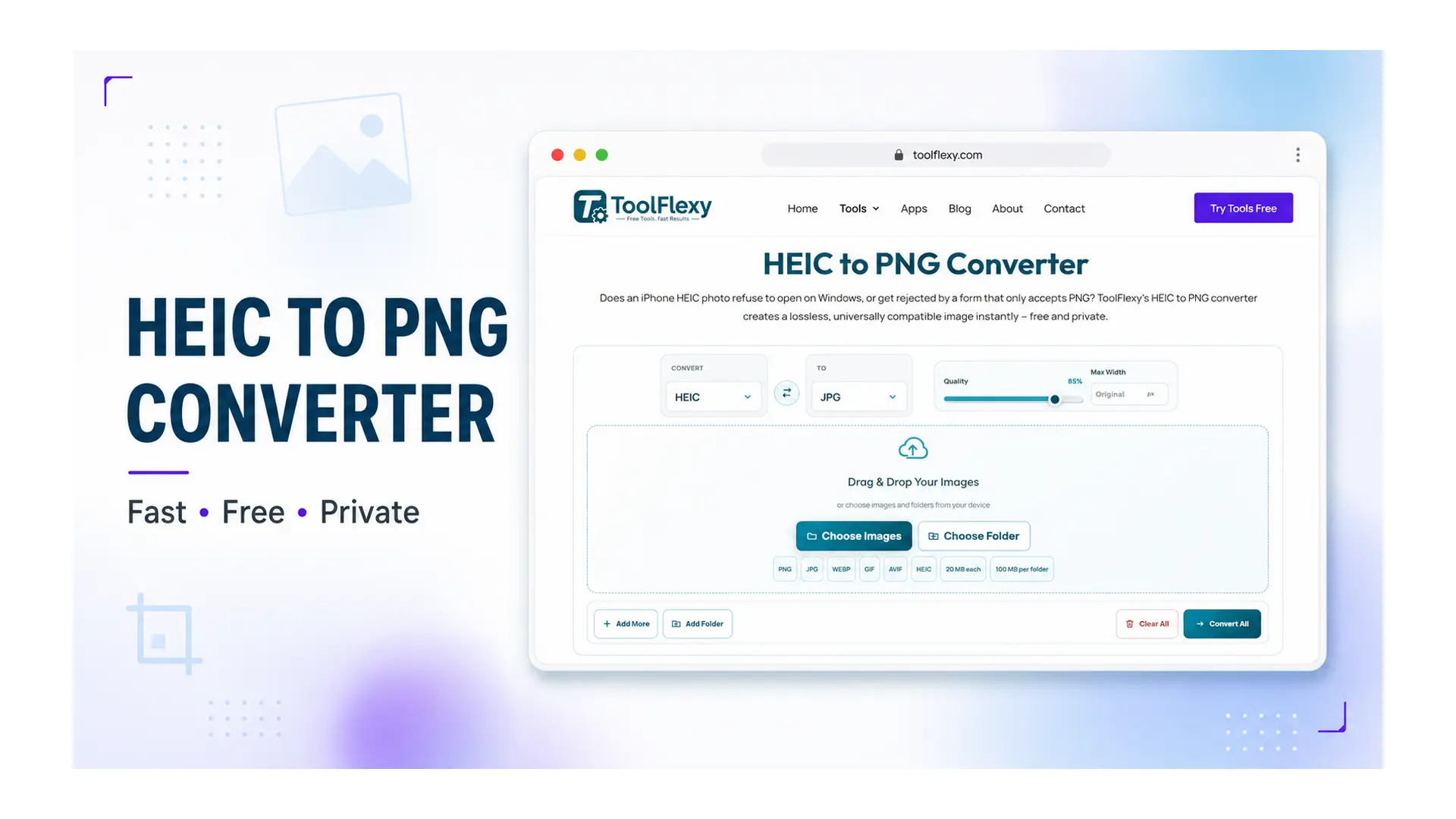
Step 1: Upload Your HEIC Photos
Drag and drop your HEIC or HEIF photo, or choose images and entire folders directly from your device. Each file can be up to 20 MB, with up to 100 MB per folder.
Step 2: Adjust the Quality Slider
A quality slider defaults to 85%. For photos you plan to print, keep quality between 90 and 100 percent; for web use, a lower setting further reduces file size.
Step 3: Download Your JPG Files
Single images typically convert in a second or two. Download your converted JPG files instantly, with no watermark added.
Is Converting HEIC to JPG Safe for Your Photos?
Yes — and this is where ToolFlexy’s converter differs from many alternatives. The conversion happens directly in your browser, which means your original photo is never uploaded to a server at all.
- Local browser processing: Your photos stay on your device throughout the entire conversion.
- No sign-up required: Convert immediately with no account.
- No daily limit: Convert as many photos or folders as you need.
- No watermark: Your downloaded JPG files are clean, ready to use anywhere.
Will Converting to JPG Reduce My Photo Quality?
It depends on the quality setting you choose. HEIC’s efficient compression means converting to JPG at a high quality setting (90-100%) keeps the visual difference minimal — you likely won’t notice it at normal viewing sizes. Lower quality settings trade some fidelity for a smaller file, which is a reasonable tradeoff for web use where the photo will be viewed on a screen rather than printed large.
If you’re archiving photos for printing or long-term storage, it’s worth converting at the highest quality setting to preserve as much detail as possible, since JPG is a lossy format and repeated re-saving at low quality can compound over time.
HEIC vs. JPG: Quick Comparison
| Factor | HEIC | JPG |
|---|---|---|
| File size at similar quality | Roughly half the size of JPG | Larger file for the same visual quality |
| Compatibility | Apple devices, newer software | Universal — opens virtually everywhere |
| Storage efficiency | Better, saves phone storage | Less efficient, but rarely an issue today |
| Editing support | Limited outside Apple apps | Supported by nearly every image editor |
| Best for | Storing photos on an iPhone | Sharing, uploading, printing, editing |
Neither format is objectively “better” — HEIC makes sense for storage on your device, while JPG makes sense the moment a photo needs to leave that device and be viewed, edited, or uploaded somewhere else.
Tips for Converting HEIC to JPG Without Losing Quality
- Match quality to purpose. Use 90-100% for anything you’ll print or zoom into; 70-85% is plenty for web use, email, or casual sharing.
- Convert in batches by purpose, not all at once. If some photos are for printing and others are just for a group chat, run them through separately with different quality settings rather than using one setting for everything.
- Keep your original HEIC files if storage allows. Since JPG is a lossy format, converting back and forth repeatedly degrades quality slightly each time — keeping the original HEIC as a backup avoids that.
- Check your folder size before uploading. With a 100 MB per-folder limit, very large batches of high-resolution photos may need to be split into smaller groups.
Can You Change How Your iPhone Saves Photos Instead?
Yes — if you’d rather avoid HEIC entirely going forward, your iPhone can be set to save photos as JPG automatically. Go to Settings, then Camera, then Formats, and choose “Most Compatible” instead of “High Efficiency.” This changes future photos to JPG at the point they’re taken, though it won’t affect photos already saved as HEIC — those still need to be converted after the fact.
Explore More Free Image Tools on ToolFlexy
HEIC conversion often pairs well with other quick image edits. A few tools worth combining with this one:
- Compress your converted JPG further if file size still matters for your use case.
- Resize your image to exact dimensions for a website or social platform.
- Remove the background from a converted photo for a product listing or graphic.
Conclusion
HEIC saves valuable storage space on your iPhone, but its limited compatibility makes converting to JPG a routine necessity the moment a photo needs to leave Apple’s ecosystem. ToolFlexy’s free HEIC to JPG converter handles a single photo or an entire folder in seconds, processes everything locally in your browser, and adds no watermark — with no sign-up standing in your way.