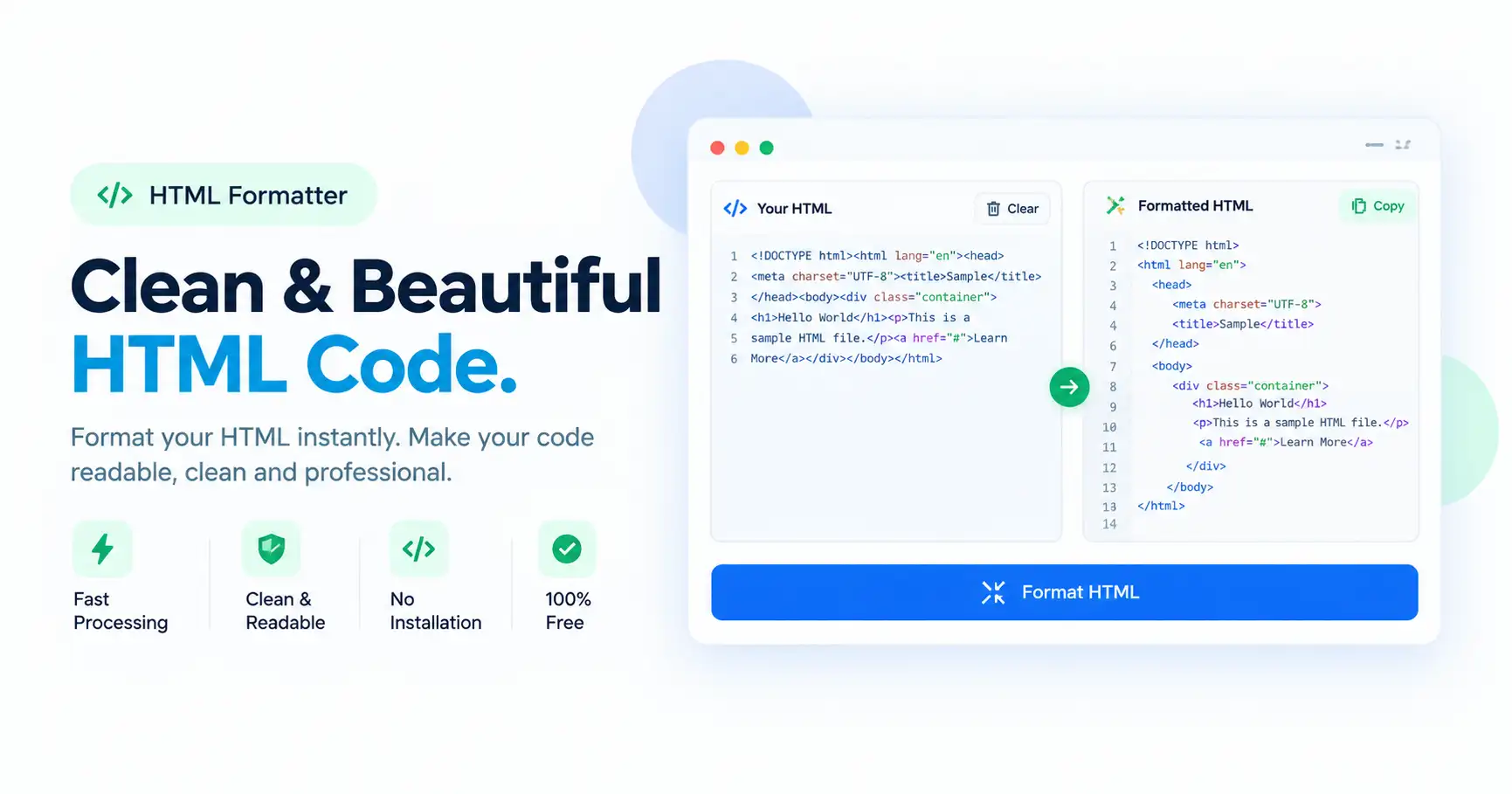
If you’ve ever pasted a colleague’s single-line HTML export into your editor, or opened a minified CSS file from a bundler and seen one giant unreadable wall of code, you know how much time gets wasted just trying to read the thing before you can even fix it. ToolFlexy’s free HTML formatter solves this instantly — paste your code, pick a language tab, and get clean, properly indented markup, stylesheets, or scripts back in seconds, with no sign-up and nothing uploaded to a server.
What Is an HTML Formatter, and Who Actually Needs One?
An HTML formatter takes messy, unindented, or minified code and restructures its whitespace and line breaks so nested tags, selectors, or functions line up cleanly and are easy to scan. It doesn’t change how the code runs or renders — only how it looks to a human reading it.
Developers use one daily when reviewing a pull request, debugging a template, or inheriting a codebase where indentation is inconsistent. Freelancers and agencies use one when a client hands over a WordPress export or a single-line snippet copied from a browser’s inspector panel. Students learning to code use one to see clean examples of properly structured markup instead of the tangled output some code generators produce.
Common Situations Where You’d Need to Format Code
The most frequent trigger is opening a minified production file — CSS or JavaScript that’s been compressed into one long line to save bandwidth — and needing to actually read or edit it. Right behind that is inheriting a project where the previous developer used tabs while your team uses 2-space indentation, or vice versa.
CMS platforms and page builders also tend to export HTML with inconsistent or missing indentation, which makes debugging layout issues far harder than it needs to be. And when you copy markup straight from a browser’s “View Source” or DevTools panel, it often comes out as a single dense block that’s genuinely painful to read without reformatting first.
How to Format HTML, CSS, or JavaScript With ToolFlexy
Using this HTML formatter works the same way across all three languages, so you only need to learn the flow once.
Step 1: Paste Your Code
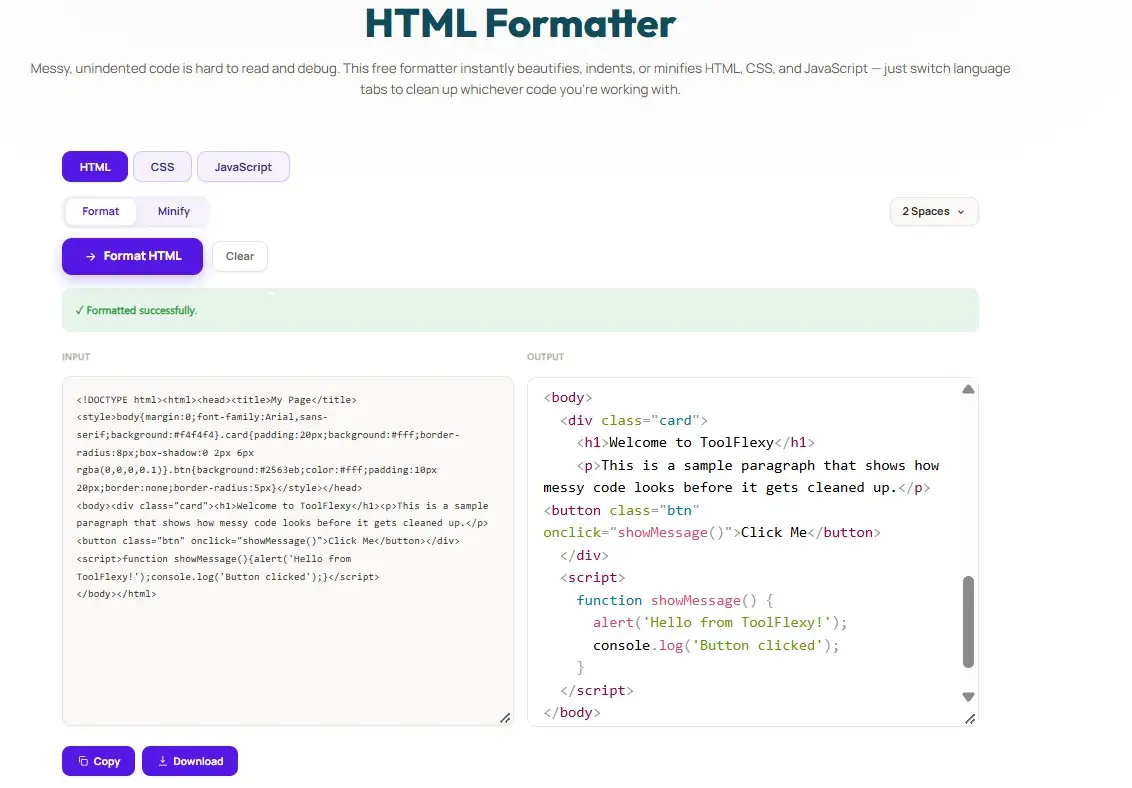
Copy your raw, minified, or unformatted HTML, CSS, or JavaScript into the input editor. It doesn’t matter whether it came from a bundler, a CMS export, or a colleague’s single-line snippet — the formatter handles all of it.
Step 2: Pick a Language Tab
Switch to the HTML, CSS, or JavaScript tab to match the code you pasted — or just skip this step. The tool automatically detects which language you pasted and switches the tab for you, so you rarely have to pick it manually. Each language is parsed and formatted using rules specific to it, so tags, selectors, and functions all line up correctly.
Step 3: Choose Format or Minify, and Set Your Indentation
Pick Format to beautify your code for readability, or Minify to compress it for production. Before you run it, choose your preferred indentation — 2 spaces, 4 spaces, or a tab character — to match your project’s existing style guide.
Step 4: Copy or Download the Result
Copy the cleaned-up code straight to your clipboard, or download it as a ready-to-use file for your project. Everything runs locally in your browser, so nothing you paste is ever transmitted to or stored on a server.
Beautify vs. Minify: Which One Do You Actually Need?
When deciding how to use an HTML formatter, it helps to know the difference: Beautify (Format) is what you want while you’re actively developing, debugging, or reviewing code — it prioritizes readability with consistent indentation and line breaks, at the cost of a slightly larger file.
Minify is what you want right before deploying to production — it strips out unnecessary whitespace, comments, and line breaks to shrink file size, which speeds up page load times, at the cost of making the code unreadable to a human. Most developers keep a beautified version in source control for their own sanity and let a build step (or a quick pass through a tool like this one) generate the minified version for the live site.
Why Indentation Style Actually Matters
Two spaces is the most common convention in modern JavaScript and CSS style guides (including Airbnb’s and Google’s), four spaces is still common in a lot of PHP and WordPress-adjacent codebases, and tabs remain popular with developers who want each person’s editor to control the visual width.
None of these are objectively “correct” — what matters is that a whole project uses one convention consistently, since mixed indentation is one of the most common sources of messy diffs in version control. ToolFlexy’s formatter lets you pick whichever one matches your team’s existing style guide rather than forcing a fixed format on you.
Is My Code Safe to Paste In?
Yes. All formatting and minifying happens locally in your browser using the js-beautify library — your HTML, CSS, or JavaScript, including anything from an unreleased client project, is never uploaded to or stored on ToolFlexy’s servers at any point. You can safely paste in proprietary or pre-launch code without it leaving your machine.
Related Tools
Working with structured data instead of markup? Our free JSON Formatter cleans up JSON the same way. Need to generate a CSS gradient instead of just formatting existing CSS? Try the CSS Gradient Generator. And if you’re cleaning up plain text rather than code, our Text Cleaner strips extra spaces, line breaks, and formatting artifacts in seconds.
What Makes a Good HTML Formatter?
A good formatter should handle real-world messy input — single-line minified code, inconsistent indentation, mixed tabs and spaces — without breaking anything or changing how the page actually renders. It should let you choose your indentation style rather than forcing one on you, since every team’s style guide is different. And it should work instantly without an account, a file upload limit, or your code leaving your browser.
Most standalone tools only handle one language at a time, so you end up bouncing between a separate HTML formatter, a CSS formatter, and a JavaScript formatter just to clean up one project. ToolFlexy combines all three in one page with the same interface, so you don’t have to relearn a new tool every time you switch languages.
Quick Tips for Cleaner Code
Format your code before you commit it, not after — reviewing a diff full of indentation changes mixed with real logic changes makes code review much harder than it needs to be. If your team hasn’t agreed on 2-space, 4-space, or tabs yet, pick one now and stick with it; changing conventions mid-project creates messy version-control history. And when you’re handing off a project to a client or another developer, always deliver the beautified version alongside the minified production build — future-you (or whoever inherits the code) will be able to actually read it.
Common Code Formatting Mistakes to Avoid
Mixing tabs and spaces in the same file is one of the most common issues — most editors display them identically, but version control tools and linters treat them as different characters, which creates confusing diffs and can even cause errors in whitespace-sensitive languages. Another frequent mistake is minifying code and then losing the original beautified version, which makes future edits painful since you’d have to reformat the minified file from scratch.
It’s also easy to forget that formatting a large CSS or JavaScript file with deeply nested selectors or callbacks can still look messy even after indentation is applied — in those cases, restructuring the actual code (fewer nesting levels, shorter functions) matters more than formatting alone. Finally, always keep a backup of your original file before minifying in bulk, since minification is one-way and hard to reverse cleanly without a formatter to expand it back.
Conclusion
Whether you’re debugging a minified production file, cleaning up a client’s messy export, or just want your team’s code to follow one consistent indentation style, ToolFlexy’s free HTML formatter doubles as a CSS formatter and JavaScript formatter, handling all three languages in one place — no sign-up, no upload, no limits. Try the HTML formatter now and turn any tangled code into something readable in seconds.