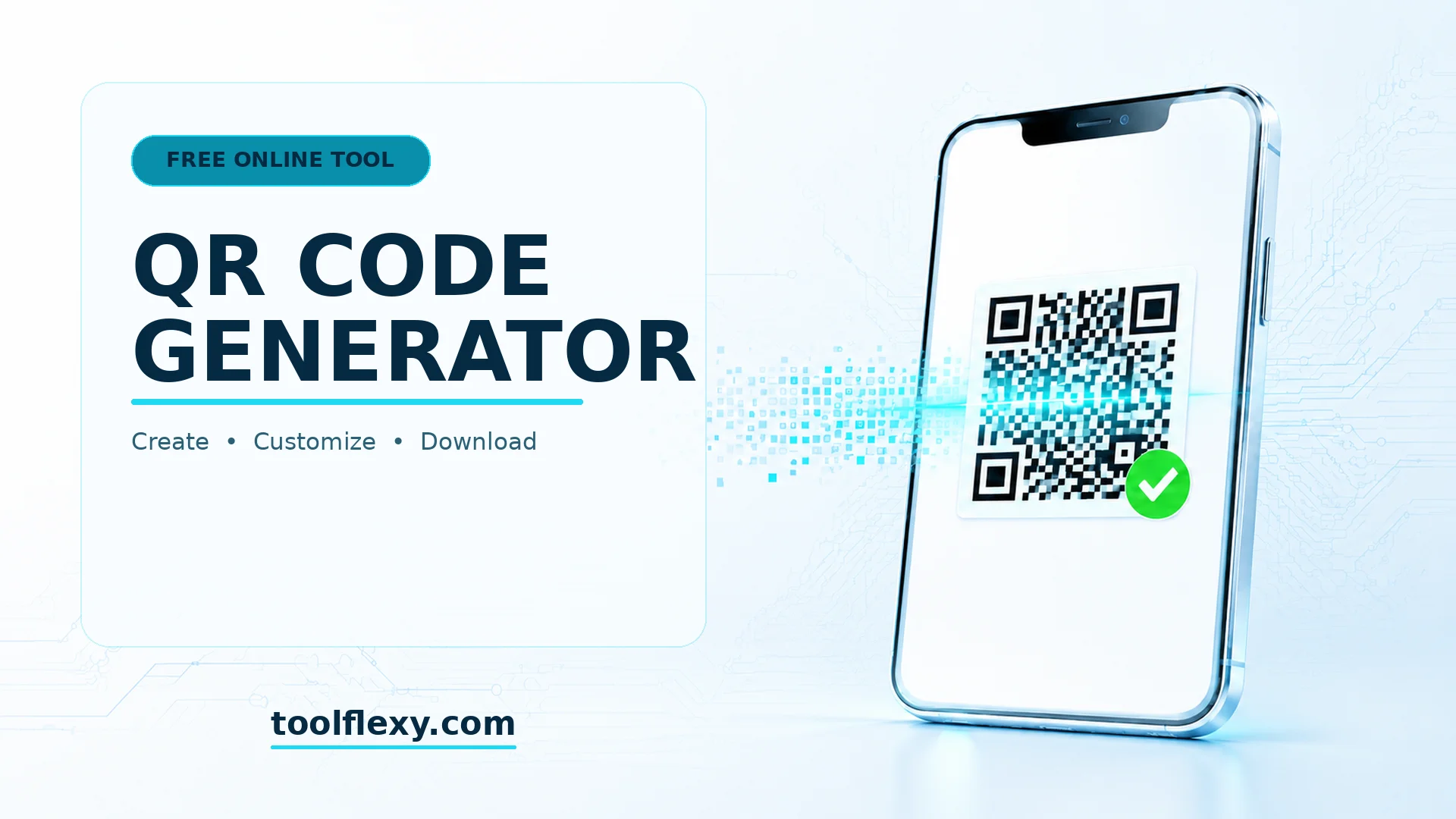
From restaurant menus to product packaging to business cards, QR codes have become the fastest way to hand someone a link without making them type anything. ToolFlexy’s free QR code generator creates a custom, scannable code in seconds — no software, no sign-up, and everything happens locally in your browser, so your data is never sent to a server.
This guide covers exactly how to create a QR code for a website, WiFi network, contact card, or nine other formats, how to customize it with your own colors and logo, and which file format to choose when you download it.
Why Use a Free QR Code Generator
A QR code turns any link, text, or piece of contact information into something a phone camera can scan instantly, which makes it useful well beyond marketing.
- No software or app required: Create and download a QR code entirely from your browser.
- No sign-up required: Generate a code immediately — no account, no email.
- No daily limit: Create as many QR codes as you need, one after another.
- Generated locally in your browser: Your data is never transmitted to a server, which matters for anything containing WiFi passwords or contact details.
How to Create a QR Code in 4 Steps
The process is the same short workflow no matter which type of QR code you’re creating.
Step 1: Choose Your QR Code Type
Select from 10 formats — website URL, PDF link, multiple URLs, contact card, plain text, app store link, SMS, email, phone number, or WiFi network credentials.
Step 2: Enter Your Content
Fill in the relevant details for your chosen type — a web address, a phone number, WiFi network name and password, or whatever the format calls for.
Step 3: Customize the Design
Adjust the QR code color and background color, and optionally upload a logo to place in the center for most code types.
Step 4: Preview and Download
Watch the live preview update as you make changes, then download your finished QR code as a PNG or SVG file.
10 Types of QR Codes You Can Create
Most free QR code generators only handle a plain URL. This one covers the full range of everyday use cases.
- Website URL: Link directly to any web page.
- PDF Link: Point straight to a hosted PDF — a menu, brochure, or resume.
- Multiple URLs: Route one scan to a landing page listing several links.
- Contact Card: Let someone save your contact details directly to their phone with a scan.
- Plain Text: Display any block of text without linking anywhere.
- App Store Link: Automatically detects iOS or Android and sends users to the right app store listing.
- SMS: Pre-fill a text message to a specific number.
- Email: Open a pre-addressed email, optionally with a subject line filled in.
- Phone Number: Let a scan start a phone call directly.
- WiFi Network: Let guests join your WiFi by scanning, without typing a password.
Customizing Your QR Code: Colors and Logo
A plain black-and-white QR code works fine, but matching it to your brand makes it look intentional rather than generic.
- Color customization: Set both the QR code color and the background color to match your brand or design.
- Logo upload: Add a logo to the center of most code types — recommended for URL, text, contact, phone, email, SMS, and WiFi codes.
- When to skip the logo: App store and multi-URL codes carry more data, so adding a logo isn’t recommended for those types — it can reduce how reliably the code scans.
- Live preview: Every change updates the preview instantly, so you can see exactly how the final code will look before downloading.
PNG vs. SVG: Which Format Should You Download?
The right file format depends on where the QR code is going.
| Format | Best For | Notes |
|---|---|---|
| PNG | Digital use, social posts, screens, general printing | Supports a logo in the center of the code. |
| SVG | Professional printing, large signage, packaging | Scales to any size with no quality loss; not available with a logo added. |
If you’re printing a QR code very large — on a poster, storefront window, or product packaging — SVG holds up better since it’s vector-based and won’t pixelate. According to the underlying QR code standard, the format is built with error correction that allows a portion of the code to be damaged or obscured (such as by a logo) and still scan correctly, which is why logos can be safely added to PNG exports without breaking the scan.
Common Use Cases for QR Codes
- Restaurant menus: Replace printed menus with a scannable link to a digital version.
- Business cards: Add a contact card QR code so people can save your details with one scan.
- Event signage: Link directly to a registration page, schedule, or venue map.
- Product packaging: Link to instructions, warranty registration, or a product page.
- WiFi access: Let guests or customers join your network without reading out a password.
- App downloads: One code that sends iOS and Android users to the correct app store automatically.
Tips for Creating a QR Code That Always Scans Correctly
Most scanning failures come down to a handful of avoidable mistakes, not a flaw in the code itself.
- Keep enough contrast between colors. A dark code on a light background (or vice versa) scans far more reliably than similar shades that blend together, even if they look fine to the human eye.
- Test before printing at scale. Scan the code on your own phone from a normal distance before sending it to a printer, especially if you’ve added a logo or custom colors.
- Give it enough size. A code that’s too small relative to the scanning distance — like a QR code on a highway billboard versus a business card — simply won’t resolve. Bigger surfaces need bigger codes.
- Leave a quiet zone around the code. Avoid cropping or placing other design elements too close to the edges of the QR code, since scanners rely on a clear margin of blank space to detect where the code starts and ends.
- Choose PNG over SVG when using a logo. Since SVG export isn’t available with a logo added, stick to PNG whenever your design includes one.
Is It Safe to Generate QR Codes Online?
Yes — and this tool goes a step further than most. Your QR code is generated entirely in your browser, which means the content you enter — including sensitive information like a WiFi password — is never transmitted to or stored on a server.
- Local generation: Your data stays on your device throughout the entire process.
- No account required: There’s no login tied to the codes you create.
- No tracking: Codes generated here are static, not linked to any analytics or tracking system on ToolFlexy’s end.
Explore More Free Generators on ToolFlexy
QR codes often get used alongside other quick generator tools. A few worth checking out:
- Generate a strong password for the WiFi network you’re sharing via QR code.
- Create a digital signature to pair with a contact card QR code on a business card.
- Generate meta tags for the landing page your QR code links to.
- Pick an exact color to match your QR code to your brand palette.
Conclusion
A QR code is one of the fastest ways to bridge something physical — a menu, a poster, a business card — with a digital destination. ToolFlexy’s free QR code generator covers all 10 common formats, adds your own colors and logo, and keeps your data on your device the entire time, with no sign-up and no limit on how many you create.