Page speed decides whether a visitor stays or leaves, and images are usually the heaviest thing on the page. If your site leans on SVG icons or illustrations at scale, a dedicated SVG to WebP converter can trim load times without touching how sharp your graphics look.
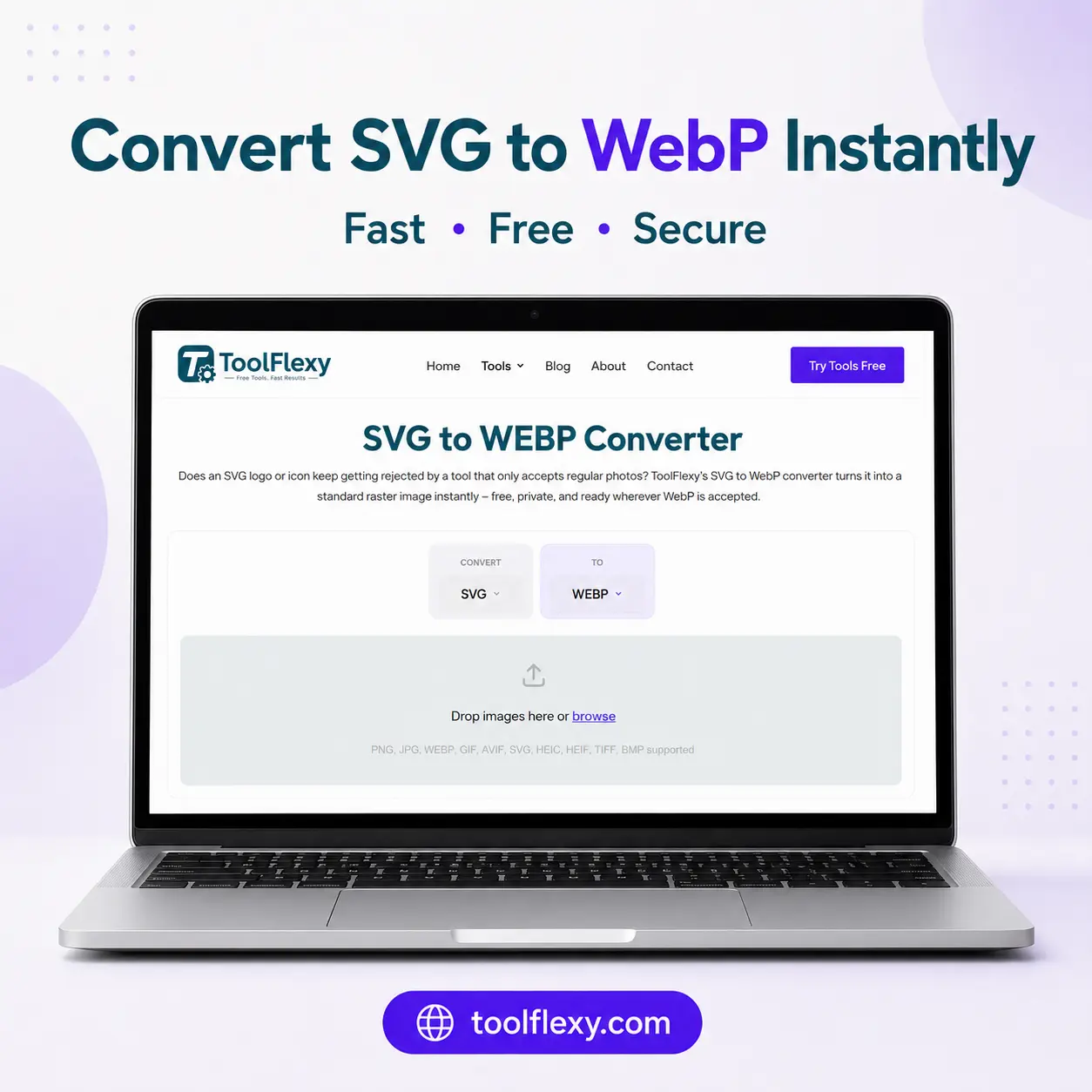
SVG (Scalable Vector Graphics) is built from math-based shapes rather than pixels, which is why it scales cleanly at any size — logos, icons, and line art typically use it. WebP is a modern raster format that compresses images far more efficiently than JPG or PNG while keeping visual quality close to the original. ToolFlexy’s SVG to WebP converter handles that conversion in your browser, free, with no software or sign-up required.
What Is an SVG to WebP Converter, and Why Use One?
An SVG to WebP converter takes a vector-based SVG file and renders it into a compressed, pixel-based WebP image. You’d reach for one whenever you need a smaller, pre-rendered image file instead of code the browser has to parse and draw every time it loads.
SVG vs WebP: Key Differences Explained
SVG and WebP solve different problems. SVG is resolution-independent — a single file looks identical at 20px or 2000px, because it’s drawn from vector math rather than a fixed pixel grid. WebP is a compression specialist — according to Google’s own WebP documentation, lossy WebP images are typically 25-34% smaller than comparable JPEGs at the same visual quality, and WebP also supports transparency the same way PNG does.
Where this gets practical: a highly detailed or animated SVG can actually be slower to render than a pre-compressed WebP image, since the browser has to parse and draw the vector code on every load. For complex graphics that don’t need to scale to arbitrary sizes, converting to WebP can reduce both file size and rendering overhead at once.
How to Convert SVG to WebP Online (Step-by-Step)
Converting a file takes under a minute and works the same way on desktop or mobile.
Step 1: Upload Your SVG File to ToolFlexy
Open the SVG to WebP converter and drag your file into the upload window, or click to browse your device.
Step 2: Choose Conversion Settings and Click Convert
Adjust output quality or dimensions if needed, then click convert. Processing typically finishes in a few seconds.
Step 3: Download Your Lightweight WebP File Instantly
Download the converted WebP file directly — no watermark, no waiting on an email link.
When Should You Actually Convert SVG to WebP? (Real Use Cases)
Converting SVG to WebP isn’t the right move for every graphic — it depends on what the image is doing on your page.
- Complex illustrations and decorative graphics: Detailed artwork with gradients, textures, or many individual paths often renders faster and smaller as WebP than as live SVG code, since the browser decodes a pre-rendered image instead of recalculating every shape.
- Static hero images and banners: If the graphic never needs to scale beyond its display size on the page, WebP’s compression advantage outweighs SVG’s scalability benefit, and you get a smaller file for the same visual result.
- Email and platforms with limited SVG support: Some email clients, marketplaces, and third-party platforms don’t render inline SVG reliably — a WebP export sidesteps that entirely and displays consistently everywhere.
- Thumbnail and preview generation: Small preview versions of a larger vector asset — a blog post thumbnail generated from a vector illustration, for example — are often lighter and simpler to serve as WebP than as a scaled-down SVG.
- WordPress and CMS media libraries: Many CMS platforms handle SVG uploads cautiously for security reasons, sometimes blocking them outright, while WebP is treated as a standard image format with no extra configuration required.
On the flip side, keep simple icons, logos that need to scale across many sizes, and anything you’ll frequently edit as native SVG — converting those to WebP trades away the exact advantages that made SVG the right format in the first place.
SVG vs WebP for Web Performance and Core Web Vitals
File format choice directly affects two Core Web Vitals metrics: Largest Contentful Paint (LCP) and Cumulative Layout Shift (CLS).
| Factor | SVG | WebP |
|---|---|---|
| Scalability | Perfect at any size | Fixed resolution |
| Typical file size | Varies with complexity | Consistently small |
| Rendering cost | Parsed/drawn by browser each load | Decoded once, like any image |
| Transparency support | Yes | Yes |
| Best for | Icons, logos, simple line art | Complex graphics, banners, photos |
As a quick rule: if the graphic is simple and needs to scale, keep it SVG. If it’s visually complex and displayed at a fixed size, converting to WebP usually improves load performance.
Best Practices for Web Image Optimization
- Convert selectively, not universally. Simple icons often render faster as inline SVG than as a WebP request — save WebP conversion for complex or decorative graphics.
- Compress after converting, not before. Convert SVG to WebP first, then run the output through a compressor if size is still a concern.
- Set explicit width and height attributes. This prevents layout shift regardless of which image format you use.
- Keep a source SVG on file. WebP can’t be losslessly converted back to true vector paths, so retain your original for future edits.
- Use lazy loading for below-the-fold images. Images outside the initial viewport shouldn’t block the page’s first render.
Is ToolFlexy’s SVG to WebP Converter Safe and Private?
Yes — ToolFlexy processes every uploaded SVG file over an encrypted connection and removes it from its servers shortly after conversion completes. That matters more than it might seem for SVG files specifically, since design assets and branded graphics are often proprietary work you wouldn’t want lingering on a third-party server.
- End-to-end SSL encryption: Files are encrypted in transit between your device and ToolFlexy’s servers.
- Instant server deletion after processing: Uploaded and converted files are removed once your download is ready.
- No account required: There’s no login tied to your uploads, so there’s no persistent profile linked to the graphics you convert.
Conclusion
Converting SVG to WebP is a targeted optimization, not a blanket rule — the best approach is knowing which of your graphics actually benefit from it. For complex illustrations, banners, and fixed-size decorative images, ToolFlexy’s free SVG to WebP converter gets you a smaller, faster-loading file in seconds, with your original SVG safely kept on hand for anything that still needs to scale. If it’s an older BMP file rather than SVG that needs shrinking down to WebP, ToolFlexy’s dedicated BMP to WEBP Converter handles that conversion the same way — free, in-browser, no sign-up.