Every platform crops or stretches your photo to fit its own frame, which is why the same image can look sharp on Instagram and blurry or awkwardly cropped on LinkedIn. The fix is to resize image for social media before you upload it, matching the exact pixel dimensions each platform actually expects — and ToolFlexy’s free Image Resizer has 7 of the most common social sizes built in as one-click presets, plus custom width/height for everything else.
The 7 Sizes ToolFlexy’s Resizer Handles Out of the Box
Open the Image Resizer, upload a JPG, PNG, WEBP, or GIF up to 20MB, and pick one of these 7 built-in presets instead of typing dimensions by hand:
| Preset | Dimensions | Best for |
|---|---|---|
| Instagram Post | 1080 × 1080 | Square feed posts |
| Instagram Portrait | 1080 × 1350 | Taller feed posts that take up more scroll space |
| Story/Reel | 1080 × 1920 | Instagram and Facebook Stories, Reels |
| Facebook Link Image | 1200 × 630 | The preview image Facebook generates when a link is shared |
| YouTube Thumbnail | 1280 × 720 | Video thumbnails (16:9) |
| X Header | 1500 × 500 | Profile header banner on X |
| LinkedIn Profile Cover | 1584 × 396 | Current spec for a personal LinkedIn profile cover photo — see note below for company Pages |
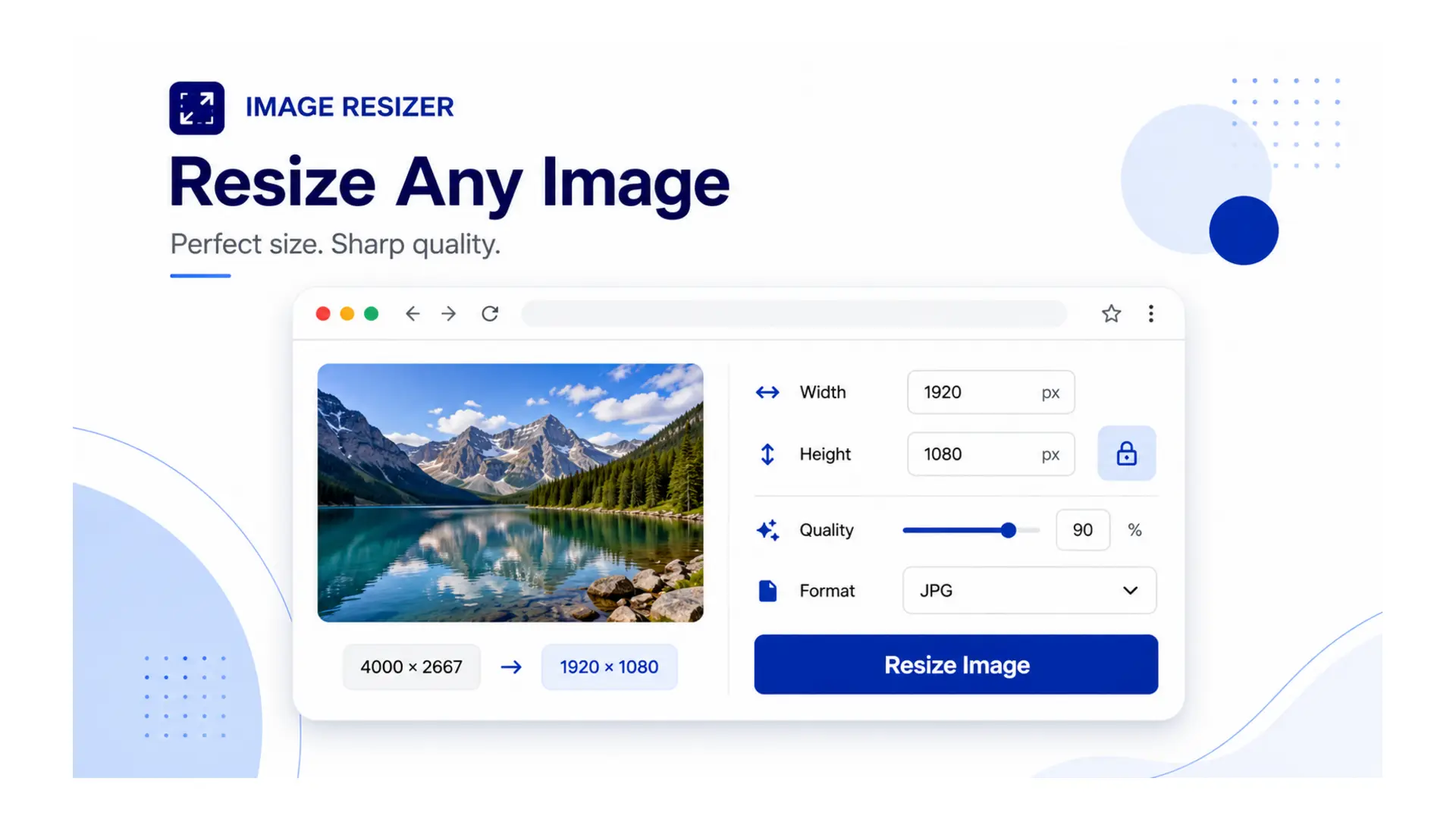
Each preset resizes and crops your image to the exact ratio in a couple of seconds, with a live preview so you can reposition the crop before downloading — nothing gets uploaded to a server in the process, since the resizing runs directly in your browser.
LinkedIn Profile Cover vs. Company Page Cover: Don’t Mix These Up
1584 × 396 is correct — but only for a personal LinkedIn profile cover photo. A LinkedIn company Page banner is a different, separate asset with its own spec, and that number has changed more than once as LinkedIn has redesigned its Page layout, which is exactly why so many guides online disagree with each other about it. Rather than hand you a specific company-Page pixel number here that could just as easily be outdated by the time you read this, the safest move is to open LinkedIn’s own Page admin upload tool (Super admin → Edit Page → Cover image) and let it tell you the exact current dimension and crop — it always reflects whatever LinkedIn is actually using today. For a personal profile cover photo, the 1584 × 396 preset above is accurate and safe to use directly.
Sizes the Tool Doesn’t Preset — And What to Enter Manually
The 7 built-in presets cover the sizes people ask for most, but a few common ones need the custom width/height fields instead. Here’s what to type in, based on each platform’s current published or widely-documented specs:
- Instagram profile picture: 320 × 320 (displays as a circle, so keep your subject centered).
- Facebook profile picture: 320 × 320.
- Facebook cover photo: optimal 851 × 315, with a minimum of 399 × 150 accepted.
- LinkedIn profile picture: 400 × 400.
- LinkedIn feed image post: 1200 × 1200 for a native square post.
- Pinterest Pin: 1000 × 1500, a 2:3 ratio that Pinterest itself recommends for full-height display in the feed.
- YouTube channel banner: 2560 × 1440 overall, though YouTube’s own channel art guidelines confirm only the centered 1546 × 423 “safe area” is guaranteed to show on every device — desktop, TV, mobile, and tablet crop the rest differently — so keep logos and text inside that middle zone.
None of these seven are built into the resizer as one-click presets today, so typing the numbers in manually is the only way to hit them precisely — worth remembering next time you’re setting up a new profile or company page rather than eyeballing a crop.
Type any of these directly into the resizer’s custom width/height fields, lock the aspect ratio if you want to avoid stretching, and the same one-click download applies.
Why You Should Resize Image for Social Media by Aspect Ratio, Not Just Pixels
A photo that’s technically “close enough” in pixel dimensions can still look wrong if its aspect ratio doesn’t match the platform’s — that’s when you get an image that’s stretched, squashed, or has an important detail cropped out entirely. Instagram’s square post (1:1) and its Story format (9:16) aren’t just different sizes, they’re different shapes, so a photo built for one will never fit the other cleanly no matter how you scale it.
This is why the resizer’s aspect-ratio lock matters more than manually typing in exact numbers: locking the ratio first, then choosing a preset or entering a target width, keeps your subject’s proportions intact instead of warping a face or logo to fill a mismatched frame. If a photo genuinely doesn’t fit the target ratio well — a wide landscape shot forced into a square, for example — cropping in some content is usually less distracting than stretching the whole image to fit.
A Quick Real Example: One Photo, Three Platforms
Say you’ve got a single 4000 × 3000 landscape photo from a product shoot and need it ready for Instagram, a LinkedIn company post, and a YouTube thumbnail. Upload it once, then run it through the resizer three times with three different targets: the Instagram Post preset (1080 × 1080) crops it to a centered square, the custom LinkedIn feed size (1200 × 1200) does the same at a slightly different pixel count, and the YouTube Thumbnail preset (1280 × 720) keeps the original landscape shape but scales it down. Three exports, each one matching what its destination platform actually displays, instead of uploading the same 4000 × 3000 original everywhere and letting each platform’s own algorithm decide how to crop it for you.
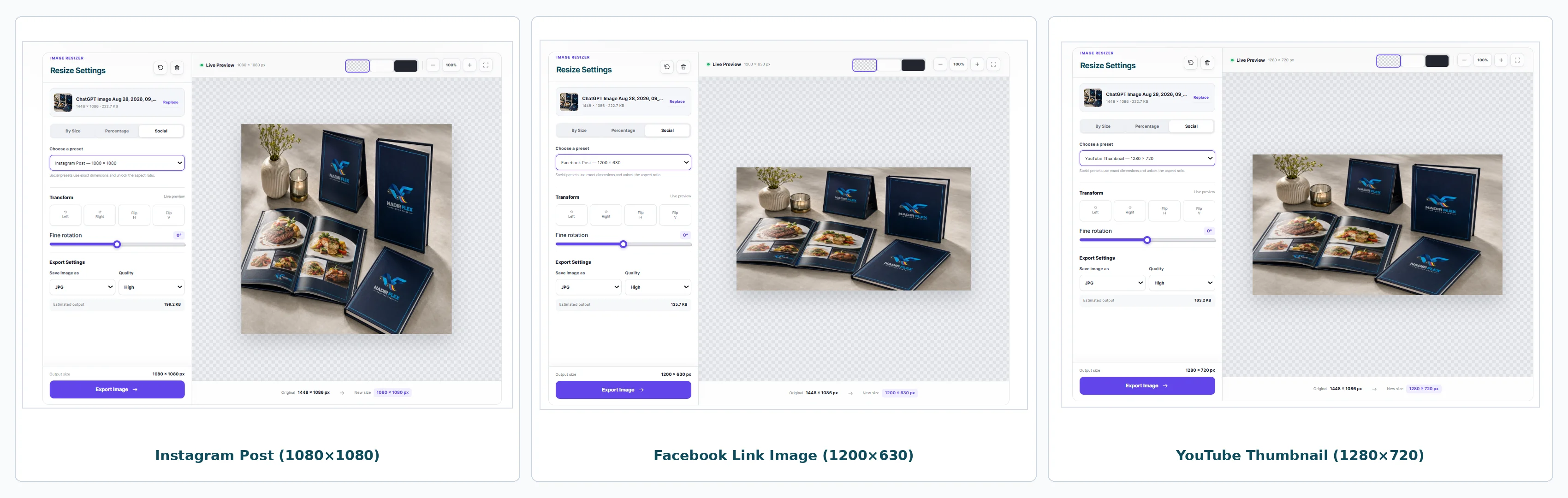
One photo resized to Instagram Post, Facebook Link Image, and YouTube Thumbnail dimensions with ToolFlexy’s Image Resizer
What Happens If You Skip Resizing and Just Upload the Original
Most platforms will still accept an unresized image, but they’ll auto-crop or auto-compress it using their own algorithm — which is exactly how faces get cut off in profile thumbnails, or how a sharp photo turns visibly soft after a platform’s automatic compression kicks in on an oversized file. Resizing to the platform’s actual target dimensions before uploading puts you in control of exactly what gets cropped and how much quality survives the platform’s own compression pass, rather than leaving both decisions to an algorithm that has no idea what matters in your photo.
Explore More Free Image Tools on ToolFlexy
- Compress the resized image further if it’s still too large for an upload limit or email attachment.
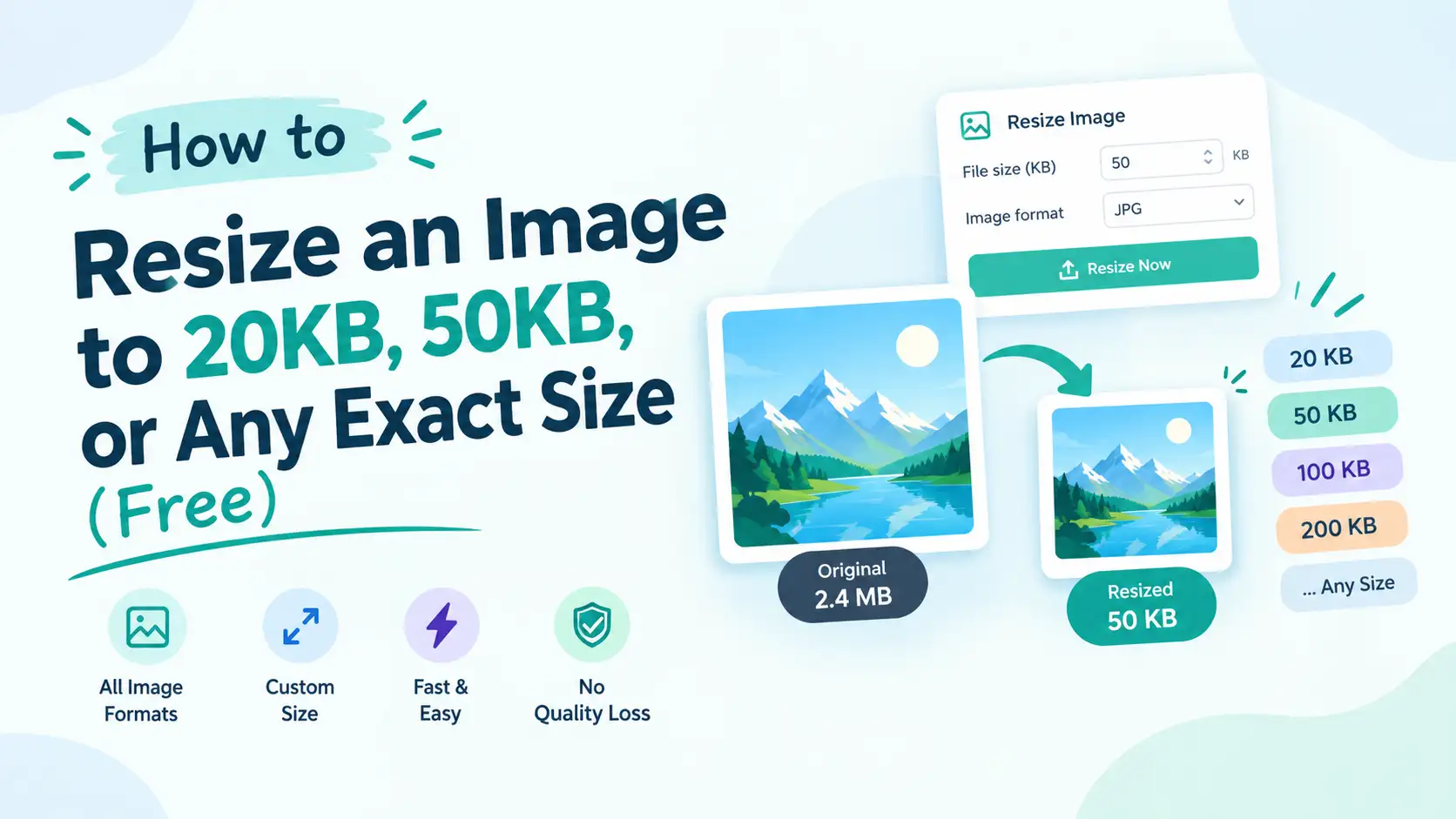
- Resize an image to an exact size like 20KB or 50KB when a form or portal has a strict upload limit.
- Convert HEIC to JPG first if your photo came straight from an iPhone and needs a more universally-supported format before resizing.
- Remove the background from a product photo before resizing it for a clean, platform-ready post.
Conclusion
Every platform frames your photo differently, so the fastest way to stop dealing with awkward crops and blurry uploads is to resize image for social media content before it ever leaves your device — matching Instagram’s square, LinkedIn’s current banner shape, or YouTube’s 16:9 thumbnail exactly, rather than hoping each platform’s own algorithm gets the crop right. Try ToolFlexy’s free Image Resizer — 7 built-in presets, custom sizing for everything else, no sign-up, and nothing ever leaves your browser.