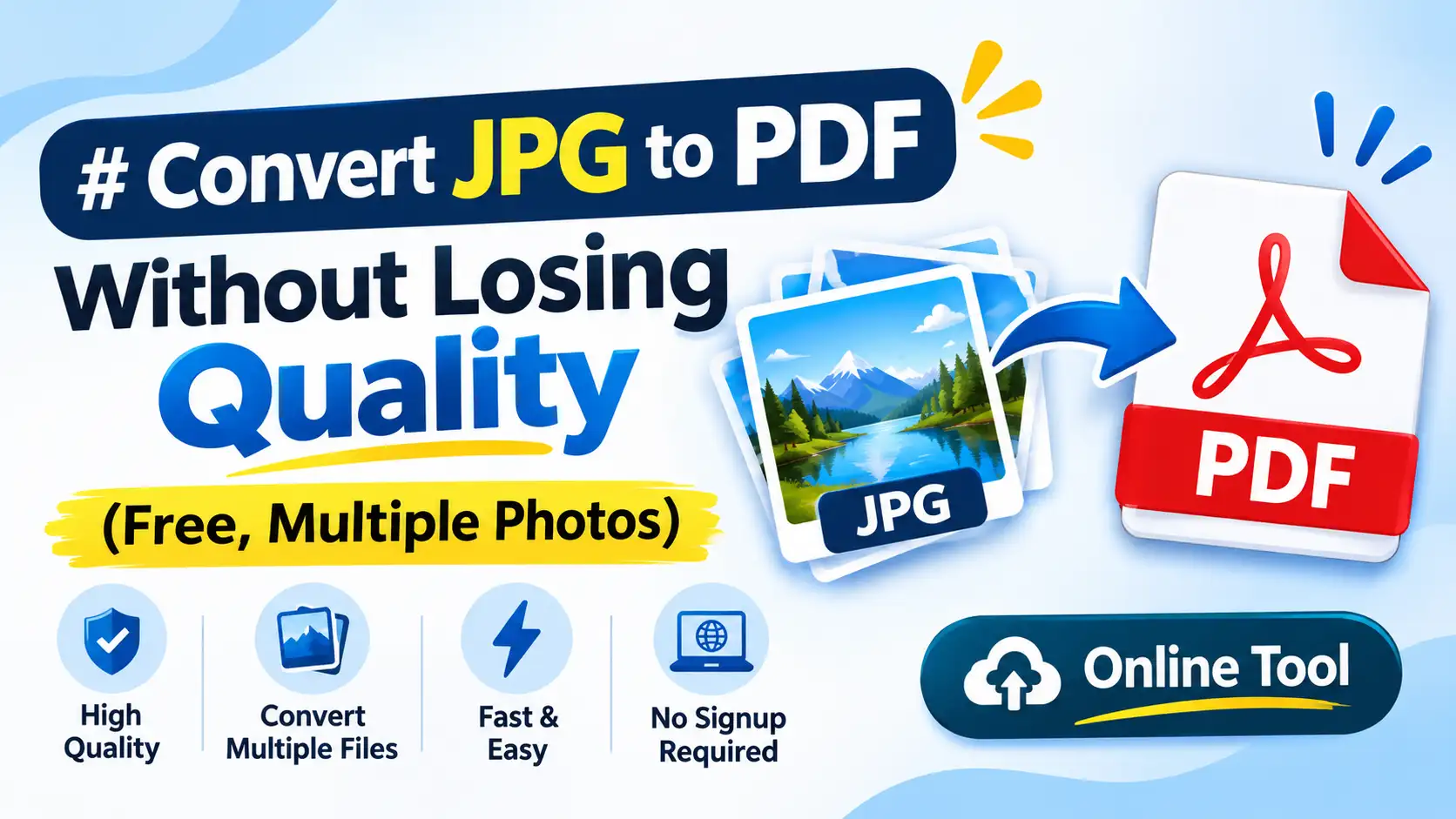
Need to combine multiple photos into one file without them coming out blurry, out of order, or surrounded by ugly white borders? ToolFlexy’s free JPG to PDF converter turns your images into a single PDF in seconds — no sign-up, no email, and no software to install. The hard part isn’t the conversion itself; it’s getting a clean result: full resolution, correct page order, and no awkward margins eating into the photo.
This guide covers exactly how to combine multiple JPGs into one PDF the right way, plus the specific fix for each thing that commonly goes wrong — not generic “just upload it” advice.
Try the free JPG to PDF converter now — no sign-up, no email
Why Convert JPG to PDF in the First Place?
A single JPEG is easy to send, but the moment you have more than one — a stack of receipts, scanned pages of a contract, photos of a handwritten form, screenshots for a report — email and most upload forms only let you attach them one at a time, or they land out of order on the other end. A PDF keeps every image as one file, in a fixed order, that opens the same way on any device. That’s why “convert jpg to pdf” is one of the most common file-conversion searches: it’s rarely about the format itself, it’s about turning a scattered pile of photos into one document someone can actually read start to finish.
The three things that most often go wrong — blur, wrong order, bad margins — all have specific, fixable causes. None of them mean you need different software; you just need to know what to check before and after you convert.
How to Combine Multiple JPGs Into One PDF, Step by Step
Here’s how to get a clean result from ToolFlexy’s free JPG to PDF converter, start to finish:
Upload Your Images in the Order You Want Them
Drag and drop all your JPGs at once, or select multiple files from the upload dialog. Most JPG to PDF converters, ToolFlexy included, add pages in the order you select the files — so if the sequence matters (a contract, a form, a photo story), select them in that order rather than relying on alphabetical filenames.
Double-Check the Page Order Before You Convert
Once your images are uploaded, you’ll see them laid out as thumbnails. This is the point to drag any out-of-place image into position — it’s much faster to fix here than to re-convert from scratch after noticing a page is backwards.
Download and Open Before You Send It Anywhere
After conversion, download the PDF and open it before forwarding it. Check the first page, the last page, and any page with small text or fine detail — these are where quality issues show up first. If something’s off, the fixes below cover exactly what to do.
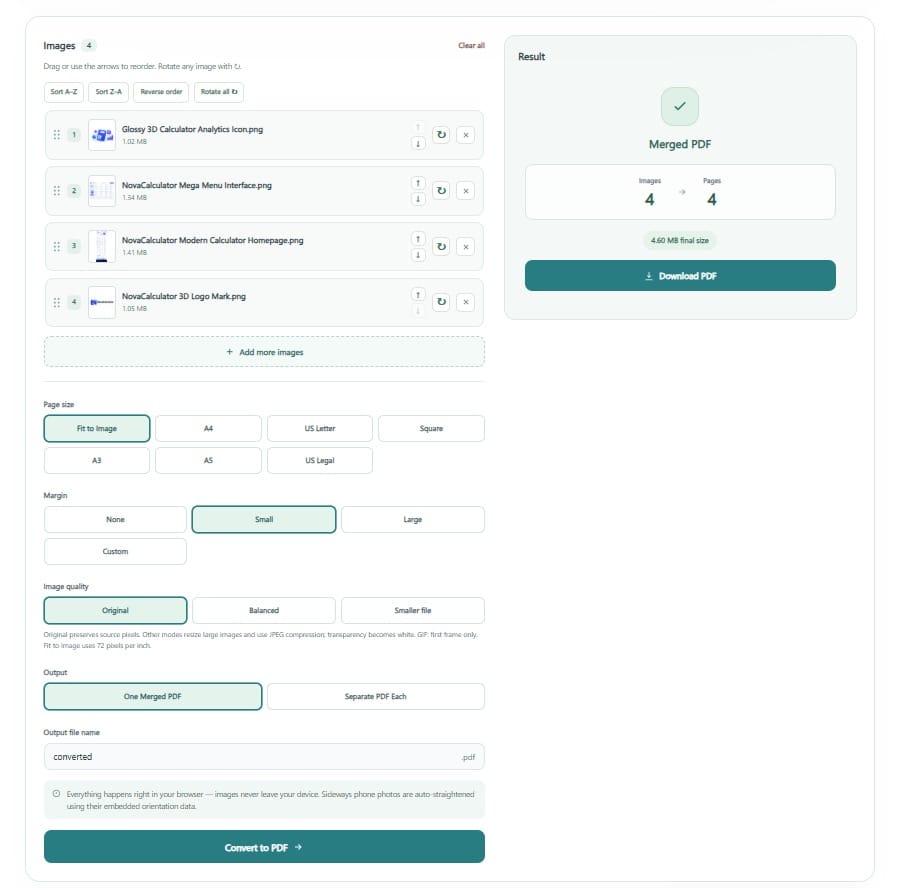
Once you’ve got a clean, correctly ordered PDF out of ToolFlexy’s jpg to pdf converter, the only thing left is knowing what to check if a specific page still looks off — which is exactly what the next section covers.
4 Problems People Run Into — And How to Fix Each One
These are the issues that actually come up when you convert JPG to PDF, and what fixes each one.
Images Come Out Blurry or Low-Resolution
Why does my JPG to PDF conversion look worse than the original photo? This almost always traces back to the source image, not the JPG to PDF converter itself: if the JPG was already compressed heavily (downloaded from WhatsApp, a social media post, or a low-quality scan app), the PDF inherits that same resolution — a PDF can’t add back detail that the JPG never had.
Fix: Before converting, check the original JPG’s file size and dimensions — a photo under 500KB or smaller than 1000px wide is a warning sign. Re-take the photo or re-export it at full resolution if you have access to the original source, then convert. If you only have the compressed version, there’s no way to recover lost detail — the fix has to happen before conversion, not after. This is also why forwarding a photo through multiple apps (camera roll to messaging app to email) often produces the blurriest result: each app can re-compress the image on its way through, so convert from the most original copy you can find.
Pages Are in the Wrong Order
This happens when files are uploaded in whatever order your device lists them — which is often alphabetical or by file-creation time, not the order you actually photographed or scanned them in.
Fix: Rename your image files with a number prefix before uploading (01-contract.jpg, 02-contract.jpg) so the file order matches the page order you want, or use the converter’s thumbnail reorder step to drag pages into place before you download.
Unwanted White Margins Around Each Photo
A PDF page has a fixed, standard size (usually A4 or Letter), but your photo almost never matches those exact dimensions — so the converter adds white space around the image to fit it onto the page. This is normal behavior, not a bug, but it can look wrong if you expected a borderless, full-bleed PDF.
Fix: Look for a “fit to page” or “no margin” option before converting — ToolFlexy’s JPG to PDF converter fits the image to the page automatically where the aspect ratio allows. If margins still appear, the photo’s aspect ratio doesn’t match the page size; cropping the image closer to its final shape before converting removes the extra white space.
File Size Is Too Large to Email
Combining several full-resolution photos into one PDF can easily produce a file too large for an email attachment limit (commonly 25MB), even though each individual JPG was small enough on its own.
Fix: Convert first, then run the finished PDF through a free PDF compressor — this shrinks the file size while keeping the layout and page order intact, which is more reliable than re-compressing each photo individually before conversion.
What to Check Before You Convert
A few things are worth checking in your original photos before you even run the conversion — they prevent most quality and formatting problems rather than fixing them after the fact.
How Many Photos Are You Combining?
A handful of images converts and reorders in seconds. Once you’re past 20-30 photos, double-check the page order carefully before downloading — it’s much easier to miss one out-of-place page in a long document, and re-uploading everything to fix a single page is slower than catching it the first time.
Do the Photos Need to Be in a Specific Orientation?
A mix of portrait and landscape photos converts fine, but each page will match its own photo’s orientation rather than forcing a single layout across the whole document. If you need every page to look consistent (for a printed booklet, for example), rotate any mismatched photos to the same orientation before you upload them.
Is This Going to Print, or Just Be Viewed on Screen?
If the PDF only needs to be viewed on a screen, the default settings are fine. If it’s going to be printed — especially for something like ID copies or official documents — check that “fit to page” isn’t stretching a smaller photo to fill a larger page, since that can make printed text or details look soft even though the on-screen preview looked sharp.
JPG to PDF vs PNG to PDF: Does It Matter Which You Use?
For photos, JPG to PDF is almost always the better choice — JPG is built for photographic images and produces a smaller file at a given quality level. PNG matters more for screenshots, graphics with sharp text, or images that need a transparent background, where PNG’s lossless compression avoids the slight blurring JPG can introduce around hard edges. If your images are a mix of both, convert each type with its matching tool — ToolFlexy’s PNG to JPG converter can standardize a mixed batch to JPG first if you want everything to go through one PDF conversion with consistent compression.
In practice, most people never have to think about this distinction at all — a phone camera saves photos as JPG by default, and only screenshots or downloaded graphics tend to come in as PNG. The only time it’s worth converting one format to the other first is when a single PDF needs to look visually consistent, since mixing compression types across pages can make some pages look slightly softer than others side by side.
Is It Safe to Convert Photos to PDF Online?
Yes — as long as the tool processes your file and lets you download the result immediately, without requiring an account or storing your images indefinitely. ToolFlexy’s JPG to PDF converter works exactly that way: no email, no account, no file sitting on a server waiting to be forgotten about.
This matters more than people think for anything personal — ID scans, medical documents, financial paperwork. The safest habit, regardless of which tool you use, is the same one that applies to any file you upload anywhere: convert it, download the result, and don’t rely on a browser-based tool to be your long-term storage. If you’re combining sensitive documents into one PDF specifically to send to someone, it’s also worth double-checking the final file before sending — once several images are merged into a single document, it’s easy to miss that one page still shows more of the original photo (a visible tabletop, a hand, a background) than you intended to share.
Convert JPG to PDF Free, Without the Guesswork
A good jpg to pdf converter handles most of this for you automatically, but most problems people run into come down to four specific, fixable causes — blurry source images, upload order, page margins, and file size — not a bad converter. Follow the steps above and you’ll get a clean, correctly ordered PDF on the first try, and know exactly what to check if anything still looks off.