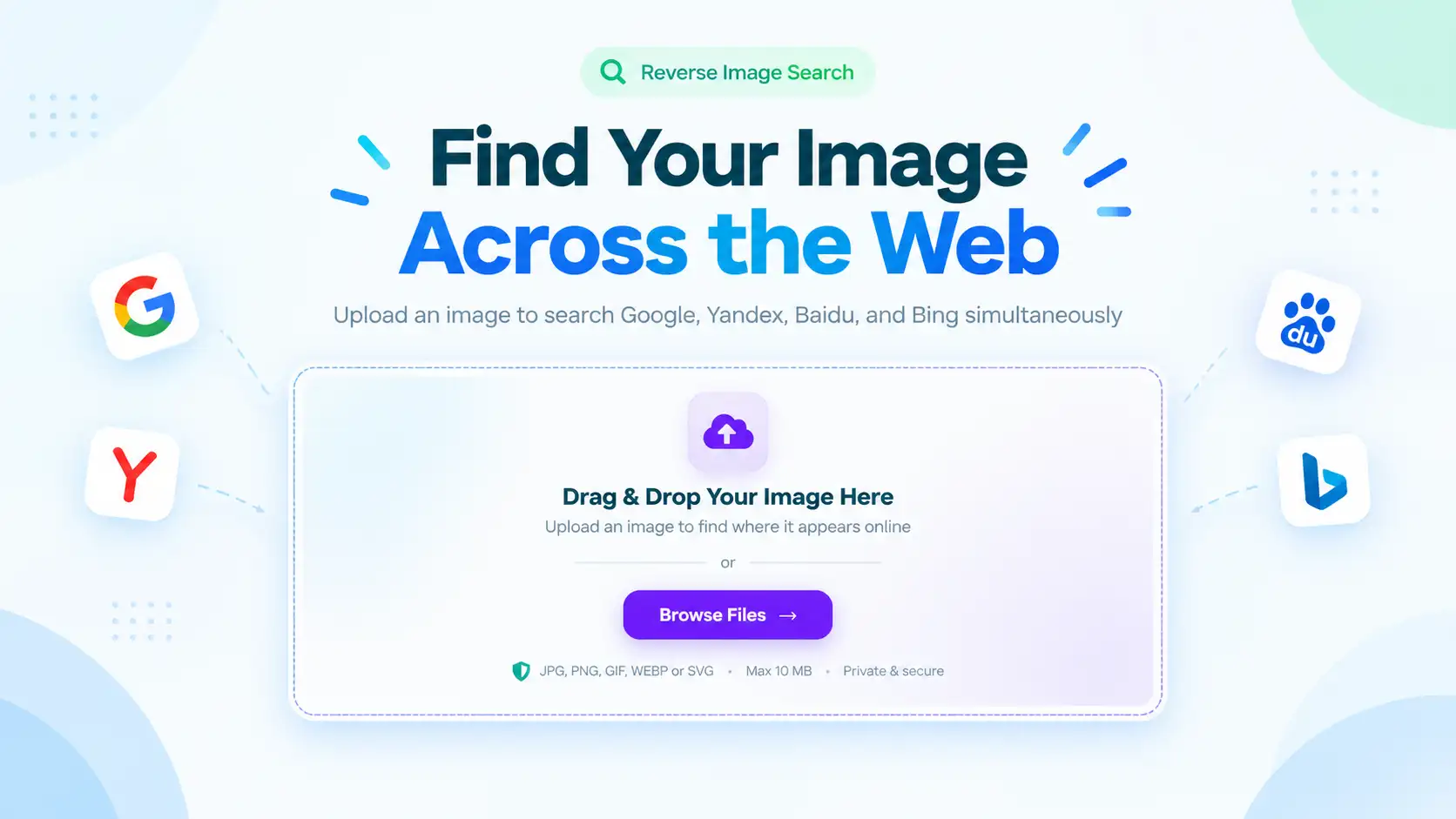
Yes, you can reverse image search on iPhone — and you don’t need to install anything to do it. Whether you’re trying to find where a photo originally came from, check if someone is using your picture without permission, or just figure out what’s in a screenshot a friend sent you, your iPhone already has more than one way to run this kind of lookup, plus a few free tools that do it even better.
This guide covers five ways to reverse image search on iPhone, from Apple’s own built-in features to ToolFlexy’s free reverse image search tool, which checks four search engines at once with no app to download. If you’ve searched “reverse image search iphone” before and come away with confusing, app-store-only results, the short answer is that your phone already has everything it needs built in — no download required for most of these methods.
What Is Reverse Image Search, and Why Do It on iPhone?
Reverse image search flips the usual search process around — instead of typing keywords to find a picture, you start with a picture and search for everything related to it: where else it appears online, higher-resolution versions, visually similar images, or sometimes just what the object or place in the photo actually is.
On an iPhone specifically, this comes in handy more often than people expect. A few common reasons someone does an image search on their iPhone:
- Verifying a photo before sharing it. If a picture looks too dramatic or convenient to be true, searching it can show whether it’s old, staged, or taken out of context.
- Finding the original source. Screenshots and reposts strip away credit — searching the image can lead you back to where it was first posted.
- Protecting your own photos. Photographers and creators use it to check whether their work is being reused elsewhere without permission.
- Shopping from a picture. If you saved a photo of a product but don’t know its name, searching it often surfaces the listing directly.
5 Ways to Reverse Image Search iPhone (Free Methods)
You don’t need just one method to reverse image search iPhone photos — different situations call for different tools. Here are five ways to search using an image on your iPhone, starting with the options that need no extra setup at all.
Method 1: Google Lens in the Google App
If you already have the Google app installed, this is the fastest way to run a Google reverse image search on iPhone.
- Open the Google app and tap the camera-shaped Lens icon inside the search bar.
- Choose a photo from your library, or take a new one on the spot.
- Lens scans the picture and returns matching and visually similar results, along with any text it can read in it.
This works well for identifying objects, plants, landmarks, and products, though it’s tied to Google’s own index — if a photo is only indexed elsewhere on the web, Lens can come up empty even when a match genuinely exists.
Method 2: Reverse Image Search Right in Safari
You can do this directly from Safari without installing anything else:
- Open images.google.com in Safari.
- Request the desktop site (tap the “aA” icon in the address bar, then “Request Desktop Website”) so the camera search icon appears — it’s hidden on the mobile layout.
- Tap the camera icon, then upload a saved photo or paste an image URL.
This is essentially the same lookup you’d run on a laptop, just adapted for Safari’s mobile interface — useful if you’d rather not install the Google app at all.
Method 3: Apple’s Built-In Visual Look Up (Photos App)
Your iPhone can already identify a lot about a photo without leaving the Photos app. Open any picture, tap the small “i” info button (or swipe up), and if Visual Look Up detects a recognizable subject — a plant, pet breed, landmark, artwork, or even text — it shows an icon you can tap for details and related web results.
Visual Look Up isn’t a full web search for exact copies of the photo, so it won’t tell you everywhere a picture has been reposted. But for quickly identifying what’s actually in a picture without opening a browser, it’s genuinely useful and built into every photo you take. Apple documents exactly what it can recognize in its own support guide for Visual Look Up.
Method 4: ToolFlexy’s Free Reverse Image Search Tool
For the most thorough results, use ToolFlexy’s reverse image search tool directly from Safari or Chrome on your iPhone — no app install, no account, and no limit on how many photos you search.
- Upload a photo from your Photos library, or paste a direct image URL if you found the picture online already.
- The tool checks Google, Yandex, Baidu, and Bing at the same time, giving you four engines’ worth of results from a single search instead of checking each one separately.
- Review results from each engine individually to compare what each one surfaced.
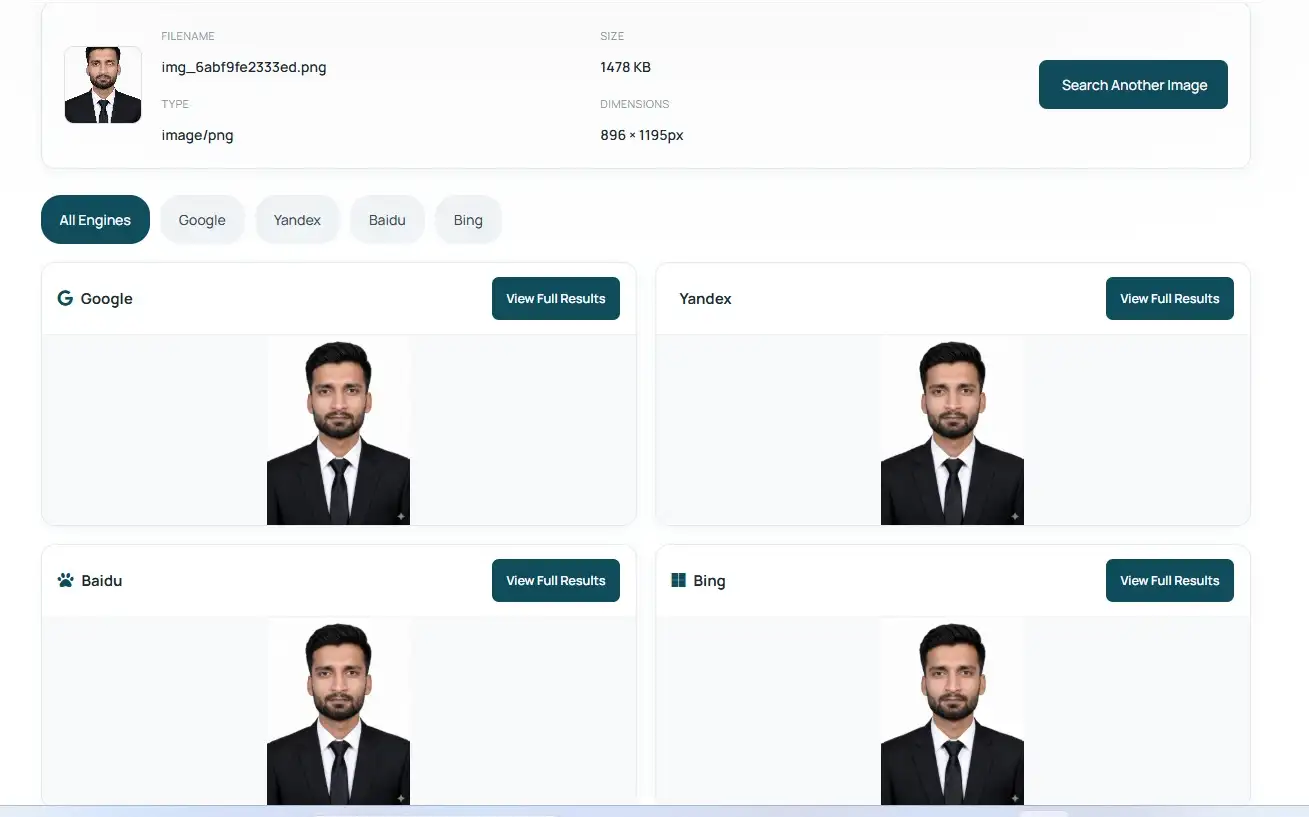
Checking more than one engine matters more than it sounds like it should. Google, Yandex, and Baidu each index different parts of the web, so a picture that returns nothing on Google alone can still turn up clear matches on Yandex or Baidu — something a single-engine search simply can’t show you. Since every upload is processed instantly and never stored on ToolFlexy’s servers afterward, it’s also a more private option than apps that ask you to create an account before you can search anything.
Method 5: Third-Party Reverse Image Search Apps
If you’d rather have a dedicated reverse image search app for iPhone that lives on your home screen, the App Store has several options that wrap similar functionality into a standalone app, often adding extras like saved search history or side-by-side result comparisons. The tradeoff is usually an account sign-up, ads, or a subscription for unlimited use — worth it if you run these searches constantly, but unnecessary for the occasional lookup.
Which Method Should You Use?
With five options on the table, here’s a quick way to decide which one fits what you’re trying to do right now:
| Situation | Best Method |
|---|---|
| Quick identification of an object, plant, or landmark | Visual Look Up (Photos app) |
| Already have the Google app installed | Google Lens |
| Want the most thorough results across multiple engines | ToolFlexy’s Reverse Image Search tool |
| Prefer not to install any app at all | Safari or ToolFlexy (both run in-browser) |
| Run these searches often and want a home-screen app | A third-party reverse image search app |
Tips for a Better Reverse Image Search iPhone Experience
- Crop out distractions first. If the photo has a busy background or more than one subject in frame, crop the image down to just the part you care about before searching — engines match far more accurately on a focused subject than a cluttered frame.
- Watch out for HEIC format. iPhones save photos as HEIC by default, and some search tools and websites won’t accept that format for upload at all. If your photo gets rejected, convert the HEIC photo to JPG first and try again.
- Try an image URL instead of a file. If you found the photo somewhere online rather than saving it to your camera roll, copying its direct image URL and pasting it into a search tool is usually faster than downloading and re-uploading it.
- Check more than one engine. A photo with zero matches on Google can still turn up results elsewhere, which is exactly why checking multiple engines at once is worth the extra few seconds it takes.
- Pull out any text in the result. If a match turns up an image full of text — a screenshot, a sign, a document — extract the text from it instead of retyping everything by hand.
Is It Safe to Reverse Image Search on iPhone?
Generally, yes — but it depends on which tool you use. Apple’s Visual Look Up and the Photos app process everything locally on your device, so nothing leaves your phone. Google Lens and Google’s own reverse image search upload your photo to Google’s servers to run the match, and Google’s policy allows it to retain that image for a limited time afterward.
If privacy matters to you, that’s the main reason to reverse image search iPhone photos with a tool like ToolFlexy’s, which processes every upload instantly for the search and does not store, save, or log the image afterward — so you get the broader multi-engine coverage without the account history or server retention that comes with some alternatives.
Conclusion
You don’t need any special setup to reverse image search iPhone photos — between Visual Look Up, Google Lens, Safari, and a free multi-engine tool, you already have everything you need. For the most complete results from a single search, try ToolFlexy’s free reverse image search tool — no sign-up, no app to install, and four search engines checked at once.