
Ready to try it? Use our free SVG to JPG Converter tool.
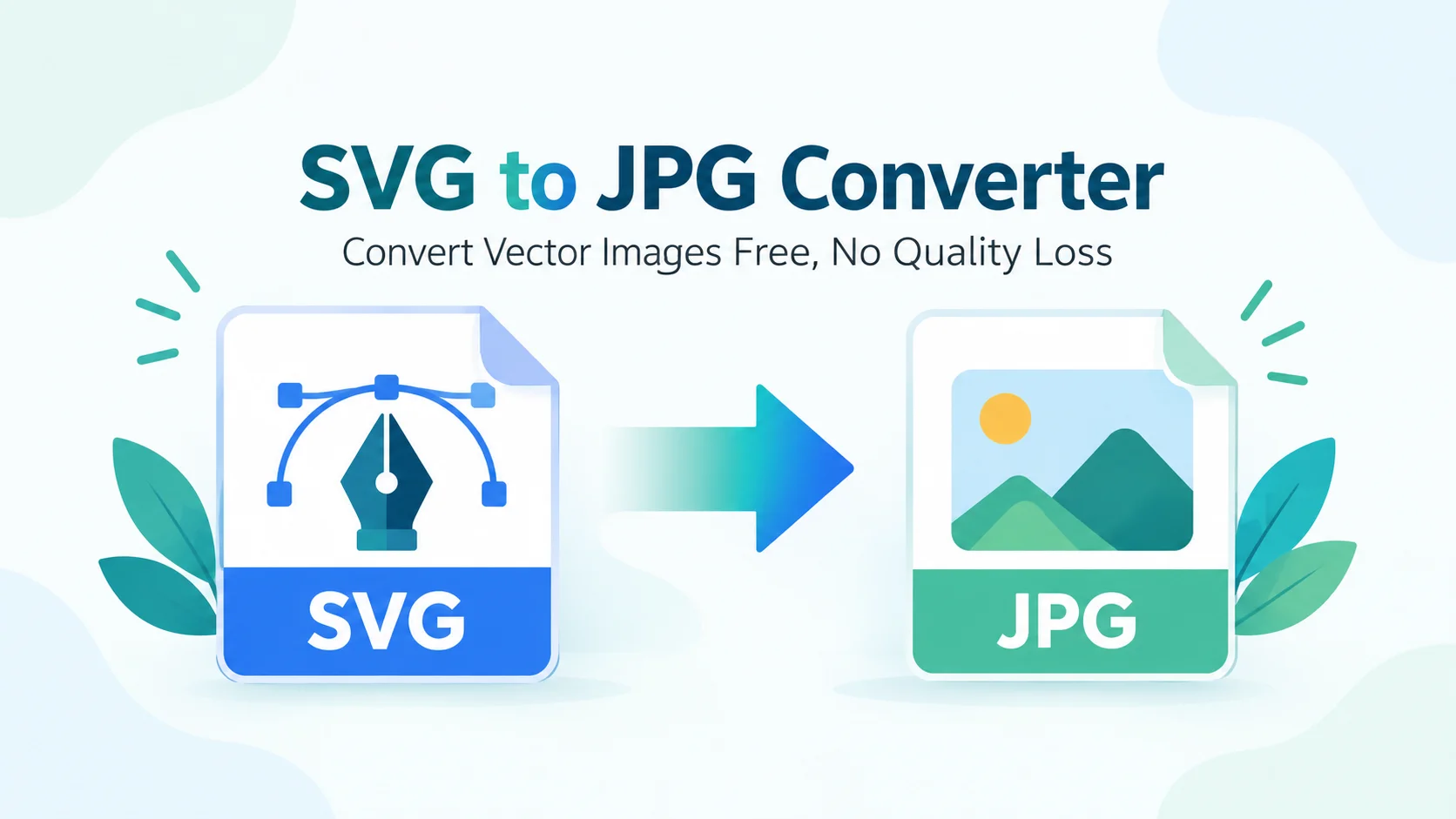
An SVG to JPG converter turns a scalable vector graphic into a flat, raster image that every browser, printer, and upload form accepts without question. ToolFlexy’s free SVG to JPG converter does this entirely in your browser — drag in one SVG or a whole folder of them, and download clean JPGs in seconds, with no sign-up and nothing uploaded to a server.
SVG works great inside a codebase or a design file, but the moment you need to drop that logo into a Word doc, upload it to a platform that only accepts JPG or PNG, or email it to someone whose software can’t render vector files, it stops being useful. This guide covers exactly when SVG to JPG makes sense, what you gain and lose in the conversion, and how to avoid the two mistakes that trip people up most: unexpected quality loss and a transparent background turning solid black or white.
Try the free SVG to JPG converter now — no sign-up, instant results
Why Convert SVG to JPG?
SVG is a vector format — it stores an image as mathematical shapes and paths, not pixels, which is exactly why it scales to any size without blurring. JPG is a raster format — it stores a fixed grid of pixels, which is exactly why almost every device, platform, and piece of software on the planet can open it without a second thought.
That gap between “mathematically perfect but narrowly supported” and “universally compatible but fixed-size” is the entire reason an SVG to JPG converter exists. The moment an SVG needs to go somewhere that doesn’t parse vector code — a product listing, a printed flyer, an email attachment, an older CMS, a social media upload box — converting it to JPG is what actually gets it there.
When JPG Works Better Than SVG
JPG is the better choice any time the destination cares about universal compatibility over infinite scalability: product photos, scanned documents converted to vector art, marketing banners sized for one specific placement, or any upload form that flatly rejects .svg files for security reasons (some platforms block raw SVG uploads because they can contain embedded scripts). The W3C and MDN’s own SVG documentation confirms this trade-off directly: SVG is defined as an XML-based markup format meant for the web and apps that can parse it, not a drop-in replacement for a universal image format like JPG.
SVG to JPG for Logos, Icons, and Marketing Assets
Design teams almost always create logos and icons as SVG first, since a single vector file can scale from a favicon to a billboard without ever needing a second version. The SVG to JPG conversion step usually happens right at the end of that workflow — once the design is locked, a flattened JPG export is what actually gets handed off to a client, uploaded to an ad platform, or dropped into a slide deck, because none of those destinations render vector code natively.
Is SVG to JPG Safe for File Uploads?
Converting to JPG also sidesteps a real security concern with raw SVG files: because SVG is XML-based markup, a file can technically embed JavaScript inside it, which is why many upload forms, CMS platforms, and email clients block or strip .svg attachments outright. A JPG carries no embedded code of any kind, so converting before you upload or send a file is sometimes the only way to get it accepted at all, not just a compatibility convenience.
Will Converting SVG to JPG Reduce Quality?
Converting SVG to JPG does not blur or degrade the image at the size you export it — a vector shape is still perfectly smooth right up until the exact moment it’s rasterized into pixels, and if you export at a large enough width, the result looks identical to the original at that size. The quality loss people actually run into comes from two different places: exporting at too small a pixel width, or JPG’s own compression artifacts on sharp edges.
Because SVGs are often simple logos and icons with hard edges and flat colors, JPG’s lossy compression — which is tuned for photographs, not flat graphics — can introduce faint fuzziness or color banding around sharp corners. If the SVG has fine detail or crisp typography, exporting to PNG instead preserves those edges more faithfully, since PNG uses lossless compression.
What Happens to Transparency When You Convert SVG to JPG?
JPG does not support transparency at all, so any transparent area in your SVG gets filled with a solid background color — almost always white — the moment it’s converted. This is the single most common surprise people run into with an SVG to JPG converter: a logo that looked perfect with a transparent background suddenly has a visible white box around it once it’s a JPG.
If your SVG has a transparent background and you need to keep it that way, converting to PNG preserves transparency completely; JPG is only the right choice once you’re placing the image somewhere with its own solid background anyway.
How to Use ToolFlexy’s SVG to JPG Converter
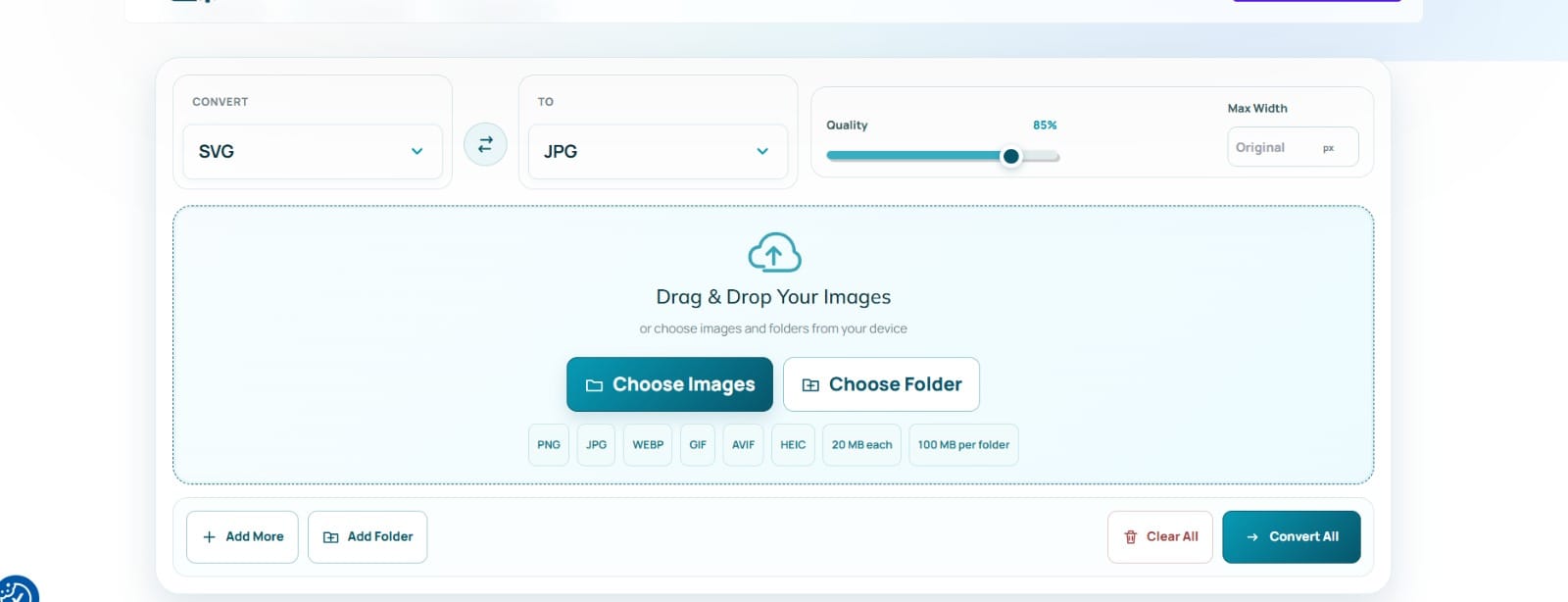
- Drag in your SVG file or folder. Drop a single SVG, or choose an entire folder to batch-convert multiple files at once — up to 20 MB per file and 100 MB per folder.
- Set your output quality and size. Adjust the quality slider and max width before converting, so the exported JPG matches exactly where you’re going to use it.
- Click Convert All. Every file in the batch converts in your browser — nothing is sent to a server, so your files stay private the entire time.
- Download your JPGs. Grab the converted files individually or as a batch, ready to upload, print, or attach anywhere JPG is accepted.
SVG to JPG vs SVG to PNG — Which Should You Use?
Both start from the same vector file, but they solve different problems. The choice comes down to one question: does the final image need a transparent background, or is it going somewhere with its own solid background already?
| Need | Best Format | Why |
|---|---|---|
| Transparent background required | PNG | JPG fills transparency with a solid color; PNG keeps it transparent |
| Smallest possible file size | JPG | JPG’s lossy compression produces smaller files than PNG for the same image |
| Sharp text or fine line detail | PNG | Lossless compression avoids JPG’s edge artifacts on crisp graphics |
| Maximum compatibility, any upload form | JPG | Universally accepted, including older or stricter platforms |
If you’re not sure which you need, ToolFlexy’s HEIF to PNG converter uses the same free, browser-based approach for PNG output if transparency turns out to matter for your file.
Does Converting SVG to JPG Change the File Size?
A raw SVG file is often tiny — a few kilobytes for a simple icon or logo, since it’s just text-based code describing shapes rather than stored pixels. Once that same graphic is rasterized into a JPG, the file size depends entirely on the export width and quality setting you choose, not on how complex the original vector was.
A small icon exported at a large pixel width produces a noticeably bigger JPG than the original SVG, simply because you’re now storing a full grid of pixels instead of a handful of path coordinates. This is normal and expected — it isn’t a sign anything went wrong in the conversion. If file size matters more than exact pixel dimensions, lowering the max width or the quality slider brings it back down with little visible difference for most logos and icons.
Common Problems When Converting SVG to JPG
- The background turned white or black instead of staying transparent. This is expected — JPG doesn’t support transparency. Convert to PNG instead if you need to keep it.
- Text or fine details look slightly blurry. Export at a larger max width, or switch to PNG if the SVG has thin lines or small text that needs to stay crisp.
- The exported file is larger than expected. A high quality setting on a complex SVG can produce a bigger JPG than you’d expect — lowering the quality slider slightly usually fixes this with no visible difference.
- The platform you’re uploading to still rejects the file. Double-check the platform’s actual file size limit, not just the format — some accept JPG but still cap uploads at a few MB.
Batch Converting Multiple SVG Files to JPG
If you’re converting more than one or two files, converting them one at a time quickly becomes the slowest part of the job. ToolFlexy’s converter handles this by letting you select an entire folder instead of individual files — every SVG inside gets queued and converted to JPG in the same pass, at the same quality and width settings, so a batch of icons or a full logo set comes out consistent without adjusting settings file by file.
This matters most for anyone handling a design system or icon library, where dozens of small SVGs need to become JPG thumbnails or previews at once. Keeping the quality and max-width settings identical across the batch is what keeps the output looking like a matched set instead of a pile of inconsistently sized images.
Try the Free SVG to JPG Converter
ToolFlexy’s SVG to JPG converter runs this entire conversion in your browser, with no sign-up, no watermark, and batch support for up to 100 MB of files at once. If your next conversion is going the other direction on formats, ToolFlexy’s WebP to JPG converter works the same way, and if you’re prepping a logo as a site icon afterward, the Favicon Generator turns it into a ready-to-use favicon package.
Conclusion
SVG to JPG conversion is simple in practice but easy to get wrong in two specific ways — losing a transparent background, or compressing fine detail more than expected. Knowing which format actually fits your destination, and exporting at the right size and quality, is what makes the difference. Try it with your own file above — it’s free, instant, and nothing leaves your browser.