To remove blank pages from a scanned PDF, open the document in a page-removal tool, find the empty sheets, review the selection and save a new copy. ToolFlexy’s Delete PDF Pages tool can suggest blank pages automatically, or let you choose them yourself. You don’t need an account or a desktop PDF editor.
A 20-sheet scan can turn into a 40-page PDF when the scanner captures both sides of every sheet. Half the pages may be empty backs. The important part isn’t deleting them quickly; it’s making sure a faint note or stamp doesn’t disappear with them.
Here’s how to clean up that file, including when to use automatic detection and when a manual selection makes more sense.
Why Blank Pages Appear in Scanned PDFs
Double-sided scanning is a common cause. The scanner records each side of the paper, whether anything is printed there or not. Blank separator sheets and pages included during a rescan can add more unwanted sheets.
Some blanks are deliberate. A chapter might start on a right-hand page, or a form might include a space intended for later use. Before deleting every empty-looking page, decide whether those gaps serve a purpose in the copy you’re preparing.
Also, a scanned page is usually an image. Having no selectable text doesn’t make it blank. A handwritten page and an empty sheet can both return no text when a PDF reader tries to extract words.
How to Remove Blank Pages from a Scanned PDF
To remove blank pages safely, use automatic suggestions to find likely blanks, then check each one before removing it. This gives you a useful starting point without handing the final decision to the detector.
1. Open Your PDF in the Tool
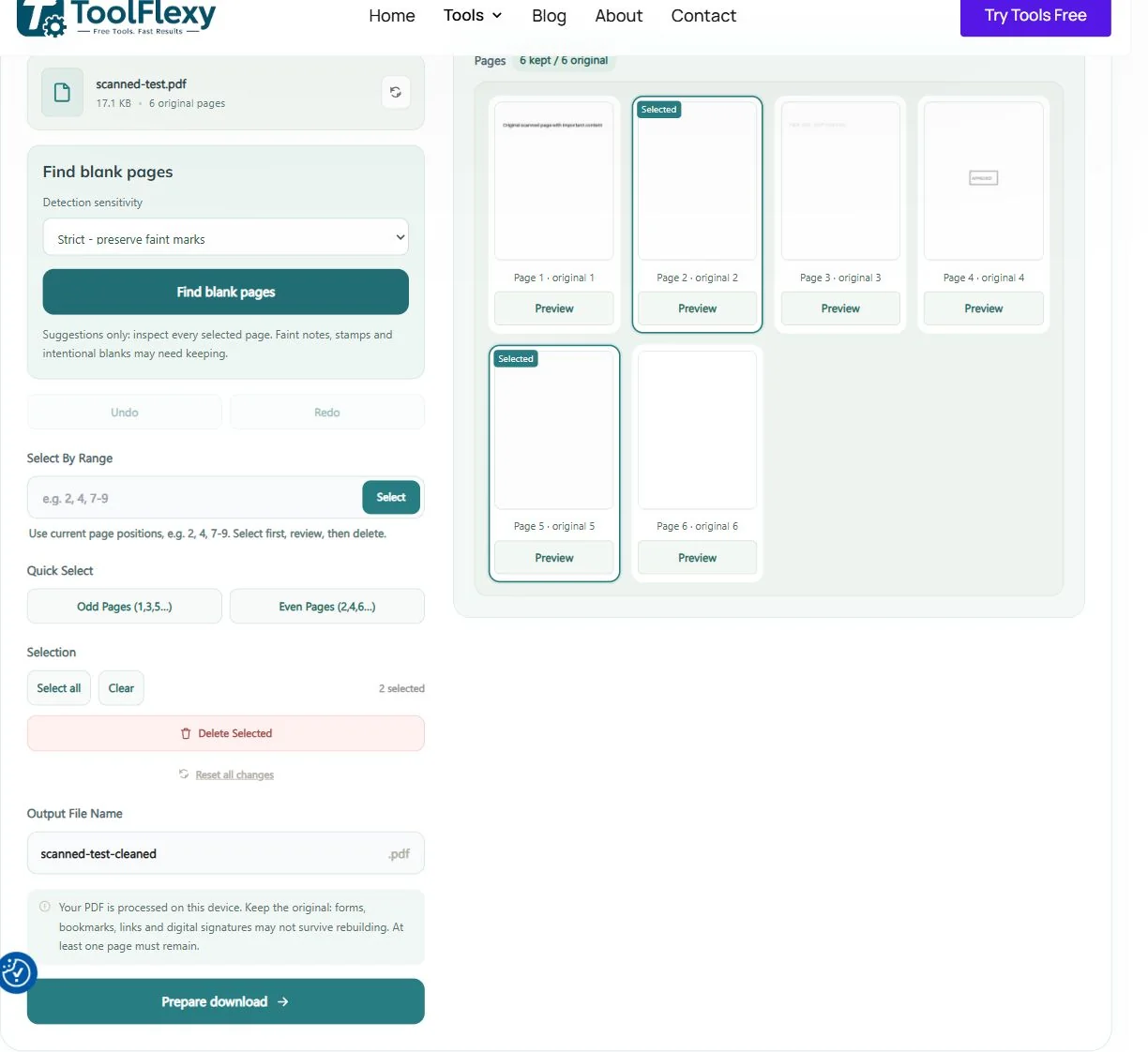
Open Delete PDF Pages and choose your file, or drag it into the upload area. The page grid shows thumbnails as they load.
Keep the original PDF. A filename such as meeting-notes-cleaned.pdf makes the edited copy easier to distinguish from the source.
2. Find Possible Blank Pages
Choose Strict under Detection sensitivity and click Find blank pages. Strict is the conservative starting point. When the scan finishes, possible blanks are selected in the grid; nothing has been deleted yet.
If scanner specks prevent obvious blanks from being suggested, try Normal. Loose allows more marks, so it needs closer checking. A detector cannot decide whether a page is important to you, even when most of it is white.
3. Review the Selection at a Larger Size
Before you remove blank pages, click Preview below any page that looks uncertain. Use Previous and Next to inspect the surrounding pages. Look for pencil notes, pale stamps, a signature near the edge or a page number that is hard to see in the thumbnail.
Click a selected thumbnail to keep that page. Once you are satisfied, choose Delete Selected to remove blank pages you have reviewed. Undo brings back the previous page set; Redo reapplies the deletion. Reset all changes restores the original pages.
4. Prepare, Download and Check the Copy
Enter your output filename, click Prepare download, then Download PDF. Open the saved file separately and check the beginning, the end and the places where pages were removed.
Count the pages, but don’t stop there. Make sure the right content survived and that the reading order still makes sense. If you need a different order, use Organize PDF rather than trying to solve it with more deletions.
Remove Blank Pages: Choose a Detection Setting
Start with Strict, then adjust only if the suggestions miss blanks you can clearly identify.
| Setting | Useful starting point | What to watch |
|---|---|---|
| Strict | Clean documents and cautious review | Some near-blank pages may be kept. |
| Normal | Scans with tiny specks | Inspect small marks before accepting a suggestion. |
| Loose | A second pass on obvious blanks | Faint content needs particularly careful review. |
In our synthetic six-page scan, Strict suggested the clean white page and a near-white empty page. It kept a faint note, a stamp and a page with a small speck. Normal also suggested the specked page. That’s one controlled example, not a promise about every scanner or document.
When You Can Remove Every Other Page Instead
You can remove blank pages with the Even Pages shortcut when every second page is an unwanted blank back. For example, if pages 2, 4, 6 and 8 are all empty, selecting them together saves clicking each thumbnail.
Don’t use that shortcut blindly on a mixed stack. A double-sided letter between single-sided forms breaks the pattern: one even-numbered page may contain the second half of the letter.
Check current positions against the original labels, too. After you delete a page, the remaining positions change. The original page number on each tile helps you keep track.
Remove Blank Pages Automatically or Select Them Yourself
Automatic detection helps you find likely blanks in a longer document. Manual selection is often simpler for one unwanted page, a repeated cover or a separator sheet you already recognize.
To remove blank pages manually, enter a range such as 2, 5-7 and click Select, or choose thumbnails individually. Review first, then delete. The range uses the current page positions shown in the grid.
If your goal is to save just a few useful pages as another document, splitting a PDF may fit better. Removing pages and extracting pages solve related, but different, tasks.
What to Check Before You Delete
A page that looks empty in a tiny preview may contain something worth keeping. Check the edges, the bottom margin and any pale marks. Keep intentional divider pages if removing them would confuse the document’s structure.
Be careful with signed PDFs, forms and documents with bookmarks or internal links. ToolFlexy rebuilds the output from the remaining pages; those document features may not survive. Keep the original and verify the edited copy before relying on it.
Already use Acrobat? Adobe’s page-deletion instructions explain its Organize pages workflow and how to check editing restrictions. Use the workflow that fits the document you have.
Can’t Remove Blank Pages? Common Problems
The PDF Is Password-Protected
ToolFlexy rejects protected PDFs. Use an authorized, unlocked copy rather than expecting the page remover to decrypt it. If a file is damaged, try exporting it again from its source application.
The Scan Is Slow or Suggestions Are Incomplete
If you need to remove blank pages from a long, image-heavy document, allow more time and memory. Close unnecessary browser tabs or switch to a desktop device. Cancel scan leaves your previous selection unchanged, so you can continue manually.
A Page Looks Blank in One Viewer Only
Open the original in another PDF viewer before removing it. A display problem can make useful content look empty. If one viewer shows text or an image, keep the page and investigate the rendering issue instead of accepting a blank-page suggestion.
When you remove blank pages from a mixed scan, review the pages immediately before and after each gap. Check for a sentence continuing on the next sheet, a form attachment or a stamp printed only on the reverse. This quick sequence check catches mistakes that a page count alone cannot.
The File Is Still Too Large
When you remove blank pages, the file may shrink, but the remaining scanned images can still be large. Try PDF Compressor after checking the cleaned copy. Don’t assume a particular percentage reduction.
Keep a Selected Set or Select a Continuous Range
If only a few pages belong in the final file, choose them and click Keep selected pages instead of selecting everything else for deletion. Click one thumbnail and Shift-click another to select a continuous group; Invert reverses the selection. Typed ranges and odd/even shortcuts use current positions after earlier edits. Check the original page labels and the summary of original pages currently kept before preparing the download.
The tool accepts one PDF up to 50 MB and 500 pages. It must retain at least one page. Blank-page detection still offers suggestions only: review faint notes, stamps and intentional blanks before deleting. Keep the source because rebuilding may affect forms, bookmarks, links and digital signatures.
Keep the Useful Pages, Then Check the Result
To remove blank pages from a scanned PDF, start with conservative suggestions, inspect anything uncertain and download a separate copy. A short review is worth it when an almost-empty page contains the one note you needed.
Open Delete PDF Pages to clean up your scan. If blanks appeared after combining documents, our PDF merging guide also covers checking page order before sharing.