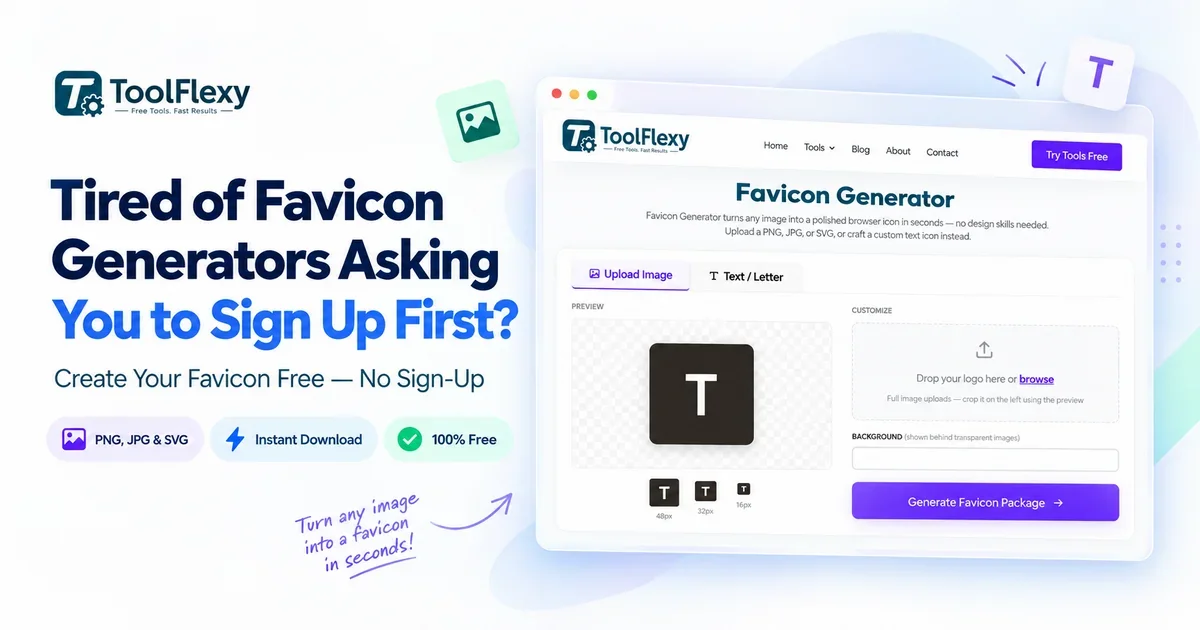
You just want a favicon — the tiny icon that shows up in your browser tab and bookmarks bar — and every tool you try wants an email address before it lets you download anything. ToolFlexy’s free favicon generator no sign up skips that entirely: upload an image or type up to three letters, and your complete favicon package downloads instantly, no account required.
What Actually Makes a Favicon Look Sharp in the Browser Tab
A favicon looks sharp when it’s exported at the right pixel size for where it’s actually displayed, not just resized down from a big logo. Browser tabs typically show a favicon at 16×16 pixels, while bookmark bars and some browser UI elements use 32×32 — if you only export one size and let the browser scale it, fine details in your logo turn into a blurry smudge.
This is exactly why a proper favicon isn’t just “one small image” — it’s a small set of images at specific sizes, each doing a different job. Simpler shapes with bold contrast (a single letter, a basic icon, a solid-color background) tend to survive the shrink to 16×16 far better than a detailed multi-color logo does.
Why Your Favicon Might Not Be Showing Up At All
If your favicon isn’t appearing in the browser tab, the most common cause is a missing or incorrectly placed <link rel="icon"> tag in your page’s <head> section — not a problem with the icon file itself. According to MDN’s web metadata documentation, a favicon needs to be referenced with a link element such as <link rel="icon" href="/favicon.ico" type="image/x-icon" />, and mobile devices need separate apple-touch-icon tags at their own specific sizes to display correctly on an iPhone or iPad home screen.
Browser caching is the second most common culprit — browsers aggressively cache favicons, so a freshly uploaded icon can take a hard refresh (or a completely new browser session) before it actually shows up, even when the file and the HTML tag are both correct.
Image-Based vs. Text-Based Favicons — Which Should You Use?
An image-based favicon works best when your brand already has a simple, recognizable logo mark that still reads clearly at 16 pixels square. A text-based favicon — just your initials or a single bold letter — works best when you don’t have a logo yet, or when your existing logo is too detailed to survive the shrink without turning into a muddy blur.
Plenty of well-known sites actually use a single letter as their favicon precisely because it stays legible at the smallest browser-tab size, where a full wordmark or an intricate icon simply can’t.
How ToolFlexy’s Free Favicon Generator No Sign Up Works
Upload a PNG, JPG, JPEG, SVG, or WEBP image, or switch to text mode and type up to three characters — the tool works either way, entirely in your browser. Square source images with a transparent background convert the cleanest, since the generator doesn’t have to guess how to crop or fill in a background color.
In text mode, you can pick a background color, a text color, a shape (square, rounded, or circle), and a font weight (normal or bold), with a live preview showing exactly how the result will look inside a real browser tab and bookmarks bar before you download anything. Every part of this happens locally in your browser using JavaScript — no file or text you type is ever uploaded to a server.
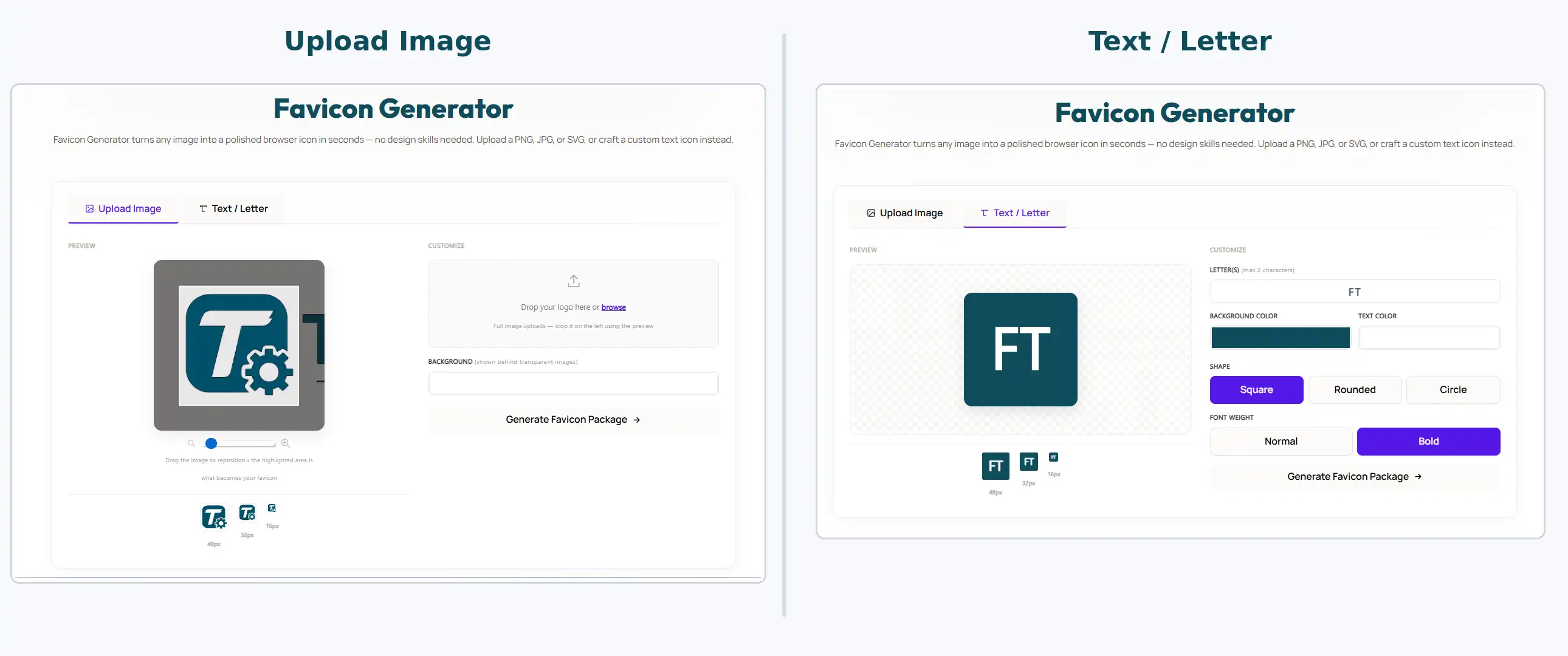
Create a favicon by uploading an image or using custom text with ToolFlexy’s free Favicon Generator.
What You Actually Get With ToolFlexy’s Free Favicon Generator No Sign Up
The download is a single ZIP file containing 13 files: a standard favicon.ico, multiple PNG sizes including 16×16 and 32×32, Apple touch icons sized for mobile devices, and ready-to-paste HTML link code for your page’s <head> section. That last part matters more than it sounds — since the most common reason a favicon fails to appear is a missing or malformed link tag, having the exact code generated for you removes the step most people get wrong.
Want to see your favicon before committing to it? Try ToolFlexy’s free Favicon Generator now — upload an image or type your initials, and download the full 13-file package in seconds, no sign-up required.
How to Add Your New Favicon to a Live Website
Once you’ve downloaded the ZIP, unzip it and upload the files to your website’s root folder (the same place as your homepage file) unless your platform tells you otherwise. On a standard HTML site, paste the generated <link> tags directly into the <head> section of every page that needs the favicon — usually just your main template or header include, so you don’t have to repeat it manually on every page.
On WordPress, you don’t need to touch the HTML at all: most themes let you set a “Site Icon” directly under Appearance → Customize, or under Settings → General in newer versions — just upload the square PNG from your download there instead of editing template files. Squarespace, Wix, and Shopify all have a similar built-in “favicon” or “site icon” upload field in their design settings, which is simpler than manually placing files for most non-developers.
Common Favicon Mistakes Worth Avoiding
The single most common mistake is uploading a rectangular logo and expecting the generator to guess how to crop it — a non-square source image usually gets stretched or padded in a way that looks off at small sizes. Cropping your source image to a perfect square before uploading, even roughly, gives a noticeably cleaner result than letting any tool guess for you.
The second most common mistake is skipping the Apple touch icon entirely, since it’s easy to assume a regular favicon.ico “covers everything.” If a visitor bookmarks your site to their iPhone or iPad home screen without an apple-touch-icon defined, they typically get a plain screenshot of your page instead of your actual logo — which is exactly why ToolFlexy’s download includes those sizes automatically rather than leaving you to generate them separately.
A third, smaller mistake: forgetting to clear your browser cache after updating an existing favicon. Since browsers hold onto favicons aggressively, a hard refresh or an incognito window is often the only way to confirm your new one actually took effect, rather than assuming the upload failed.
Explore More Free Image Tools
If you’re already working on your site’s images, ToolFlexy’s Resize Image for Social Media guide and Compress Image Online Free guide cover two other common pre-launch image tasks — and if your logo has a background that needs to go before you generate a favicon from it, Free Background Remover Online handles that in one step.
Conclusion
A favicon is a small file, but it’s an easy one to get wrong — the wrong size, a missing link tag, or a logo that’s too detailed to survive the shrink to 16 pixels. ToolFlexy’s free favicon generator no sign up fixes all three at once: upload an image or type text, get a live preview at real browser-tab size, and download a complete 13-file package with the HTML code already written for you. Try the Favicon Generator now — it takes less time than reading this sentence took.