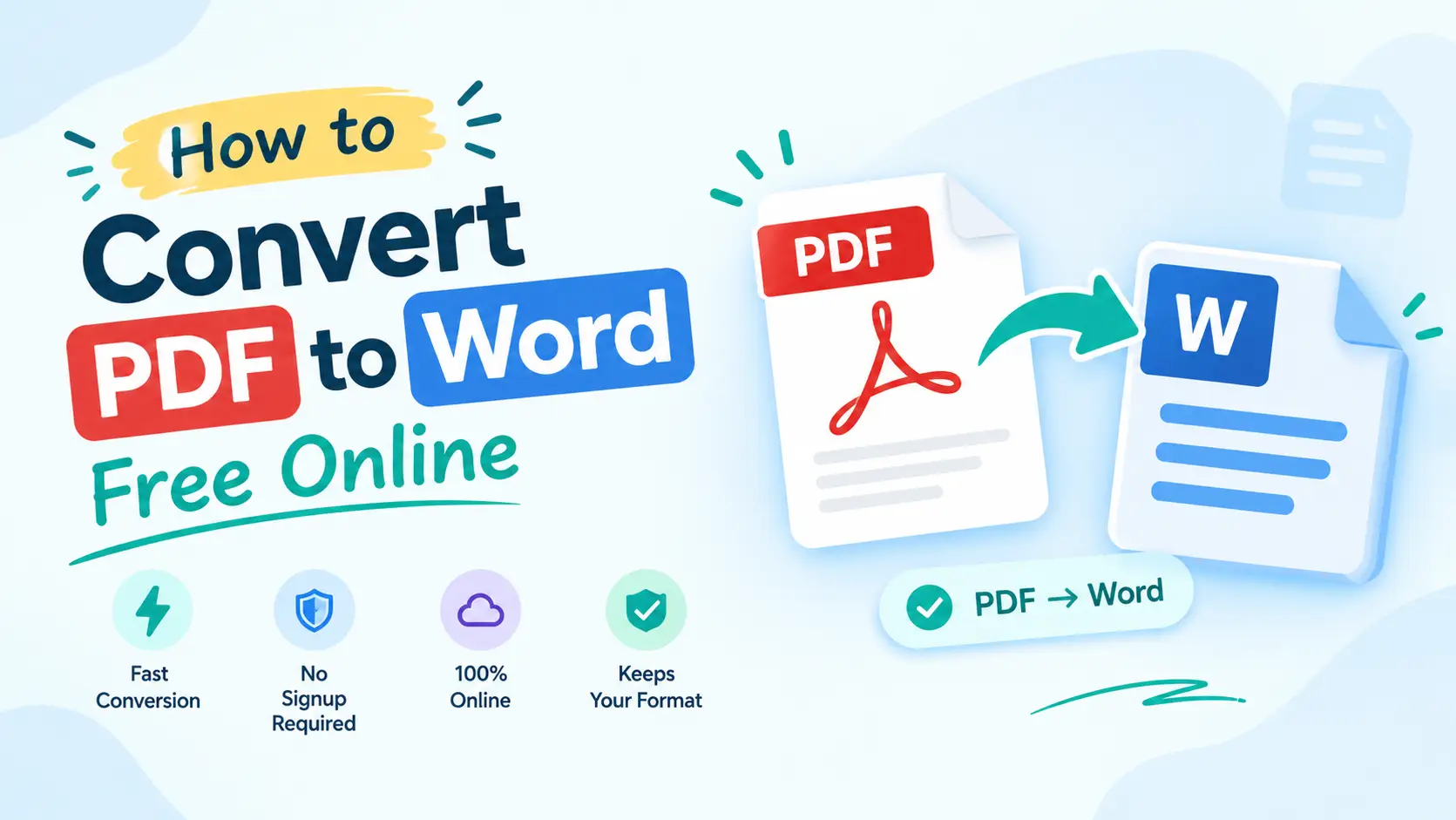
Need to convert PDF to Word without losing formatting? ToolFlexy’s free PDF to Word converter turns a PDF into an editable Word document in seconds — no sign-up, no email, and no software to install. The real problem isn’t the conversion itself; it’s what happens to the layout afterward: tables that fall apart, fonts that shift, images that land in the wrong place.
This guide walks through exactly why that happens, and the specific fix for each formatting problem — not generic “try another tool” advice, but what to actually do when a table breaks, a font gets swapped, or a scanned PDF comes back blank.
Try the free PDF to Word converter now — no sign-up, no email
Why Does PDF to Word Conversion Break Formatting?
A PDF is built to look identical everywhere it’s opened — every letter, line, and image is locked to an exact position on the page. A Word document works the opposite way: it’s built around flowing, editable text that reflows depending on margins, fonts, and screen size. Converting PDF to Word means translating a fixed layout into a flexible one, and that translation is where formatting breaks happen — especially with tables, custom fonts, multi-column layouts, and scanned pages. This is exactly why you need a way to convert PDF to Word without losing formatting, rather than a tool that just dumps raw text onto a page.
The good news: most of these problems have a specific, known cause, and a specific fix. You don’t need a different tool for each one — you need to know what to check before and after you convert.
How to Convert PDF to Word Without Losing Formatting, Step by Step
Here’s how to get the cleanest possible result from ToolFlexy’s free PDF to Word converter, start to finish:
Upload Your PDF
Drag and drop your PDF into the tool, or click to browse and select it. There’s no file limit and no account required — the conversion starts the moment your file uploads.
Let the Converter Preserve Layout Elements
ToolFlexy’s converter reads the PDF’s actual structure — text blocks, tables, and images — and rebuilds them as native Word elements instead of just extracting raw text. That’s the difference between a Word file you can actually edit and a Word file that’s really just a picture of your PDF with a .docx extension.
Download and Spot-Check the Result
Once the file converts, download it and open it in Word (or Google Docs) before you send it anywhere. Check the first page, any tables, and the last page specifically — these are the spots formatting issues show up most often. If something’s off, the fixes below cover exactly what to do next.
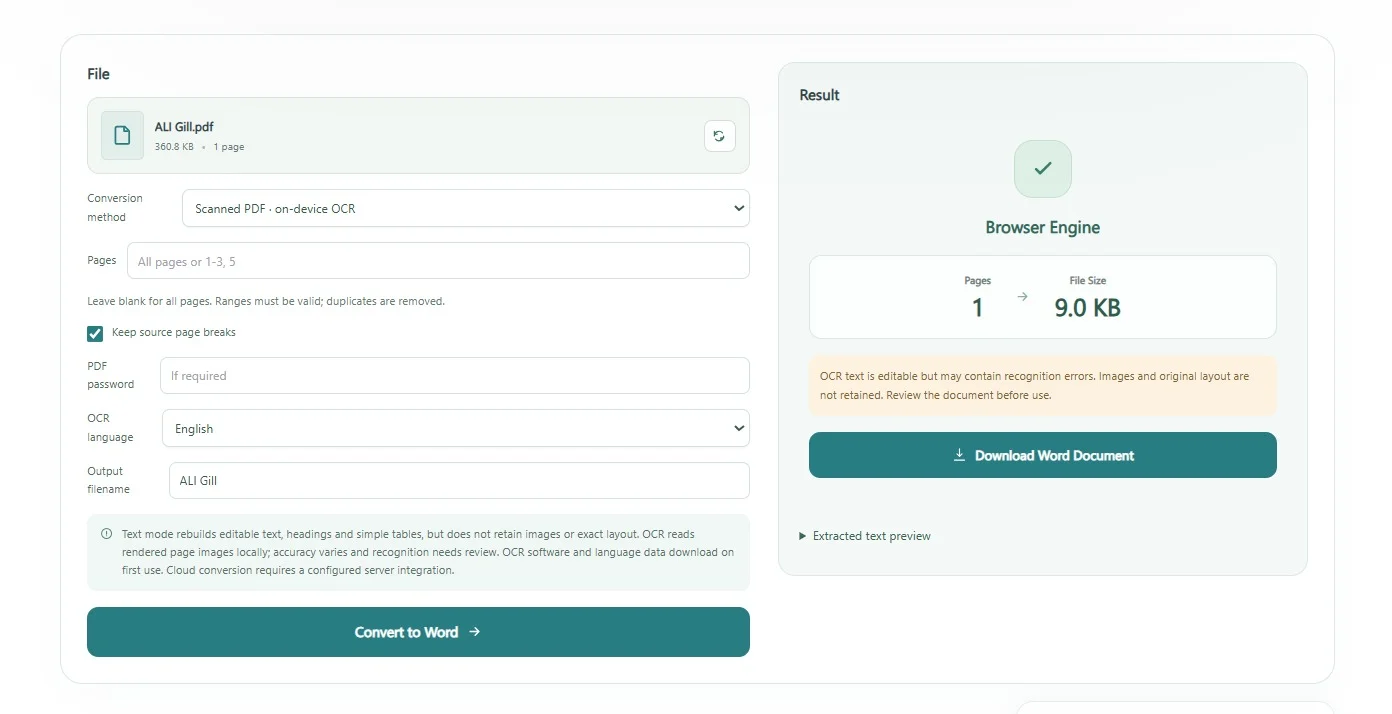
Once you can convert PDF to Word without losing formatting this way, the only thing left to learn is what to do on the rare occasion something still shifts — which is exactly what the next section covers.
6 Specific Formatting Problems — And How to Fix Each One
These are the formatting issues that actually show up when you convert PDF to Word, and what fixes each one.
Tables Lose Borders or Columns Misalign
Why does my PDF to Word conversion look different from the original when a table’s involved? Tables are the single most common place formatting breaks, because a PDF doesn’t store a table as a “table” — it stores a grid of individually positioned lines and text. When the converter rebuilds that as an actual Word table, borders can be missing or columns can shift by a few pixels.
Fix: After converting, select the table in Word and use Table Design to reapply borders in one click, rather than manually redrawing lines. If columns are misaligned by more than a few pixels, the original PDF table likely wasn’t built with consistent spacing — re-convert at full resolution and check if the source PDF itself has the same alignment issue.
Fonts Get Substituted and Spacing Breaks
Can you convert PDF to Word without losing formatting when custom fonts are involved? Mostly yes, but if the PDF uses a font that isn’t embedded in the file or installed on the system opening the result, Word substitutes a similar-looking font — which is almost never the exact same width, so line breaks and spacing shift even though the text itself is correct.
Fix: Check which font Word substituted (right-click the text → Font), and if you have the original font installed, apply it manually. For anything going to print or a formal submission, embed the font in the original PDF before converting, since an embedded font always converts more reliably than a system font.
Images Get Resized, Moved, or Dropped
Images anchor differently in Word than they sit in a PDF, so a photo or logo that was pinned to an exact spot can shift position, resize slightly, or in rare cases get dropped entirely if the PDF compressed it unusually.
Fix: In Word, right-click the image → Wrap Text → “In Front of Text” or “Behind Text” to pin it back to a fixed position instead of letting it flow with the paragraph. If an image is missing entirely, it’s usually because the PDF stored it as a complex vector graphic rather than a standard image — re-export the PDF with images flattened to JPG or PNG first.
Multi-Column Layouts (Resumes, Newsletters) Collapse
Why do tables break when converting PDF to Word — and why does a two-column resume or newsletter turn into one long, jumbled column? Multi-column PDFs are visually laid out side by side, but if the underlying text order wasn’t set correctly when the PDF was created, the converter reads it top-to-bottom across the whole page instead of column-by-column, so the text comes out in the wrong order.
Fix: In Word, use Layout → Columns to manually rebuild the column structure, then reflow the text into the correct column breaks. For a resume specifically, a single-column layout converts far more reliably — if you’re building the PDF yourself, a single-column source avoids this problem completely.
Scanned PDFs Convert to Blank or Garbled Text
Does PDF to Word conversion work on scanned PDFs? A scanned PDF isn’t text at all — it’s a photograph of a page saved as a PDF, so a standard converter has nothing to extract and the result comes back blank, or returns garbled symbols if it tries to read the image as text.
Fix: A scanned document needs OCR (optical character recognition) to turn the image into real, selectable text before conversion can work. Check that your source scan is clear and high-resolution — low-quality scans are the most common reason OCR output comes out garbled even when the process runs correctly.
Extra Blank Pages or Broken Page Breaks Appear
Why does my converted Word document have extra blank pages or broken spacing? This usually happens when a PDF has hidden empty content on a page (a stray text box, an invisible table row) that didn’t render visibly in the PDF but still takes up space once it becomes an editable Word page.
Fix: Turn on Show/Hide formatting marks in Word (Ctrl+Shift+8) to see exactly what’s creating the extra space, then delete the stray paragraph marks or empty table rows directly. This is almost always a two-click fix once you can actually see what’s there.
What to Check Before You Convert
A few things are worth checking in your original PDF before you even run the conversion — they prevent most formatting problems rather than fixing them after the fact.
Is the Text Actually Selectable?
Open the PDF and try to highlight a line of text with your cursor. If it highlights normally, the PDF has real text and will convert cleanly. If nothing highlights — the whole page acts like one flat image — it’s a scanned PDF, and you’ll need OCR before conversion will produce readable text rather than a blank page.
How Complex Is the Layout?
A single-column letter or report converts almost perfectly every time. A multi-column brochure, a form with overlapping fields, or a design-heavy flyer has more moving pieces that can shift during conversion — not because the tool is worse at it, but because there’s genuinely more to translate. If you’re building the original PDF yourself and formatting matters more than editability, a simpler source layout is the single biggest thing you can control.
Do You Actually Need to Edit It, or Just View It?
If you only need to read or print the content and don’t need to type into it, converting isn’t necessary at all — you’re adding an unnecessary formatting-risk step. Converting to Word only makes sense when you genuinely need to edit the text, update a table, or reuse the content somewhere else.
Is It Safe to Convert PDF to Word Online?
Yes — as long as you’re using a pdf to word converter free no email signup that processes your file and lets you download the result immediately, without demanding an account or storing your document indefinitely. ToolFlexy’s PDF to Word tool works exactly that way: no email, no account, no file sitting on a server waiting to be forgotten about.
For anything genuinely sensitive — contracts, medical records, financial documents — that “no account required” detail matters more than most people think, since it means there’s no login tied to your file in the first place, and nothing to delete later because nothing was ever attached to an identity. The safest habit, regardless of which tool you use, is the same one that applies to any file you upload anywhere: convert it, download the result, and don’t rely on a tool to be your long-term storage.
Frequently Asked Questions
Convert PDF to Word Free, Without the Formatting Headache
Most PDF to Word formatting problems come down to six specific, fixable causes — not a bad tool. If you follow the steps above, you can convert PDF to Word without losing formatting on the first try, and know exactly what to check if anything still looks off. Upload your file, check the result against this list, and you’ll know exactly what to fix instead of starting over with a different converter.