Your video just got bounced back — too big for email, too big for WhatsApp, or stuck at 99% on an upload bar. ToolFlexy’s tool to compress video online free no watermark shrinks it right in your browser, with no sign-up, no upload to a server, and no branding stamped across the result.
Why Your Video Keeps Getting Rejected by Email and WhatsApp
Most messaging and email platforms cap attachment size specifically because large video files clog servers and slow delivery for everyone else on the network. Gmail, for instance, caps attachments at 25MB total per message — confirmed directly in Google’s own Gmail Help documentation — which a single minute of decent-quality phone video can blow past without much effort.
WhatsApp and other messaging apps enforce their own, often stricter limits, and social platforms frequently re-compress anything you upload anyway, sometimes badly. Shrinking the file yourself before sending it means you control exactly how much quality you’re trading for size, instead of leaving that decision to whichever app rejects or mangles the upload.
How to Compress Video Online Free No Watermark With ToolFlexy
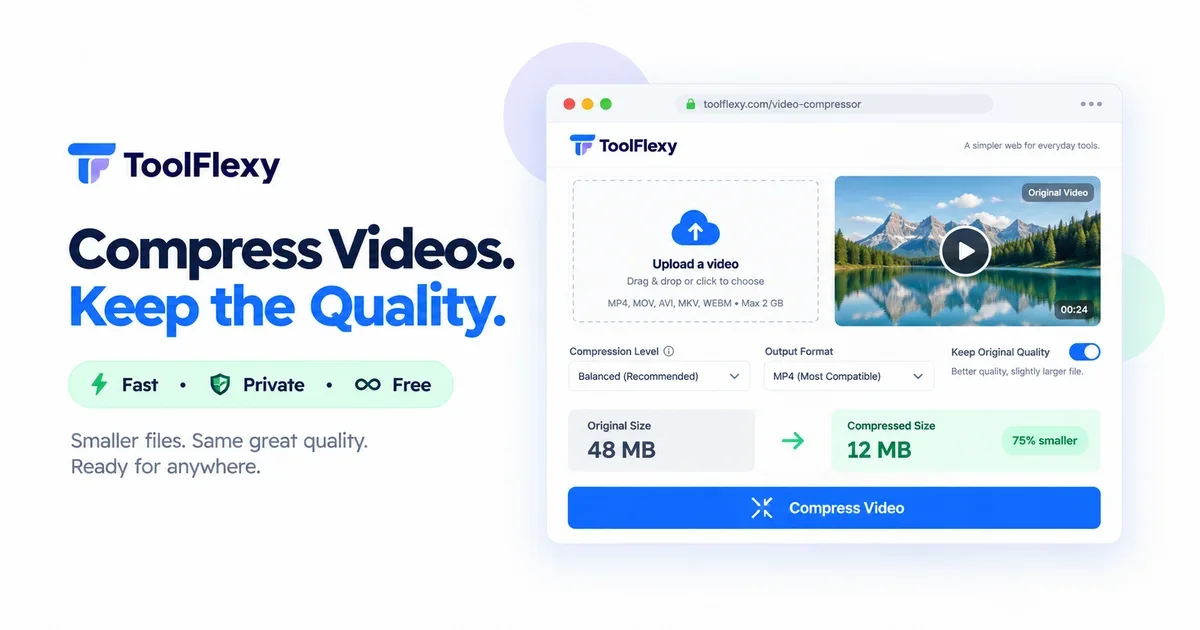
Drop in an MP4, MOV, or WEBM file, pick a compression mode, and download a smaller MP4 seconds later — the entire process runs locally in your browser using WebAssembly, so the file never actually leaves your device. That matters for anything you’d rather not send to a third-party server: a personal video, unreleased footage, or simply a file you don’t want sitting on someone else’s storage after you’re done with it.
Before you commit to compressing, the tool shows a live estimate of the output size for whichever mode you’ve selected, so you’re not guessing whether the result will actually fit under your email or messaging app’s limit. You can also downscale the resolution (1080p down to 360p) or strip the audio track entirely with one click, both of which shrink the file further on top of whatever the compression mode itself saves.
Want to see it work on your own file? ToolFlexy’s free video compressor handles files up to 250MB, with no account, no daily limit, and no watermark added to whatever you download.
Which Compression Mode Should You Actually Pick?
Four modes cover most situations: Maximum Compression, Balanced, Best Quality, and Custom Target Size. Maximum Compression produces the smallest possible file and is the right call when a messaging app’s strict size cap is the only thing you’re solving for — a group chat video, for instance, where nobody’s watching it on a large screen.
Balanced is the sensible default for everyday sharing: a noticeably smaller file with a compression trade-off most people won’t spot at normal viewing size. Best Quality keeps the result as close to the original as the format allows, useful when you still need meaningful size savings but the video matters enough that visible compression artifacts would be a problem — a client deliverable, for example, rather than a casual clip.
Custom Target Size flips the logic around entirely: instead of picking a quality level and seeing what size comes out, you type in your target size in MB — say, the exact limit your email provider enforces — and the tool works backward to the settings that will get you there. This is the fastest option when you know precisely what number you need to hit and don’t want to guess-and-check with the other three modes.
Will Compressing Your Video Actually Hurt the Quality?
Some quality loss is unavoidable with any compression, but how noticeable it is depends entirely on the mode you pick and how much you’re asking the file to shrink. Best Quality mode is built specifically to minimize any visible difference from the original, so for typical clips, most viewers won’t be able to tell the file was compressed at all.
Maximum Compression is the honest trade-off end of the spectrum — it prioritizes hitting the smallest possible file size, and that does show up as more visible quality reduction, especially in fast-motion footage or scenes with a lot of fine detail. The live size estimate for each mode exists precisely so you can preview that trade-off before committing, rather than downloading a compressed file and being surprised by how it looks.
A practical rule of thumb: if the video is going somewhere quality genuinely matters — a portfolio piece, a client review, footage you’ll want to revisit later — start with Best Quality and only drop to Balanced or Maximum Compression if the file is still too large. If it’s a quick clip for a group chat, Maximum Compression is fine and nobody will notice the difference on a phone screen.
Real Situations Where Compressing a Video Actually Matters
A wedding videographer sending a client a preview clip, a real estate agent uploading a walkthrough video to a listing site with a strict upload cap, a teacher sharing a recorded lesson with students on a slow connection — all of these hit the same wall of a file that’s simply too large for the platform it needs to go through. Compressing first, rather than letting the platform do it automatically, means you decide how much quality to give up instead of the platform’s own compression algorithm deciding for you, often less carefully.
It also matters for storage, not just sharing. A phone that records in 4K can fill up its storage fast, and compressing older clips before archiving them frees up meaningful space without deleting anything — useful for anyone keeping a backlog of family videos, event footage, or old project files they’re not ready to throw away.
What to Do If Your Compressed Video Is Still Too Large
If Maximum Compression still leaves you over your target, the two biggest additional levers are resolution and audio. Downscaling from 1080p to 720p or even 480p cuts file size noticeably beyond what compression mode alone achieves, and it’s a reasonable trade-off for anything that will mostly be watched on a phone screen rather than a large monitor.
Stripping the audio track is the other lever worth trying, especially for silent B-roll, background footage, or clips where the audio was never essential to begin with — removing it entirely can shave off a surprising amount of size on its own. Combining a lower resolution, no audio, and Maximum Compression mode together will get the smallest file this tool can produce, useful for the rare case where even Custom Target Size mode can’t hit an especially strict limit.
Explore More Free Video & Image Tools
If video is already on your to-do list, ToolFlexy’s Extract Audio From Video guide and Convert Video to GIF Without Losing Quality guide cover two other common video tasks — and if it’s images filling up your storage instead, Compress Image Online Free handles that the same way: free, no sign-up, no upload.
Conclusion
A video that’s “too large to send” is one of those small, recurring annoyances that a free tool should solve in seconds — not one that demands a sign-up or slaps a watermark on your result for the privilege. ToolFlexy’s tool to compress video online free no watermark handles the whole job locally in your browser: four modes to match whatever trade-off you need, a live size estimate so you’re never guessing, and a clean MP4 out the other end. Try the Video Compressor now — drop in your file, pick a mode, and download a version that actually fits.