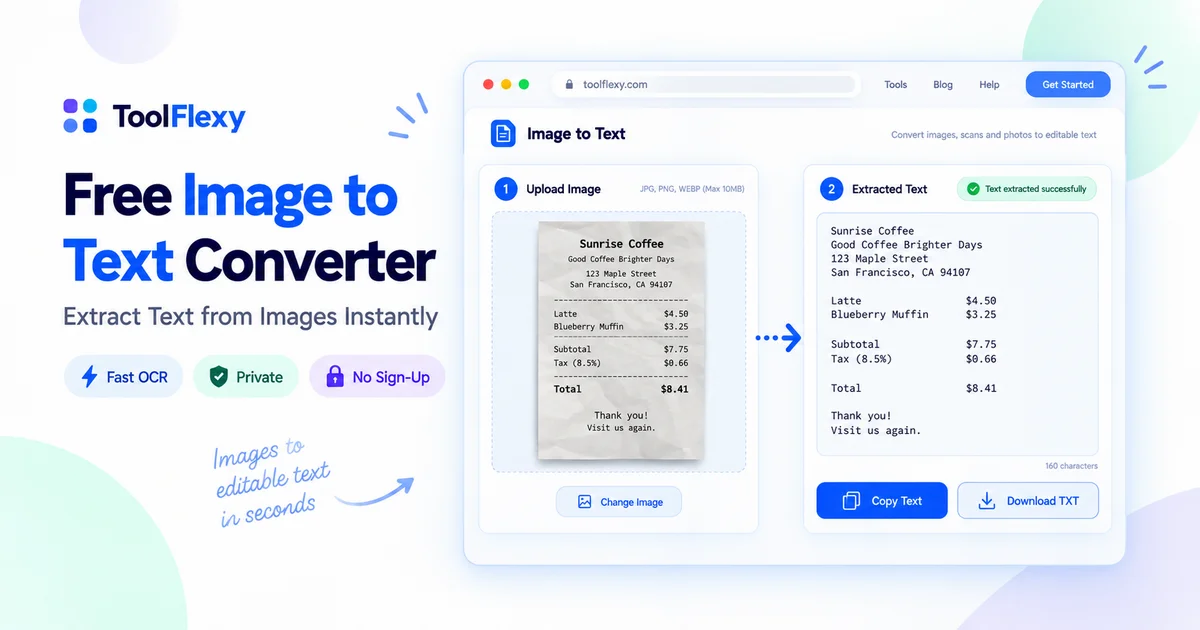
You’ve got a screenshot, a scanned page, or a photo of a whiteboard — and retyping all of it by hand feels like a waste of time you don’t have. ToolFlexy’s free image to text converter no sign up pulls the text straight out of the image in seconds: drag in a file or snap a photo with your camera, and copy the result straight to your clipboard.
Why OCR Sometimes Gets Text Extraction Wrong
Optical character recognition (OCR) works by matching shapes in an image against known letterforms, so anything that blurs or distorts those shapes — low resolution, poor lighting, a shaky camera angle, or tiny font sizes — makes accurate extraction harder. Low-contrast text (light gray on white, or a faded printout) is one of the most common failure points, since the OCR engine has less visual difference to work with between the letters and the background.
This is exactly why it’s worth checking extracted text against the original image before you use it, especially for anything with small print, a handwritten note mixed in, or a photo taken at an angle rather than straight-on. According to the University of Illinois Library’s OCR best-practices guide, low-contrast documents, skewed pages, and poor lighting all measurably reduce OCR accuracy — a clear, straight-on, well-lit source image will almost always extract more accurately than a rushed, blurry one.
Photo vs. Scan — Does It Matter Which One You Use?
A flatbed scan generally extracts more reliably than a phone photo, simply because it’s flat, evenly lit, and captured at a consistent resolution with no perspective distortion. That said, a decent phone photo — taken straight-on, in good light, without a shadow falling across the page — will extract almost as well for most everyday documents, receipts, and printed pages.
Where a scan clearly wins is with documents that have fine print, dense tables, or multiple columns, since perspective distortion from a handheld photo can throw off how those elements line up. For a quick paragraph off a book page or a sign, a photo is normally good enough.
How ToolFlexy’s Free Image to Text Converter No Sign Up Works
Drop a JPG, PNG, WEBP, BMP, or GIF file into the tool, or click the camera button to photograph a document, page, sign, or whiteboard directly — no account, no sign-up, and no limit on how many images you run through it. The tool scans the image for printed typography and scanned document text, automatically detecting multi-line structures like paragraphs, lists, and headings rather than dumping everything into one jumbled block.
Once the extraction finishes, check the result against the original image — this matters most for small, blurry, or low-contrast text — then copy the extracted text straight to your clipboard and paste it into a document, email, spreadsheet, or note-taking app.
What Makes the Camera Mode Genuinely Useful
Most online OCR tools only accept a file you already have saved somewhere, which means a whiteboard note, a physical book page, or a street sign has to be photographed first, transferred to your computer, and then uploaded — three extra steps for something you could extract on the spot. ToolFlexy’s camera mode skips all of that: point your device’s camera at the physical text and extract it directly, whether you’re on a desktop with a webcam or a phone.
This is particularly useful for capturing a whiteboard at the end of a meeting, a recipe from a cookbook page, or a sign or menu while you’re out somewhere and don’t want to type it all out later from memory.
Why ToolFlexy’s Free Image to Text Converter No Sign Up Keeps Your Files Private
All of the image processing happens locally in your browser, so the file you upload or the photo you take is never sent to or saved on ToolFlexy’s servers. That matters more than it might seem for anything genuinely private — an ID card, a signed contract, a medical form, or a personal note — since there’s no copy sitting on a remote server anywhere after you close the tab.
Want to try it yourself? ToolFlexy’s free Image to Text converter is ready right now — no account required, and your images never leave your browser.
Real Ways People Actually Use an Image to Text Converter
Students use it to pull quotes and passages out of a photographed textbook page instead of retyping them by hand for notes or citations. Freelancers and small business owners use it to turn a photographed receipt or invoice into text they can paste directly into a spreadsheet, rather than manually copying every line item.
It’s also useful for anyone digitizing old paperwork — a printed recipe card, an old letter, a business card, or a contract that only exists on paper — since a single photo turns it into text you can search, edit, and store digitally instead of a static image nobody can search through later.
What to Do When the Extracted Text Has Errors
Even with a clear source image, OCR occasionally misreads a character — commonly mixing up similar-looking letters and numbers like “0” and “O,” or “1,” “l,” and “I.” Always do a quick read-through of the extracted text against the original image before pasting it somewhere important, rather than assuming the first result is perfect.
If a specific section keeps coming out garbled, try cropping the image down to just that section and re-running it — OCR engines generally perform better on a smaller, more focused image than on a full page with a lot of surrounding visual noise.
How This Compares to Typing It Out Yourself
A single page of dense text can easily take five to ten minutes to retype accurately by hand, and that time adds up fast across multiple documents, receipts, or notes in a day. Running the same page through an OCR tool and doing a quick accuracy check typically takes under a minute total — even accounting for the time spent proofreading the result against the original.
The time savings scale with volume: retyping ten receipts for an expense report is a genuinely tedious afternoon, while running the same ten photos through an image to text converter and pasting the results into a spreadsheet is a five-minute task.
Is a Free Tool as Accurate as Paid OCR Software?
For everyday tasks — a printed page, a receipt, a screenshot, a whiteboard photo — a free browser-based OCR tool generally performs close to paid desktop software, since both rely on similar underlying character-recognition techniques. The gap widens on harder cases: dense multi-column tables, handwriting, heavily stylized fonts, or documents in less common languages, where dedicated paid software with manual correction tools tends to pull ahead.
For the vast majority of day-to-day use — notes, receipts, book pages, signs, forms — the free option covers it, and it’s worth trying before paying for anything more specialized. If a specific document consistently comes out garbled no matter how you photograph or scan it, that’s usually the signal you’ve hit one of those harder edge cases rather than a problem with the tool itself.
Explore More Free Image Tools
If you’re already cleaning up images for a project, ToolFlexy’s Compress Image Online Free guide and Free Background Remover Online guide cover two other common image tasks — and if your photo came off an iPhone in HEIC format, Convert HEIC to JPG gets it into a format most OCR tools (including this one) can read.
Conclusion
Retyping a photo or scanned page by hand is one of those small, annoying tasks that a free tool solves in seconds — as long as it doesn’t ask for an account first. ToolFlexy’s free image to text converter no sign up handles files and live camera photos the same way, keeps everything local to your browser, and gives you clean, structured text ready to paste wherever you need it. Try the Image to Text converter now — drop in a file or grab your camera, and see the extracted text in seconds.