How Do You Convert HEIF to JPG Free?
Need to convert HEIF to JPG free and fast? A HEIF photo looks fine on the phone or camera that took it, then refuses to open anywhere else — a Windows PC, an older app, an upload form that only lists JPG and PNG. ToolFlexy’s free converter fixes that in your browser in seconds, with no sign-up, no watermark, and no upload to a server.
Why Won’t Your HEIF Photo Open Outside Your Phone or Camera?
HEIF stores more image detail per megabyte than JPG, thanks to HEVC-based compression — but that compression is patent-licensed technology that a lot of software outside Apple’s ecosystem never bothered to support. That’s the entire problem in one sentence: the format is efficient, but support for it is inconsistent everywhere except the device that created it, as Apple’s own support documentation on HEIF and HEVC compatibility confirms.
This shows up the moment you try to do anything ordinary with the file: attach it to certain apps, open it on a Windows PC that’s never seen a HEIF file before, or upload it to a form that flatly rejects anything that isn’t JPG or PNG. Converting to JPG sidesteps the compatibility question entirely, since JPG has been the default photo format almost everywhere for over 30 years.
You can usually spot the problem before you even try to open the file: check the extension in the filename, or notice that Windows is showing a plain, generic icon instead of a real thumbnail preview. Both are signs the file is HEIF (or its close relative, HEIC) rather than a format your device already knows how to render.
How to Convert HEIF to JPG Free With ToolFlexy
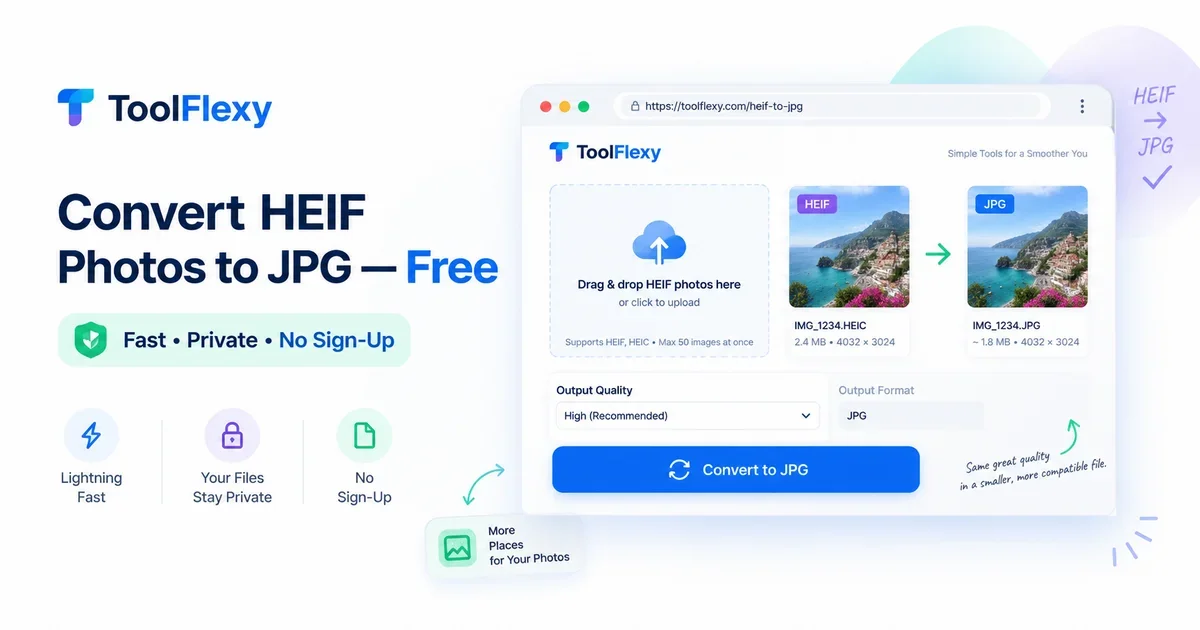
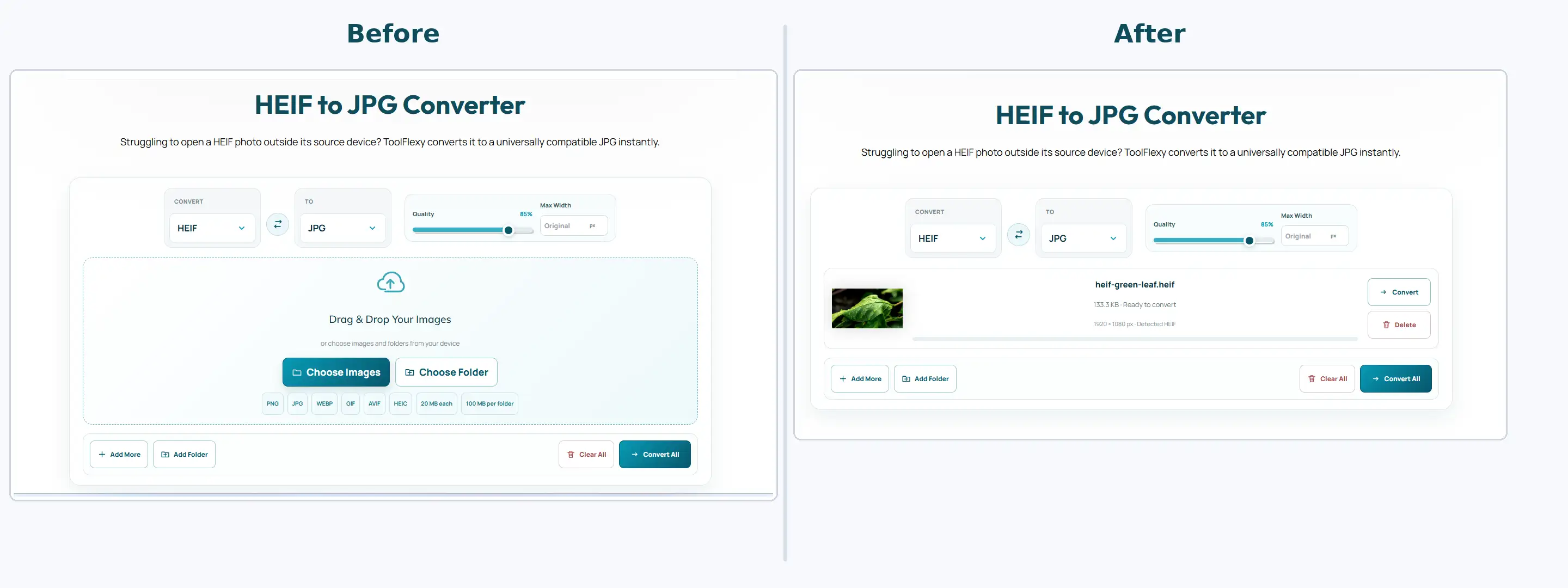
Drag and drop your HEIF file into ToolFlexy’s HEIF to JPG converter and download a standard JPG seconds later — no account, no watermark, no software to install. Everything happens locally in your browser, so the photo itself is never uploaded anywhere, which matters if it’s a personal or private image.
The converter also accepts PNG, WEBP, GIF, AVIF, SVG, HEIC, TIFF, and BMP as input if you ever need to convert a different format, and lets you export to JPG, PNG, or WEBP depending on what you actually need. A quality slider (85% by default) controls the size-versus-detail trade-off, and you can drop in an entire folder at once — up to 100MB per folder, 20MB per individual file — instead of converting photos one at a time.
HEIF vs HEIC vs JPG — What’s Actually the Difference?
HEIC is the specific file extension Apple uses for photos, while HEIF is the broader container format that HEIC is built on — in practice, “HEIF won’t open” and “HEIC won’t open” trace back to the exact same root cause. Both rely on HEVC compression that most non-Apple software has been slow or selective about supporting, while JPG uses older, near-universally supported compression.
What Is a HEIF File?
HEIF (High Efficiency Image File Format) is a container format that most commonly uses HEVC video compression to squeeze more visual detail into a smaller file than JPG can manage at the same quality level. The trade-off is compatibility: JPG’s compression method is decades old and license-free, so literally everything supports it, while HEIF’s efficiency comes with licensing friction that keeps adoption uneven outside Apple devices.
Neither format is objectively “better” — they’re optimized for different priorities. HEIF wins on storage efficiency if you’re staying inside a fully-supported ecosystem; JPG wins on the simple fact that it opens everywhere, on every device, in every app, without a second thought.
Do You Need Special Software to Open a HEIF File?
No — converting is the simpler fix, but it’s worth knowing the alternative exists. Recent versions of Windows and some photo-editing tools can add HEIF support through an official codec extension, though that only fixes viewing on that one device, not sharing the file with someone else or uploading it to a form that expects JPG.
Converting to JPG solves the problem everywhere at once instead of installing a codec on every device the photo might ever touch — which is why it’s the more practical fix for a photo you actually need to send, upload, or archive somewhere.
Will Converting HEIF to JPG Reduce Photo Quality?
At a high quality setting, the difference between the original HEIF and the converted JPG is essentially invisible for real photos, since JPG’s compression is mature and well-tuned for photographic detail. The quality slider is what controls this trade-off directly — the higher the number, the closer the JPG stays to the original.
Keep the slider at 90% or above if you plan to print the photo or zoom in closely later, since that’s where compression artifacts would actually become visible. For anything only headed to a text message or social post, dropping to 75-80% saves extra file size with no visible difference on a phone screen.
Should You Change Your Phone’s Camera Settings Too?
Switching your phone’s camera to save photos as JPG instead of HEIF avoids the problem going forward, but it comes with a real trade-off: JPG files are noticeably larger than HEIF at the same visual quality, so you’ll fill up storage faster. For most people, the better approach is leaving the camera on its default setting and converting to JPG only for the specific photos that actually need to leave the device — which is exactly what a converter is for.
If you regularly send photos to people on older devices or upload to platforms that reject HEIF outright, changing the camera setting can still make sense — it just trades storage space for one less step every time you share a photo.
Real Situations Where You Need to Convert HEIF to JPG Free
The most common trigger is a photo — often from a camera or phone that defaults to HEIF — that won’t open on a Windows PC, won’t attach to certain apps, or gets rejected outright by an upload form that only lists JPG and PNG. Sending the same photo to someone on an older device or a different platform runs into the identical wall.
It also comes up in bulk, not just one photo at a time: someone importing an entire camera roll into an old photo-editing tool, or archiving a folder of event photos onto a platform that has never added HEIF support. That’s exactly why batch folder conversion — rather than converting files one by one — is worth using instead of individually uploading dozens of photos to a converter that only takes one at a time.
Tips for the Best Results When Converting HEIF Files
Match the quality setting to what the photo is actually for: 90%+ for anything you’ll print, zoom into, or archive long-term, and 75-80% for anything only going to a screen or a chat. If you’re converting an entire folder, run one test photo through first at your chosen quality setting so you’re not redoing dozens of files if the result isn’t what you expected.
If the output still feels too large for whatever you’re sending it to, the same converter’s max-width option can downscale the resolution alongside the quality reduction, which shrinks the file further without a second tool or step.
One more thing worth checking before you convert a large batch: confirm the output format you actually need. JPG is the safest universal choice, but if the destination supports WEBP, that format can produce an even smaller file at a comparable quality level — the converter supports both as export options alongside PNG.
Explore More Free Image Tools
Already converting a HEIC photo instead of HEIF? ToolFlexy’s Convert HEIC to JPG guide covers that exact case, and the SVG to WEBP Converter and Free Image Format Converter guides handle other common format-mismatch problems the same way — free, no sign-up, no upload. If it’s file size rather than format that’s the issue, Compress Image Online Free solves that instead.
Conclusion
A HEIF photo that won’t open anywhere but its own device is a compatibility problem, not a quality problem — and it shouldn’t take a sign-up or a software install to fix. If you need to convert HEIF to JPG free, ToolFlexy handles it entirely in your browser: batch folder support for whole camera rolls, a quality slider so you’re never guessing, and a standard JPG out the other end that opens everywhere. Try the HEIF to JPG Converter now — drop in your file or folder, and download a version that just works.