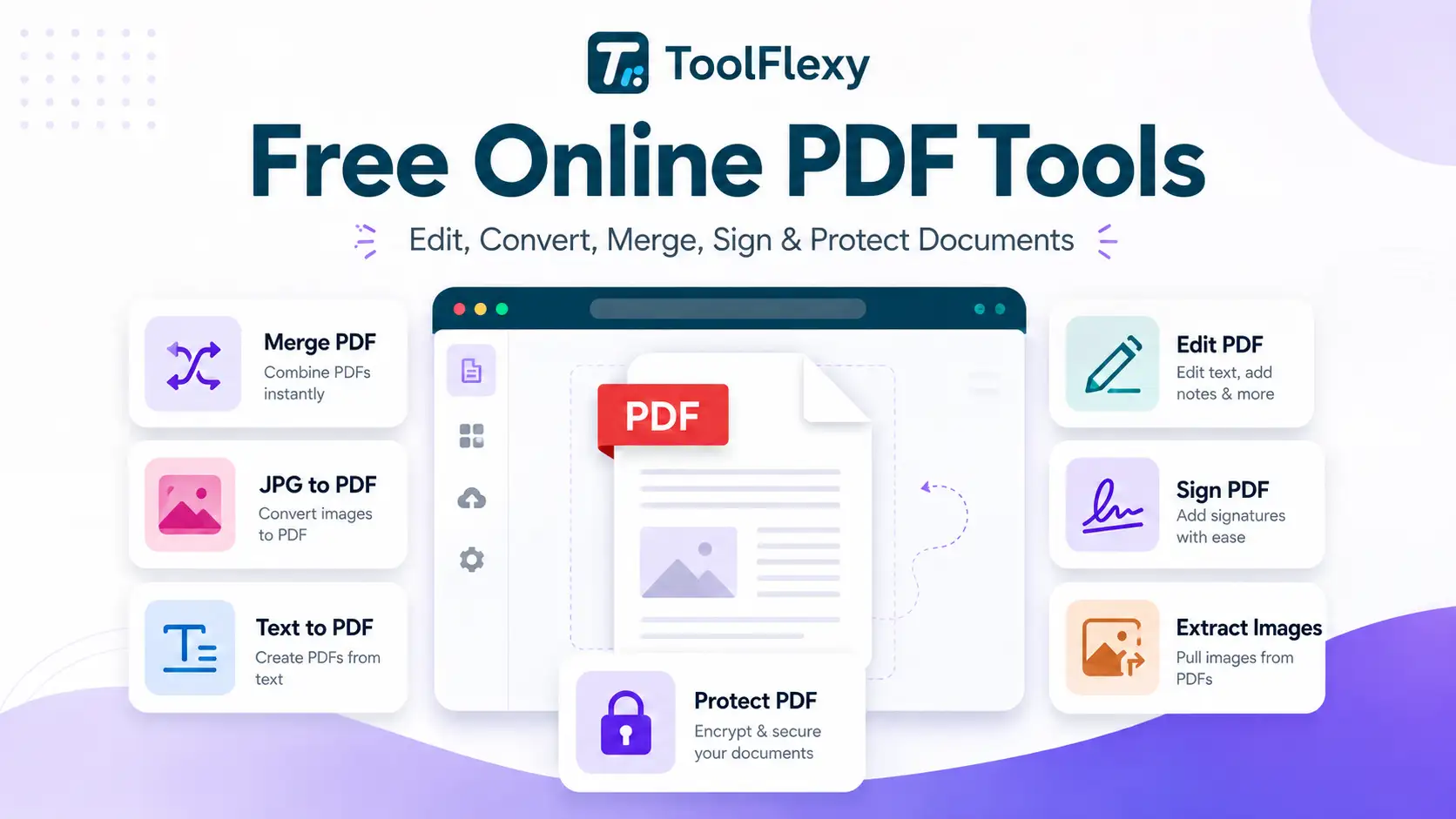
You don’t need to install anything to merge, split, convert, edit, sign, watermark, compress, or protect a PDF — these 19 free online PDF tools handle every one of those tasks in a couple of minutes, right in your browser, with no account. This guide brings all of ToolFlexy’s free online PDF tools together in one place, grouped by what you’re actually trying to do, so you can find the right one without hunting through a tools menu.
How These Tools Actually Handle Your Files
Most of these tools process your file directly in your browser for typical documents, and none of them require an account or add a watermark to your download (unless you’re deliberately using the Watermark PDF tool to add one yourself). A few — converting HTML or plain text to PDF, a visually complex PDF-to-Word conversion, or unlocking/applying military-grade AES-256 protection — automatically use a secure, encrypted cloud step for the parts your browser genuinely can’t do alone, and that file is deleted from ToolFlexy’s servers as soon as your download is ready. Where a tool works differently from that general pattern, it’s called out specifically below.
Converting PDFs
PDF to Word turns a static PDF into an editable .docx file, rebuilding the text and layout rather than just dumping raw text into a document. Simple PDFs convert entirely in your browser; more visually complex ones automatically use ToolFlexy’s cloud engine to preserve formatting more reliably, with the file deleted immediately after your download.
Word to PDF goes the other direction — turning a finished .docx document into a shareable PDF that looks the same on any device. It currently supports modern .docx files (not the older .doc format), so re-save an old .doc file as .docx first if that’s what you’re starting with.
Excel to PDF converts a spreadsheet into a clean, print-ready PDF — useful for sending a finished report or invoice without the recipient needing Excel installed, or worrying about them accidentally editing your formulas.
JPG to PDF is the one to use for scanned documents, receipts, or handwritten notes photographed on a phone — pick one or several JPGs and they’re combined into a single PDF, in the order you choose.
PDF to JPG goes the other direction — turning each page of a PDF into its own JPG image, useful for pulling a single page out to share or post somewhere that only accepts images.
HTML to PDF turns a webpage or raw HTML/code snippet into a static PDF, which is genuinely useful for archiving a page as it looked on a specific date, or turning a code export into something shareable that doesn’t need a browser to view. This one processes through an encrypted cloud connection rather than purely in-browser, since rendering arbitrary HTML reliably needs more than client-side JavaScript alone can guarantee.
Text to PDF also uses that same encrypted server connection to turn a plain .txt file into a formatted PDF, then deletes it immediately afterward — useful for turning notes, logs, or exported data into something shareable without opening a word processor first.
Combining and Reorganizing PDFs
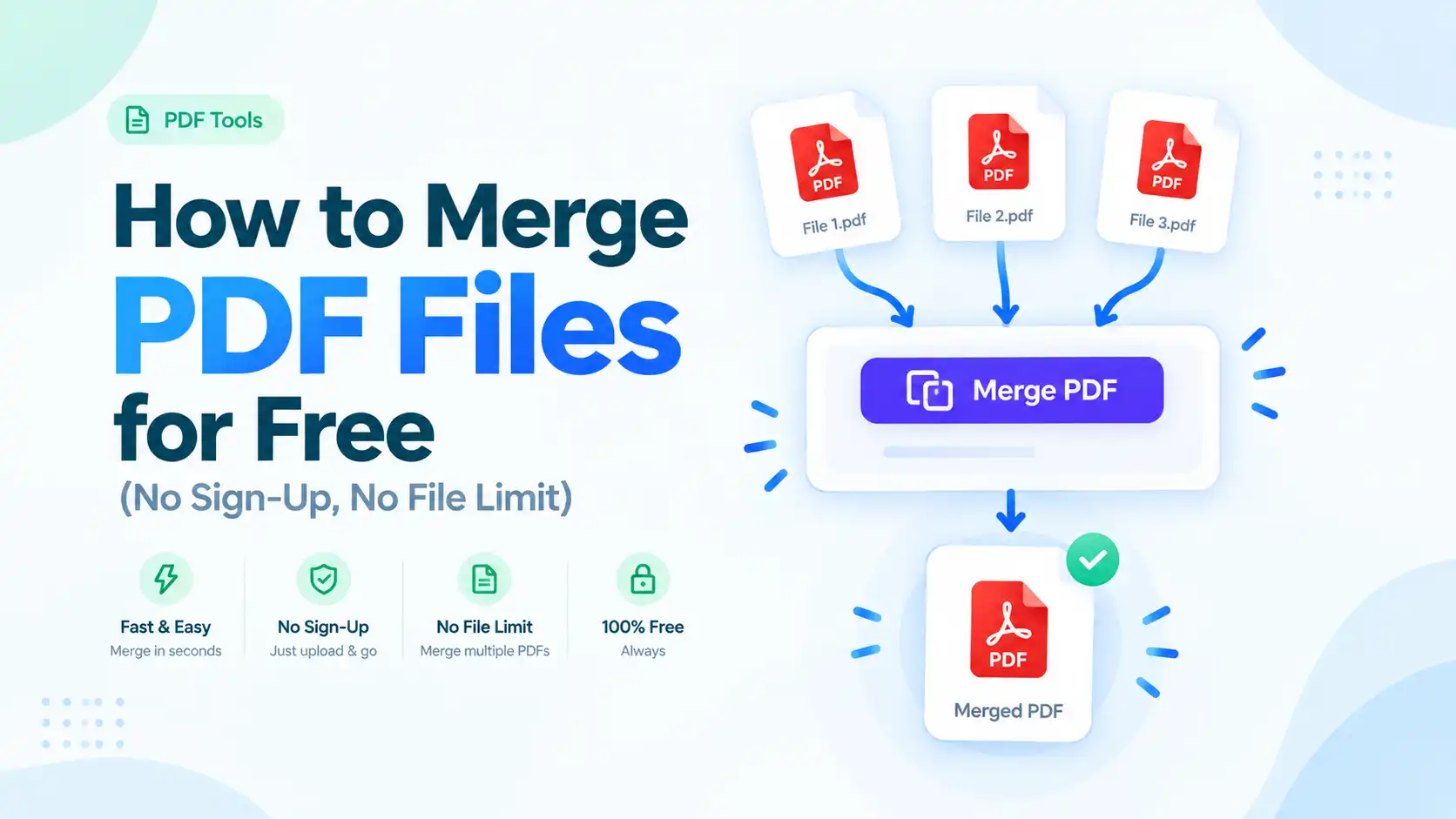
Merge PDF combines multiple PDF files into one document while preserving each file’s original formatting, and lets you reorder the files before merging — useful for assembling a single packet from several separately-scanned documents.
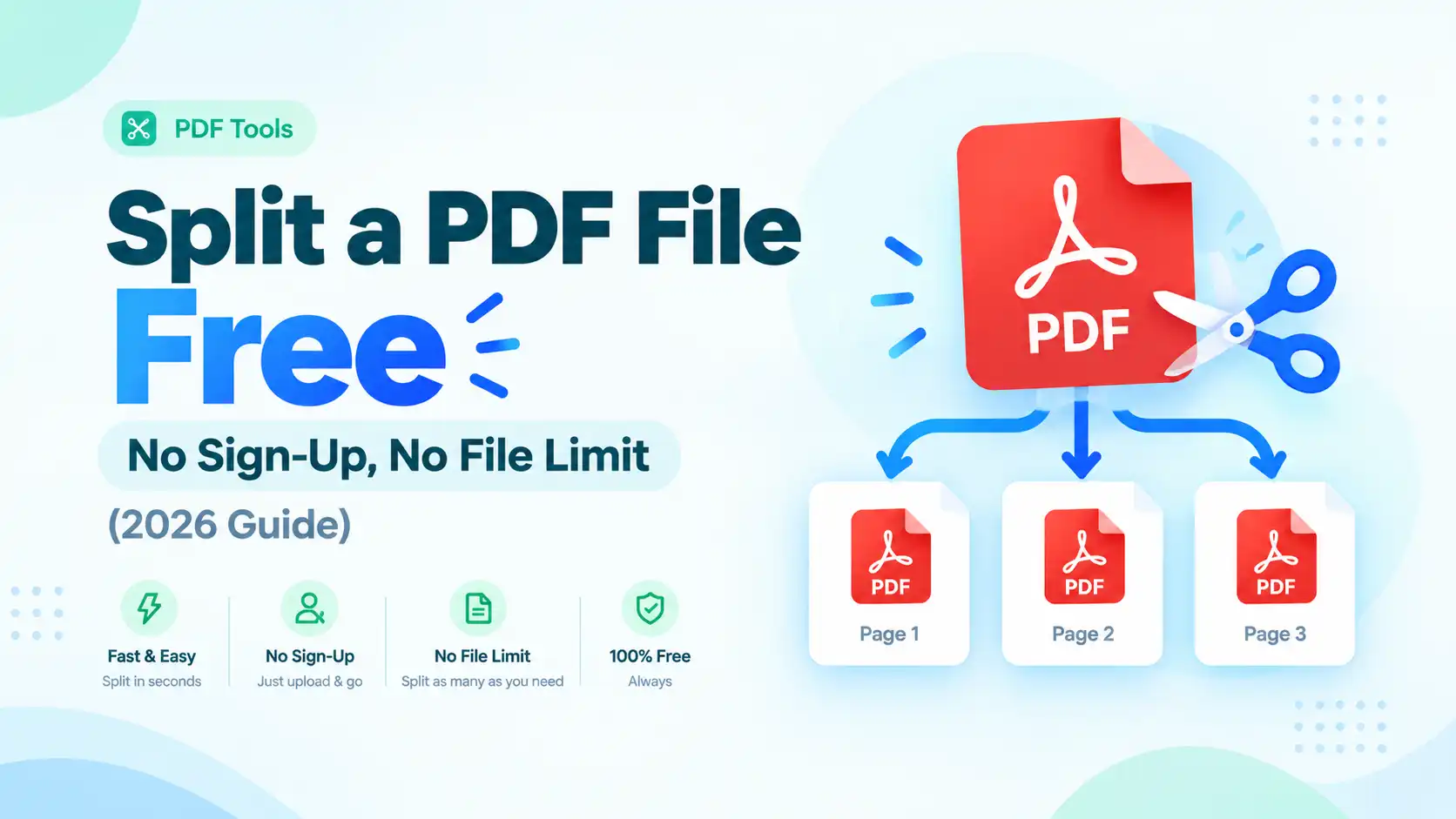
Split PDF does the reverse: pull specific pages out of a PDF or divide one large document into smaller files, without needing to know which pages go where in advance.
Organize PDF is the more flexible option when you need finer control than a straight split or merge — drag pages into a new order, duplicate a page, delete pages individually or in a batch, rotate a page that scanned in sideways, or pull in pages from a second PDF entirely.
Rotate PDF exists specifically for the single-page version of that problem — a document that scanned in sideways or upside-down, fixed in one step without needing the full page-organizer.
Delete PDF Pages permanently removes specific pages you choose, which is the quicker option when you just need to drop a blank cover sheet or a page you don’t want shared, rather than reorganizing the whole document.
Add PDF Page Number inserts sequential numbering with real control over how it looks — header, footer, left/center/right position, “Page X” or “Page X of Y” formatting, custom start and end pages, and a choice of fonts — useful for a report or manuscript that needs to look properly finished before it goes out.
Editing and Signing PDFs
Edit PDF lets you add or modify text, insert JPG or PNG images, highlight lines, draw freehand annotations, and add checkmarks or shapes directly on the page — genuinely editing the PDF rather than requiring you to re-create it from scratch.
Sign PDF adds a signature three different ways: draw it with a mouse, trackpad, or touchscreen, type it in a stylized font, or upload a photo of your actual signature. Worth knowing upfront: this creates a visual electronic signature, not a certificate-based digital signature — fine for most everyday contracts and forms, but not a legal substitute for certificate-based e-signing where that’s specifically required.
Watermark PDF stamps a text label or an uploaded logo image across every page — the standard way to mark a document “Draft” or “Confidential,” or to brand a document you’re distributing publicly before the final version is ready.
Extract Image From PDF pulls the original embedded images out of a PDF directly, rather than re-rendering or recompressing them, so quality isn’t lost in the process. You can keep the original format, or convert everything to PNG or JPG (with an adjustable quality slider, 88% by default, for JPG output).
Compressing and Protecting PDFs
PDF Compressor shrinks a PDF’s file size for email attachments or upload portals with strict size limits, running directly in your browser with nothing to install.
Protect PDF offers two real options: standard password protection processes entirely in your browser, while stronger AES-256 encryption — a NIST-standardized encryption algorithm using a 256-bit key — runs through a secure cloud step and is deleted automatically afterward. Either way, ToolFlexy states your password itself is never logged or stored.
Unlock PDF removes password protection you already have the right to remove. If you know the current password, the file can often be processed in your browser; removing stronger owner-level encryption (including AES) requires the secure cloud step, and the password you enter is used only to unlock the file, never stored.
A Few Real-World Scenarios
Applying for a job usually means combining a resume, cover letter, and references into one file — Merge PDF handles that in one pass, in whatever order you drag the files into. If you built your resume with ToolFlexy’s resume builder, exporting it straight to PDF and merging it with your other documents keeps everything in a single attachment instead of three.
Filing taxes or submitting a mortgage application often means an upload portal that rejects anything over a fairly small size limit — PDF Compressor exists specifically for the moment a scanned document is too large to upload, without needing separate compression software installed on your computer.
Signing a lease, contract, or vendor agreement remotely is the classic case for Sign PDF — draw or type your signature once, drop it onto the signature line, and send the file back without printing, signing by hand, and re-scanning it.
Sending an early draft of a proposal or manuscript before it’s finalized is exactly what Watermark PDF is for — stamping “Draft” across every page so nobody mistakes it for the final version, without needing design software.
Which of These Free Online PDF Tools Do You Actually Need?
| You want to… | Use this tool |
|---|---|
| Turn a PDF into an editable document | PDF to Word |
| Turn a document, spreadsheet, or webpage into a PDF | Word to PDF / Excel to PDF / HTML to PDF |
| Turn photos/scans or plain text into a PDF | JPG to PDF / Text to PDF |
| Combine several PDFs into one | Merge PDF |
| Pull specific pages out, or fully reorganize a PDF | Split PDF / Organize PDF |
| Fix a sideways-scanned page | Rotate PDF |
| Permanently remove specific pages | Delete PDF Pages |
| Add page numbers before sending a document out | Add PDF Page Number |
| Add text, images, or annotations to a PDF | Edit PDF |
| Add a signature to a contract or form | Sign PDF |
| Stamp “Draft” or a logo across every page | Watermark PDF |
| Pull the original images out of a PDF | Extract Image From PDF |
| Shrink a PDF’s file size | PDF Compressor |
| Password-protect a sensitive PDF | Protect PDF |
| Remove a password you have the right to remove | Unlock PDF |
Is It Safe to Use These Free Online PDF Tools?
Yes — none of these 19 free online PDF tools require sign-up, charge for core features, or add an unwanted watermark, and the few that use a cloud step for heavier processing (HTML to PDF, Text to PDF, complex PDF to Word conversions, and the stronger options in Protect PDF and Unlock PDF) delete your file automatically once your download is ready. If a specific document is highly sensitive, using a purely browser-local tool where one is offered keeps the file on your device the entire time, and it’s worth checking a tool’s own page for its exact wording if you’re handling something like a signed contract or a financial document, since the processing method genuinely varies by tool rather than being identical across all nineteen.
Conclusion
Whether you need to convert, combine, reorganize, edit, sign, watermark, shrink, or protect a PDF, there’s a free ToolFlexy tool built for exactly that job — no software installation, no account, and no unwanted watermark on the result. Pick the one that matches what you’re actually trying to do from the table above and get it done in a couple of minutes.