
Ready to try it? Use our free PDF Compressor tool.
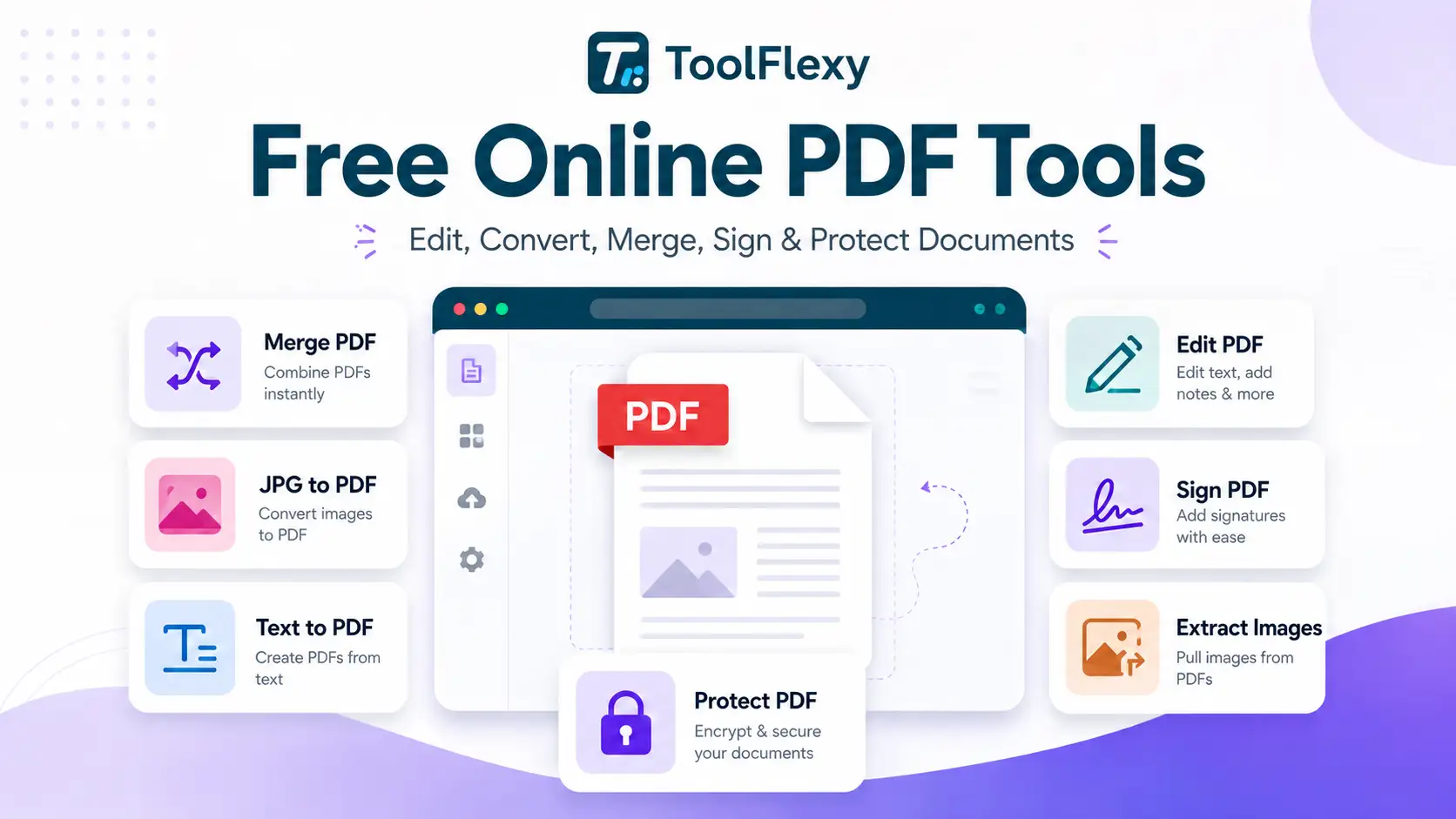
You don’t need to install anything to merge, split, convert, edit, sign, watermark, compress, or protect a PDF — these free online PDF tools handle every one of those tasks in a couple of minutes, right in your browser, with no account. This guide brings all of ToolFlexy’s free online PDF tools together in one place, grouped by what you’re actually trying to do, so you can find the right one without hunting through a tools menu.
How These Tools Actually Handle Your Files
Most of these tools process your file directly in your browser for typical documents, and none of them require an account or add a watermark to your download (unless you’re deliberately using the Watermark PDF tool to add one yourself). Processing methods depend on the selected tool and mode. Protect PDF now applies AES-256 or AES-128 locally; it does not require a cloud conversion upload. Other tools can have different requirements, so read their current controls and notices before choosing a workflow. Do not assume that every tool uploads documents or follows one server-deletion schedule.
Converting PDFs
PDF to Word turns a static PDF into an editable .docx file, rebuilding the text and layout rather than just dumping raw text into a document. Simple PDFs convert entirely in your browser; more visually complex ones automatically use ToolFlexy’s cloud engine to preserve formatting more reliably, with the file deleted immediately after your download. For a step-by-step walkthrough on keeping fonts, tables and layout intact, see our guide to converting PDF to Word without losing formatting.
Word to PDF goes the other direction — turning a finished .docx document into a shareable PDF that looks the same on any device. It currently supports modern .docx files (not the older .doc format), so re-save an old .doc file as .docx first if that’s what you’re starting with.
Excel to PDF converts a spreadsheet into a clean, print-ready PDF — useful for sending a finished report or invoice without the recipient needing Excel installed, or worrying about them accidentally editing your formulas.
JPG to PDF is the one to use for scanned documents, receipts, or handwritten notes photographed on a phone — pick one or several JPGs and they’re combined into a single PDF, in the order you choose. For the full walkthrough — including how to fix blurry scans, wrong page order, and oversized files — see our guide to converting JPG to PDF.
PDF to JPG goes the other direction — turning each page of a PDF into its own JPG image, useful for pulling a single page out to share or post somewhere that only accepts images.
HTML to PDF turns pasted code, an HTML file, or an accessible public webpage URL into a visual PDF snapshot. URL import works only when the website allows browser access; scripts and complex CSS may not match the live page. The PDF is rendered in your browser as image-based pages, so text may not be selectable. Check the exported result before sharing.
Text to PDF turns pasted text or TXT files into PDF in your browser. You can preview each file, adjust the page layout and convert up to 20 TXT files into separate PDFs in a ZIP. Standard Latin text can stay selectable; Urdu and other scripts may use image pages. Check the downloaded result before sharing.
Combining and Reorganizing PDFs
Merge PDF combines multiple PDF files into one document while preserving each file’s original formatting, and lets you reorder the files before merging — useful for assembling a single packet from several separately-scanned documents.
Split PDF does the reverse: pull specific pages out of a PDF or divide one large document into smaller files, without needing to know which pages go where in advance.
Organize PDF is the page-level workspace: reorder, rotate, duplicate or delete sheets, add pages from other PDFs, and insert sized blank pages. Use ranges or odd/even selection, preview a sheet at a larger size, and recover up to 50 edits with Undo/Redo. Export the full layout or just selected pages. Files stay on your device; the limits are 50 MB per PDF, 200 MB total source files and 1,000 workspace pages. Rebuilding may affect forms, bookmarks, internal links and signatures, so inspect the saved copy.
Rotate PDF exists specifically for the single-page version of that problem — a document that scanned in sideways or upside-down, fixed in one step without needing the full page-organizer.
Delete PDF Pages permanently removes specific pages you choose, which is the quicker option when you just need to drop a blank cover sheet or a page you don’t want shared, rather than reorganizing the whole document. If your scanner keeps leaving blank pages behind on every document, our guide to removing blank pages from a scanned PDF covers the fastest way to clean it up.
Crop PDF trims the visible margins of one page, a chosen range, or every page. Set the same crop box for selected pages or adjust each page separately, then download and check the result. The document stays in your browser. Cropping does not remove hidden text or images, so it is not a redaction method.
Add PDF Page Number inserts sequential numbering with real control over how it looks — header, footer, left/center/right position, “Page X” or “Page X of Y” formatting, custom start and end pages, and a choice of fonts — useful for a report or manuscript that needs to look properly finished before it goes out.
Editing and Signing PDFs
Edit PDF lets you add new text, insert JPG, PNG or WebP images, highlight lines, draw freehand annotations, and place checkmarks or shapes over PDF pages. You can edit the text you add, but the original embedded words are not rewritten.
Sign PDF adds a signature three different ways: draw it with a mouse, trackpad, or touchscreen, type it in a stylized font, or upload a photo of your actual signature. Worth knowing upfront: this creates a visual electronic signature, not a certificate-based digital signature — fine for most everyday contracts and forms, but not a legal substitute for certificate-based e-signing where that’s specifically required.
Watermark PDF stamps a text label or an uploaded logo image across every page — the standard way to mark a document “Draft” or “Confidential,” or to brand a document you’re distributing publicly before the final version is ready.
Extract Image From PDF finds embedded raster images in a PDF. Supported JPEGs can keep their original bytes without recompression; other supported pixel data becomes PNG. Choosing PNG or JPG conversion re-encodes the image, with a quality slider for JPG output.
Compressing and Protecting PDFs
PDF Compressor shrinks a PDF’s file size for email attachments or upload portals with strict size limits, running directly in your browser with nothing to install. For specific tips on shrinking a PDF without visibly degrading it, see our guide to compressing a PDF without losing quality.
Protect PDF now offers on-device AES-256 by default and an explicit AES-128 compatibility option. Set and confirm an open password for confidential access. A separate owner password controls full access in supporting readers; if omitted, the tool generates a random one without retaining it. Reader permissions cover printing, copying, editing, annotations, form filling and page assembly, but some readers ignore them. The file limit is 50 MB. Software downloads from a CDN on first use; PDF bytes and passwords are not sent to a conversion server. Test the download before sharing. AES is described in the NIST encryption standard.
Unlock PDF removes known open or owner passwords from PDFs you are authorized to change. Standard AES-256, AES-128 and legacy RC4 processing now runs on your device, with no automatic conversion-server upload. Choose up to 10 PDFs, no more than 50 MB each or 100 MB per batch. Use a common password or a separate override per file, then download successful PDFs individually or as ZIP. A failed file is excluded without blocking the rest. This does not recover forgotten passwords, remove visible watermarks or turn scanned pages into editable text. Keep the original: rewriting can invalidate digital signatures, and forms, links and bookmarks should be checked in the saved copy.
A Few Real-World Scenarios
Applying for a job usually means combining a resume, cover letter, and references into one file — Merge PDF handles that in one pass, in whatever order you drag the files into. If you built your resume with ToolFlexy’s resume builder, exporting it straight to PDF and merging it with your other documents keeps everything in a single attachment instead of three.
Filing taxes or submitting a mortgage application often means an upload portal that rejects anything over a fairly small size limit — PDF Compressor exists specifically for the moment a scanned document is too large to upload, without needing separate compression software installed on your computer.
Signing a lease, contract, or vendor agreement remotely is the classic case for Sign PDF — draw or type your signature once, drop it onto the signature line, and send the file back without printing, signing by hand, and re-scanning it.
Sending an early draft of a proposal or manuscript before it’s finalized is exactly what Watermark PDF is for — stamping “Draft” across every page so nobody mistakes it for the final version, without needing design software.
Which of These Free Online PDF Tools Do You Actually Need?
| You want to… | Use this tool |
|---|---|
| Turn a PDF into an editable document | PDF to Word |
| Turn a document, spreadsheet, or webpage into a PDF | Word to PDF / Excel to PDF / HTML to PDF |
| Turn photos/scans or plain text into a PDF | JPG to PDF / Text to PDF |
| Combine several PDFs into one | Merge PDF |
| Pull specific pages out, or fully reorganize a PDF | Split PDF / Organize PDF |
| Fix a sideways-scanned page | Rotate PDF |
| Permanently remove specific pages | Delete PDF Pages |
| Add page numbers before sending a document out | Add PDF Page Number |
| Add text, images, or annotations to a PDF | Edit PDF |
| Add a signature to a contract or form | Sign PDF |
| Stamp “Draft” or a logo across every page | Watermark PDF |
| Pull the original images out of a PDF | Extract Image From PDF |
| Shrink a PDF’s file size | PDF Compressor |
| Password-protect a sensitive PDF | Protect PDF |
| Remove a password you have the right to remove | Unlock PDF |
Is It Safe to Use These Free Online PDF Tools?
Check the processing notice on the specific tool before selecting a document. Protect PDF encrypts supported PDFs on your device, and Unlock PDF now removes standard AES and RC4 password protection locally too. These workflows download engine software from a CDN, but do not send document bytes or passwords to a conversion service. Their file-size limits and your device’s memory still apply.
Other PDF tools can use different methods, including server processing. HTTPS protects data in transit; it does not by itself prove immediate deletion, end-to-end encryption or a particular retention period. Do not assume every tool has the same upload or deletion behavior. Review the current notice and your organization’s rules before handling confidential files.
For password-based tasks, keep the protected original, confirm authorization and inspect the downloaded result. Unlocking produces an unencrypted copy and can invalidate digital signatures. Store downloads and ZIP archives carefully, and share them only with intended recipients. A browser-based workflow is convenient, but no tool notice should be read as a guarantee against every device or browser risk.
More Control When Deleting PDF Pages
Delete PDF Pages now supports Shift-click range selection, Invert and Keep selected pages, alongside manual ranges, blank-page suggestions and Undo/Redo. It handles one PDF up to 50 MB and 500 pages locally. Check current positions against original page labels and the kept-page summary before downloading. Detection is a suggestion, not proof of an empty page; inspect faint marks. Keep the original because rebuilding can affect forms, links, bookmarks and digital signatures.
Conclusion
Whether you need to convert, combine, reorganize, edit, sign, watermark, shrink, or protect a PDF, there’s a free ToolFlexy tool built for exactly that job — no software installation, no account, and no unwanted watermark on the result. Pick the one that matches what you’re actually trying to do from the table above and get it done in a couple of minutes.
Number a PDF After Arranging Its Pages
Add PDF Page Number handles one PDF up to 50 MB and 500 pages locally. Use separate Roman and Arabic ranges, custom starting values, skip lists, header/footer positions, color and opacity. To leave a cover unnumbered, set From to 2 and Start to 1; the facing-page cover checkbox only changes alternating side placement. Skipped pages still count in the sequence. Existing printed numbers are not erased, and contents references are not updated automatically. Save again after changing settings, then inspect the downloaded copy for overlap and correct numbering.
Add a Text Label and Logo to Selected PDF Pages
Watermark PDF can combine text and a PNG or JPEG logo in one local export. Set each layer’s opacity, rotation and single or tiled placement, then choose all, odd, even or custom pages. It accepts one PDF up to 50 MB and 500 pages; logos can be up to 10 MB and 20 megapixels. Marks sit above existing content, so inspect readability. A watermark is a visible label, not encryption or guaranteed copy protection, and it does not remove existing marks. Keep signed originals because editing invalidates their signatures.
Extract Embedded Pictures or Render Entire Pages?
Extract Image From PDF saves embedded raster pictures, with image previews, physical-page ranges, tiny-image and duplicate filters, original JPEG output when supported, and a selected-image ZIP. It handles one PDF up to 50 MB and 500 pages locally. Other supported pixel data becomes PNG; forcing JPG or PNG re-encodes it. CCITT/JBIG2 and unusual image streams can remain unsupported. If you need the whole page with its text and layout, use PDF to JPG instead.